Speech to on-screen captions

Add Captions to Videos Free Online

Automatically add accurate captions to your videos in seconds. Upload a video, generate captions, customize the style, and export ready-to-share content.

Upload video
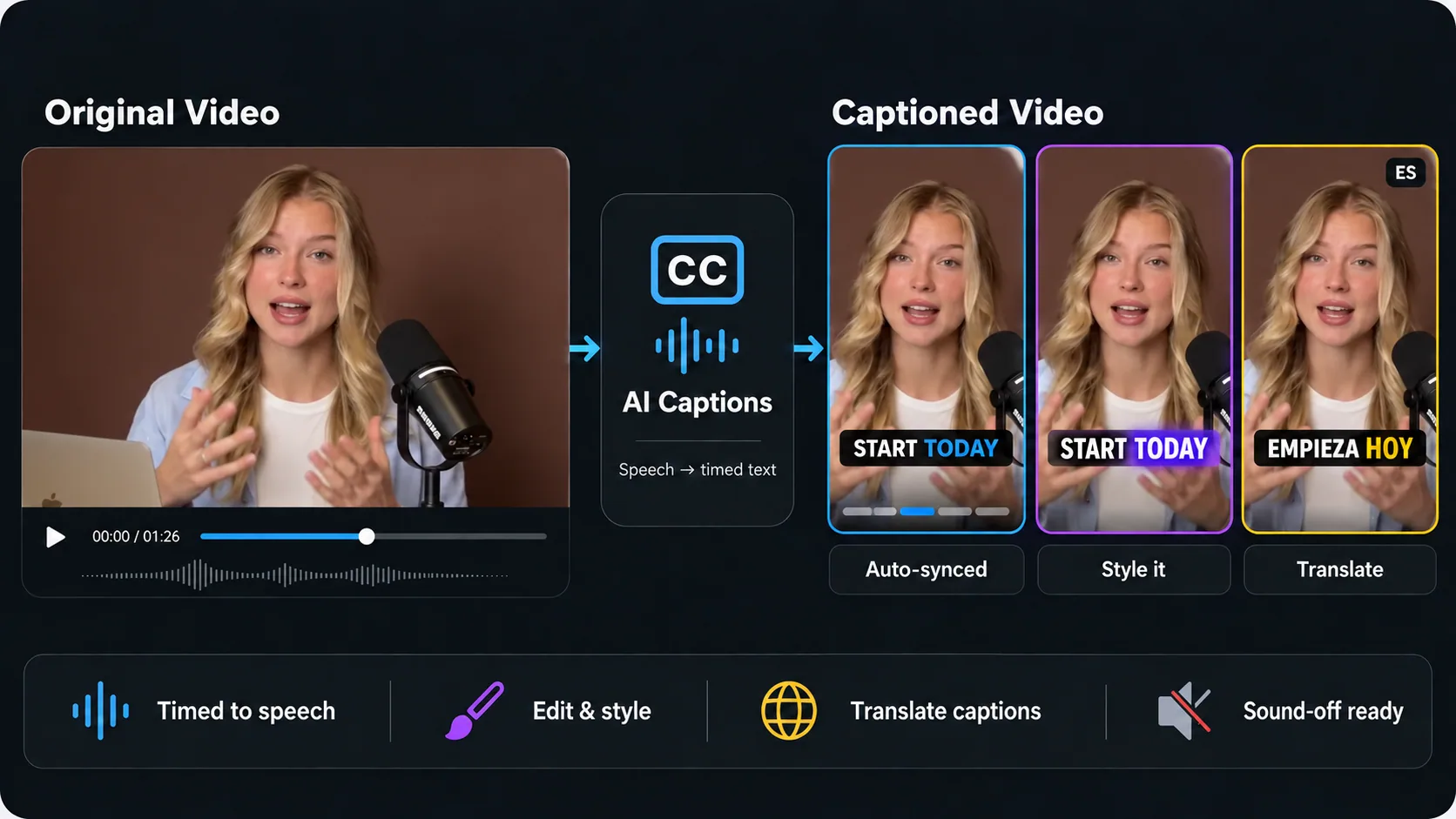
Original video compared with timed, styled and translated on-screen captions

Video Caption Generator - Add Captions to Videos Free Online

Timed · readable · easier to share

What Makes VideoTube's Video Caption Generator Stand Out

Help viewers follow your video, even on mute, with clear, timed captions made without manual typing.

Video caption generator showing readable on-screen text for social videos
  • Captions That Follow the Moment

    Video Caption Generator turns spoken audio into timed on-screen text. Review each line alongside the video to check names, numbers, and important details before sharing.

  • Clear Even With Sound Off

    Keep the message visible when someone watches a podcast excerpt, tutorial, or product demo without audio. Readable captions help viewers follow the point without relying on the soundtrack.

  • Less Manual Caption Work

    Upload a video or paste a YouTube link to get a timed caption draft. Check the text in context and prepare a captioned clip for sharing without typing every spoken line from scratch.

How to Use Video Caption Generator

Add captions to a video you want to share. Start with your footage, generate timed text, then check how the words appear in the finished clip.

1

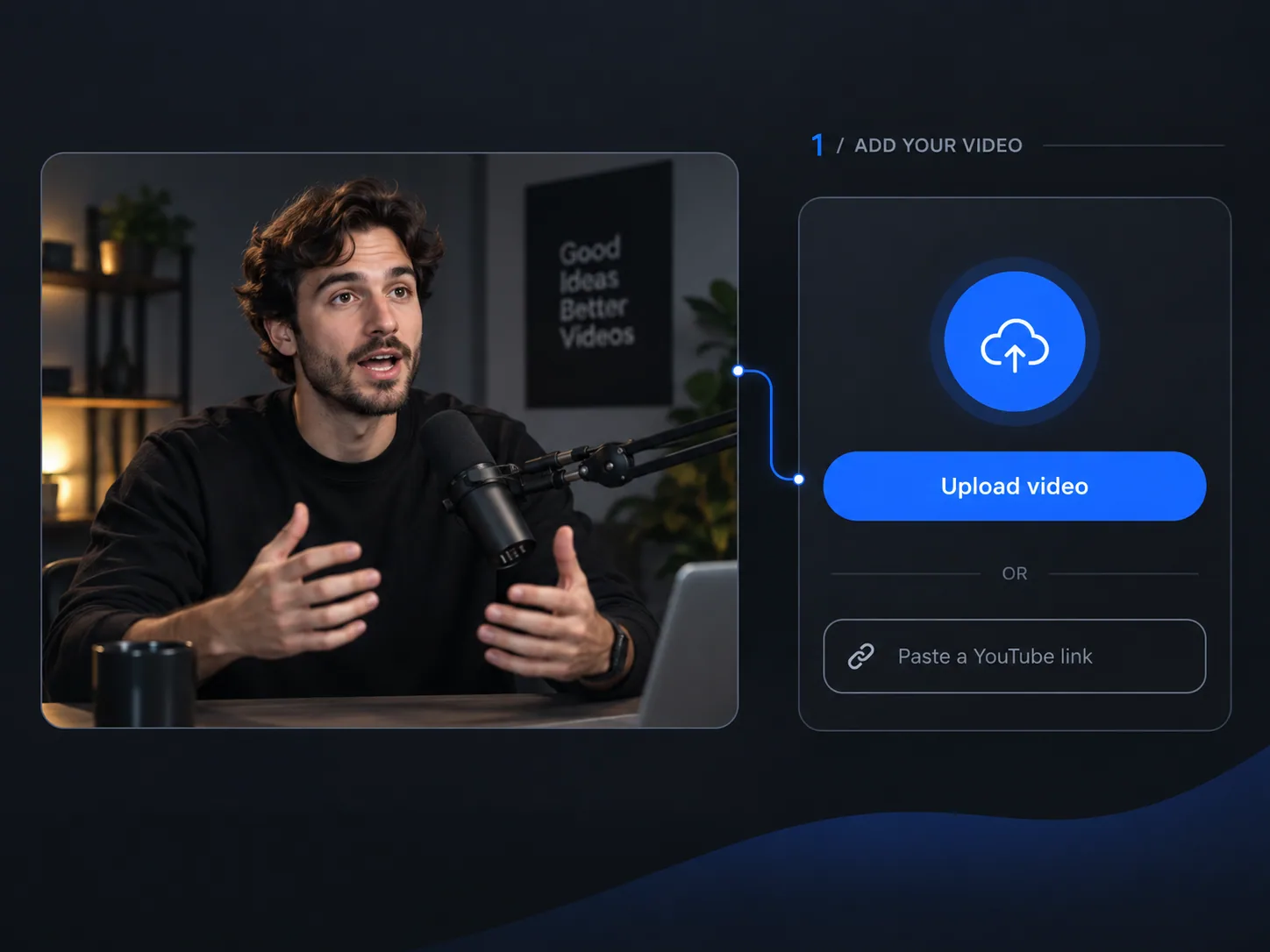
Step 1: Upload a Video or Paste a Link

Upload your video or paste a YouTube link. Choose the footage you want to caption and start with clear spoken audio when possible.

Adding a video file or link to begin generating captions
2

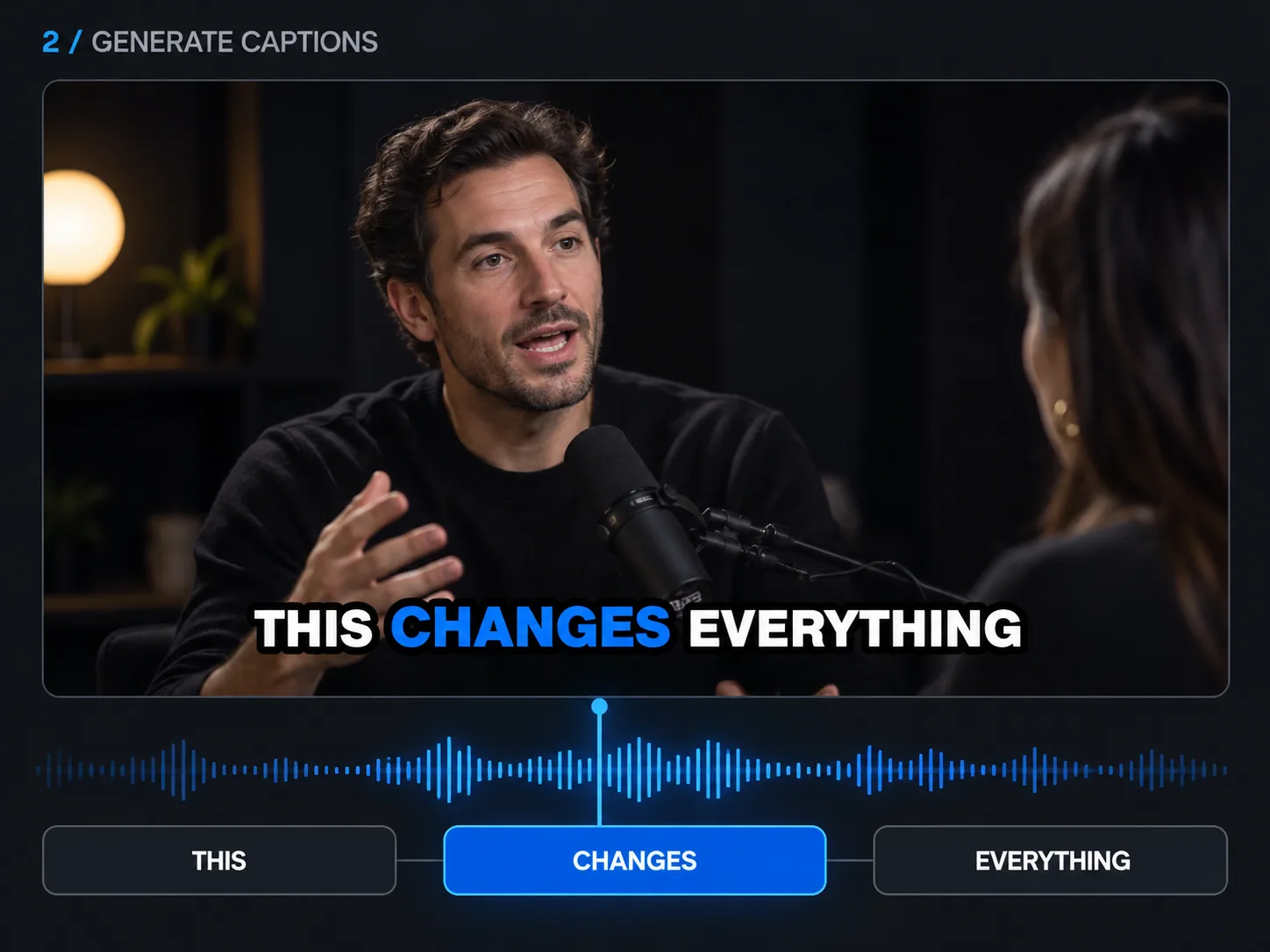
Step 2: Generate Captions

Let VideoTube turn speech into timed on-screen text. Preview the video to see how each caption appears alongside the speaker and the scene.

Generating timed on-screen captions for a video
3

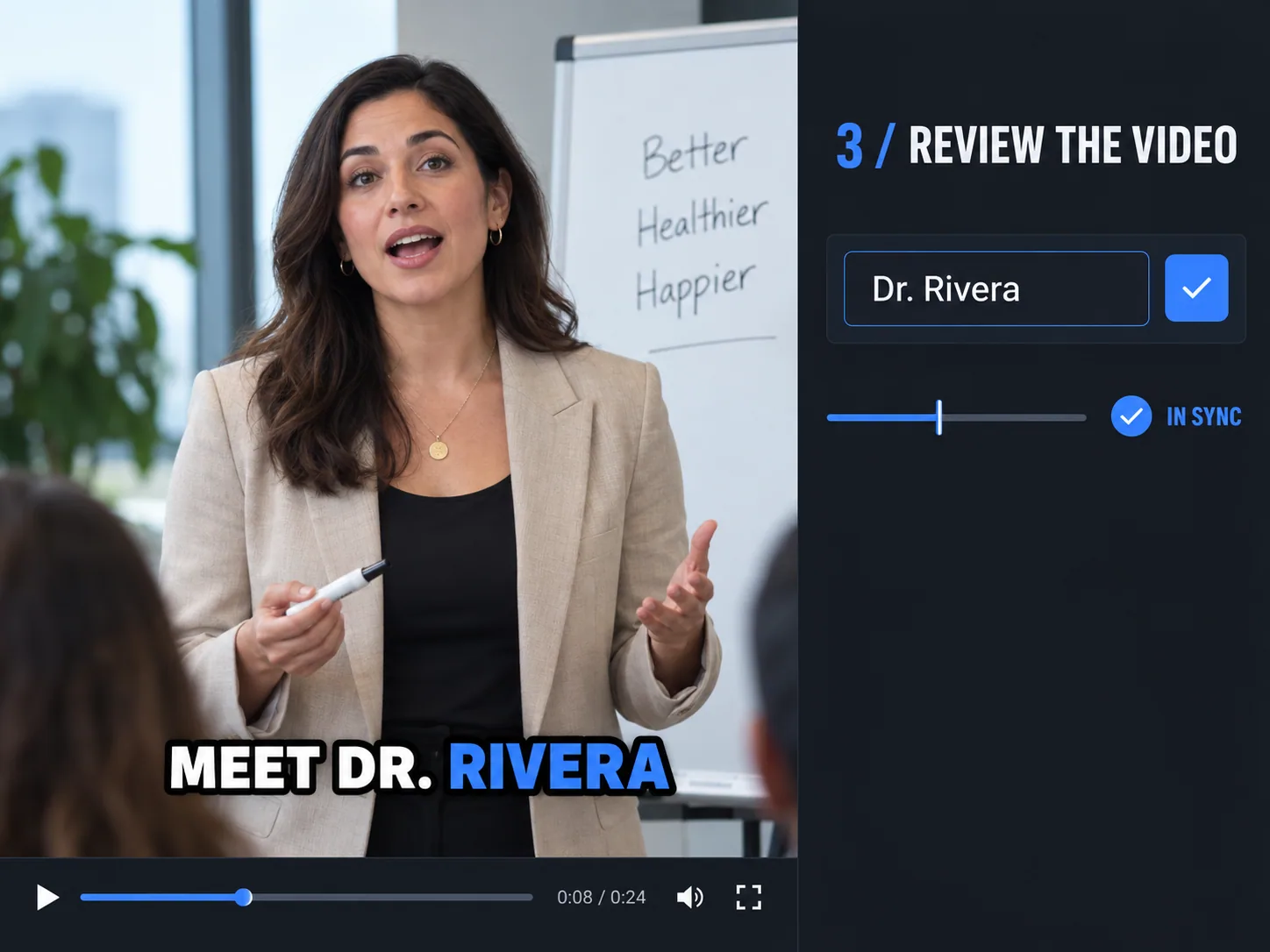
Step 3: Review the Captioned Video

Check and correct names, numbers, and key phrases against the audio. Watch the full clip once more to make sure captions stay in sync and viewers can follow with sound off.

Reviewing and correcting captions before exporting the video

Who Can Use Video Caption Generator?

From social posts to lessons and product demos, VideoTube's Video Caption Generator turns speech into timed on-screen text. Creators can make their videos easier to follow, give captions a fitting style, and reach viewers in other languages.

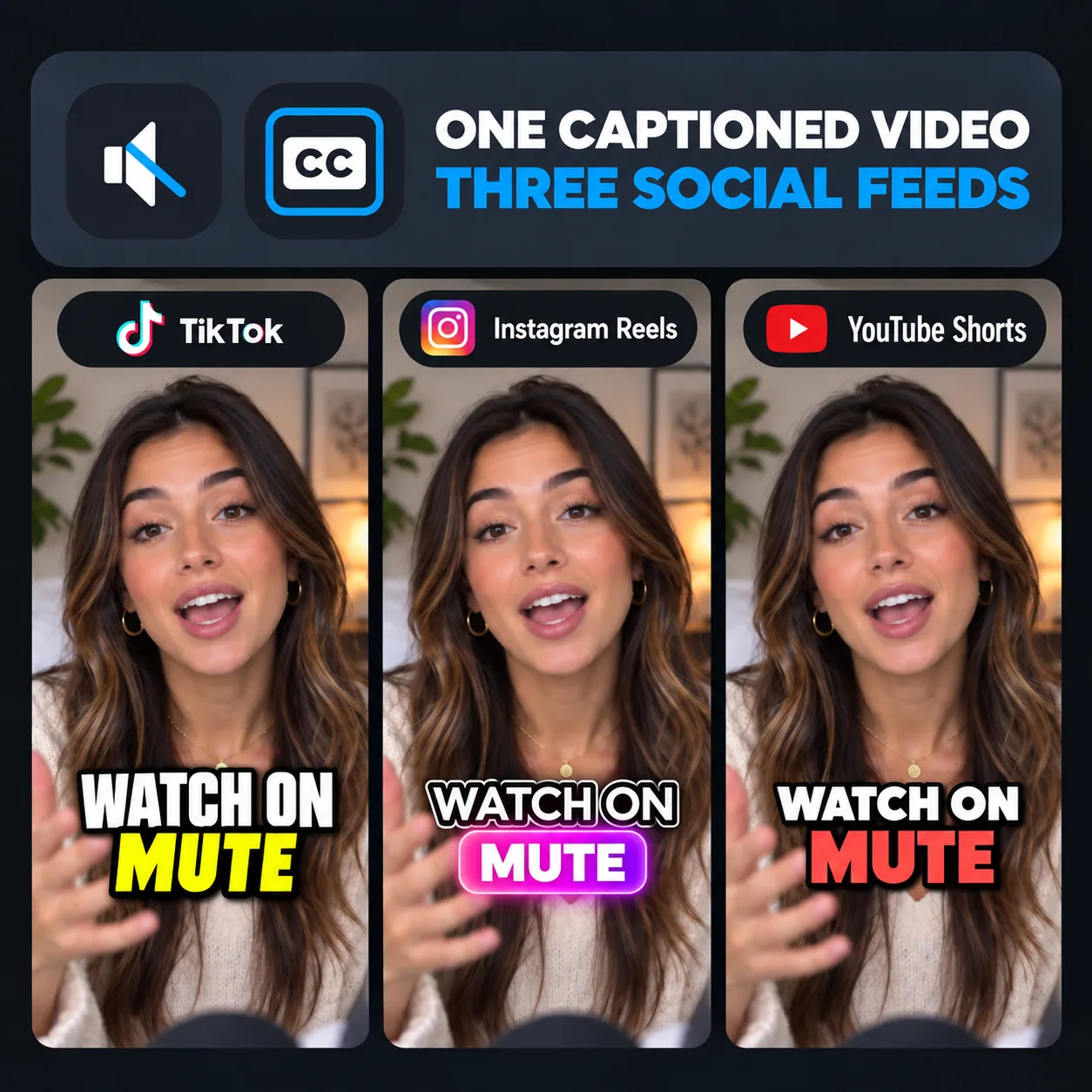
Social short with legible captions during muted playback

SOCIAL CREATORS

Make Short Videos Work With Sound Off

Turn spoken hooks, quick tips, and reactions into on-screen captions for Reels, TikToks, and Shorts. VideoTube keeps the words timed to the speech, so the point of a short clip stays visible even when it starts playing on mute.

  • Generate timed captions for Reels, TikToks, and Shorts
  • Keep the main message visible without sound
  • Use caption styles that fit fast-moving videos
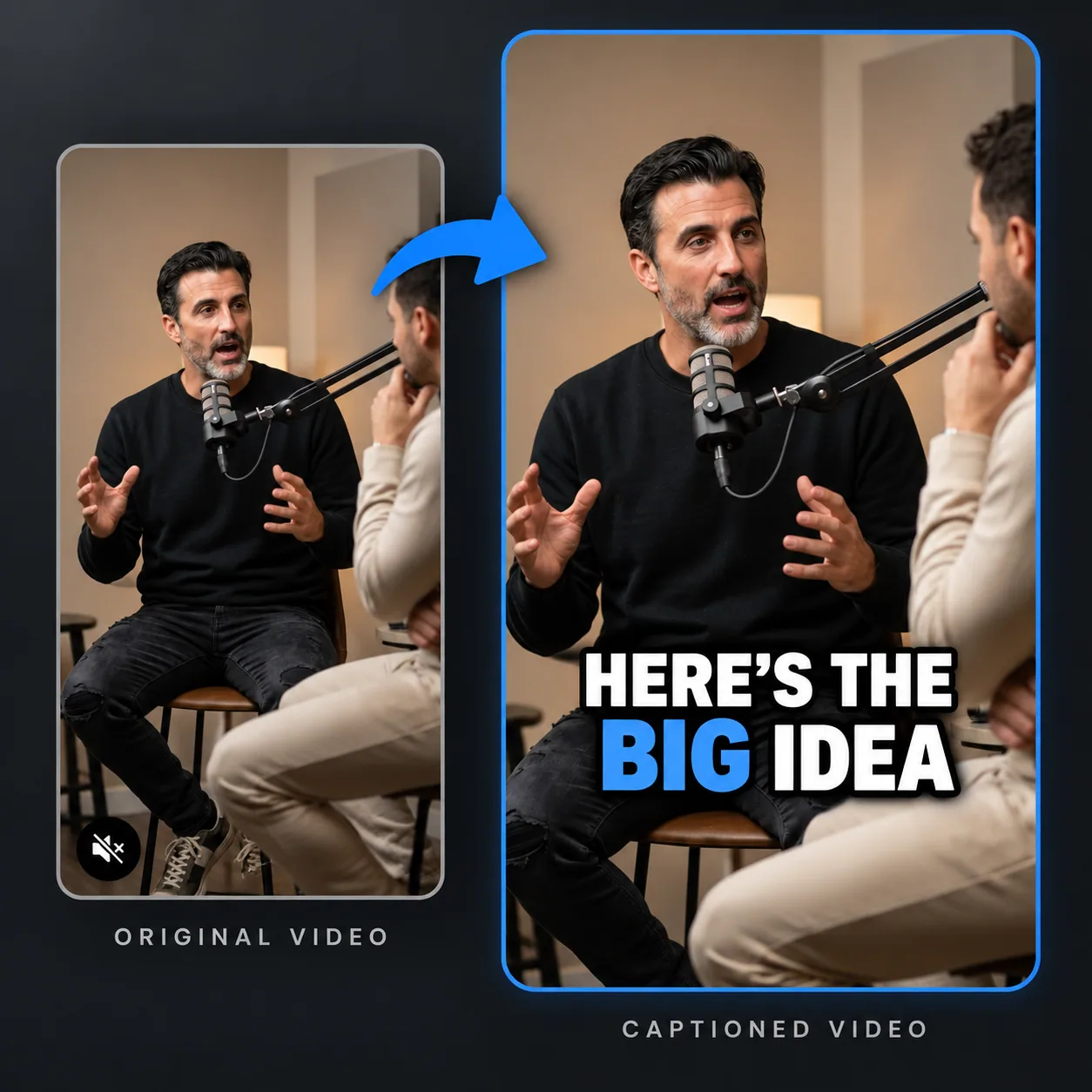
Podcast excerpt with captions on screen

PODCASTERS

Bring Podcast Conversations to Social Feeds

Put the best exchanges from a podcast on screen as timed captions. Viewers can follow the conversation even if they cannot listen to the audio. For full episodes that still need to become shorter clips, VideoTube's AI Clip Maker can help find moments to share.

  • Add captions to podcast excerpts and interviews
  • Show spoken exchanges as the conversation unfolds
  • Turn audio-led moments into watchable social clips
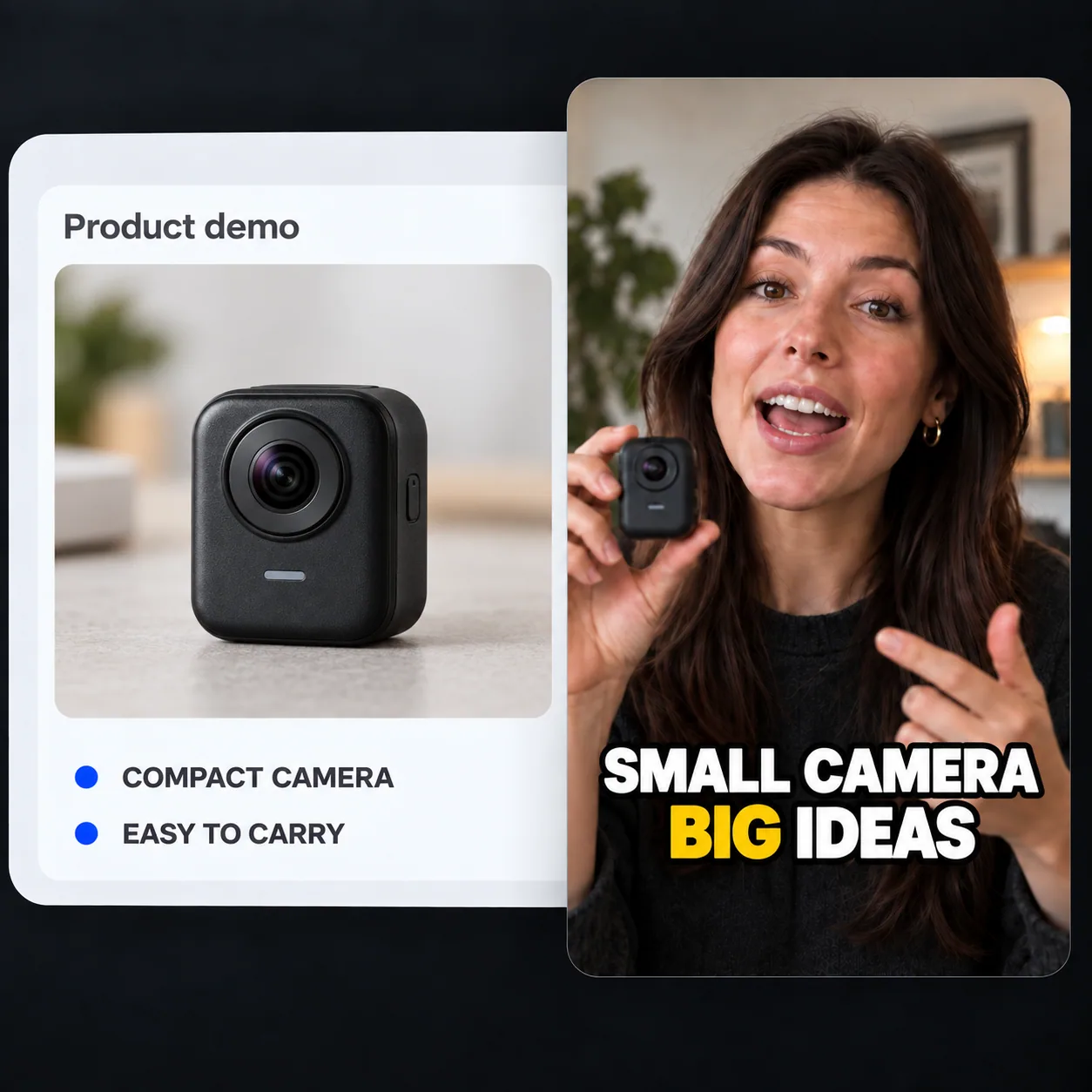
Product demonstration with on-screen benefit captions

PRODUCT MARKETERS

Show the Message Alongside the Product

Give product demos, launch videos, and video ads on-screen captions that follow the spoken explanation. The feature being shown and the benefit being described stay together, even when someone sees the video in a muted social feed.

  • Add captions to demos, launch videos, and ads
  • Keep spoken product benefits visible on screen
  • Prepare captioned videos for websites and social channels
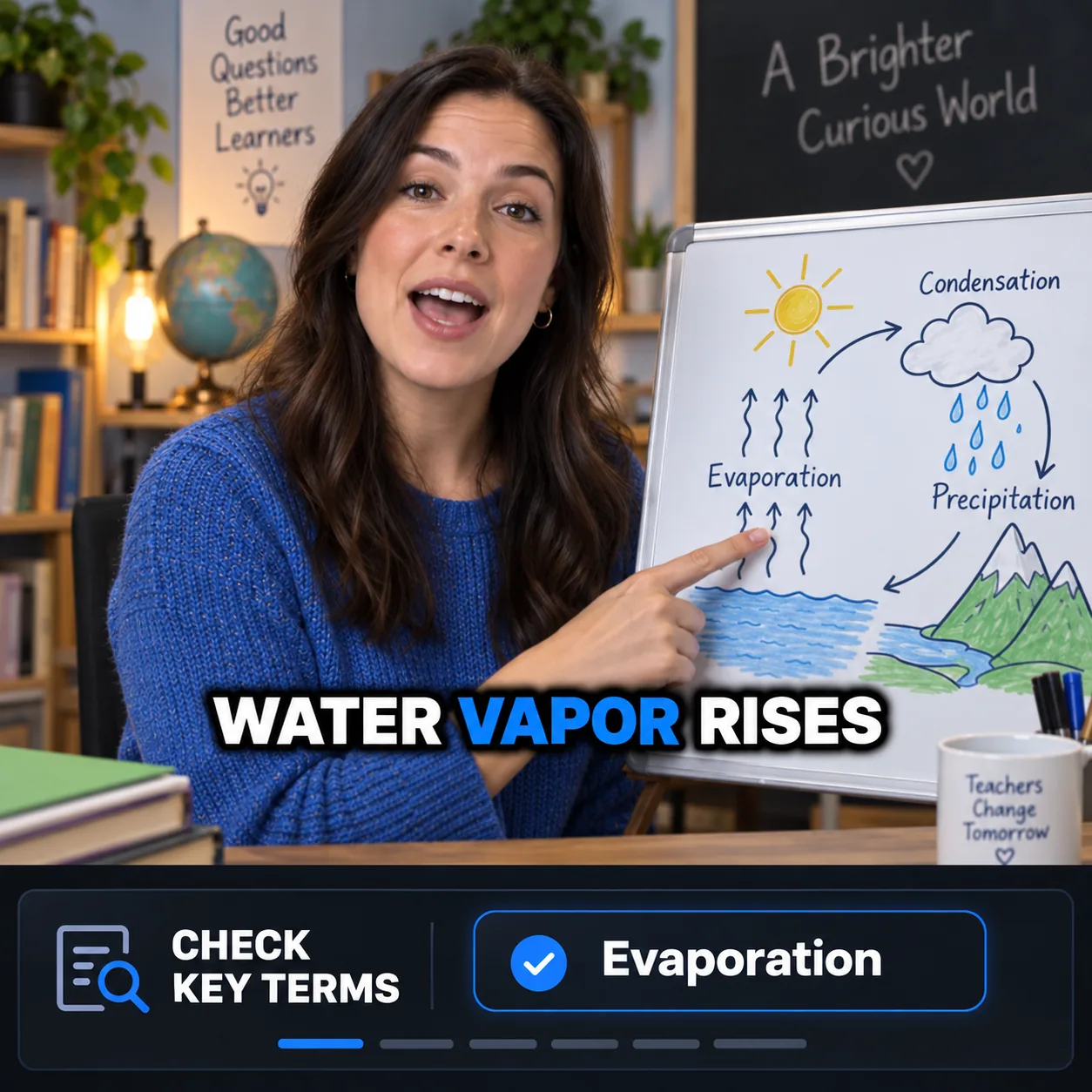
Educational lesson showing definitions alongside the video

EDUCATORS

Make Lessons Easier to Follow

Turn explanations in lessons, tutorials, and recorded training into text that appears with the speech. Learners can read a definition while they see the example, making the video useful when the audio is hard to hear or a section needs another watch.

  • Caption lectures, tutorials, and training videos
  • Keep definitions visible alongside examples
  • Help learners follow spoken explanations without audio
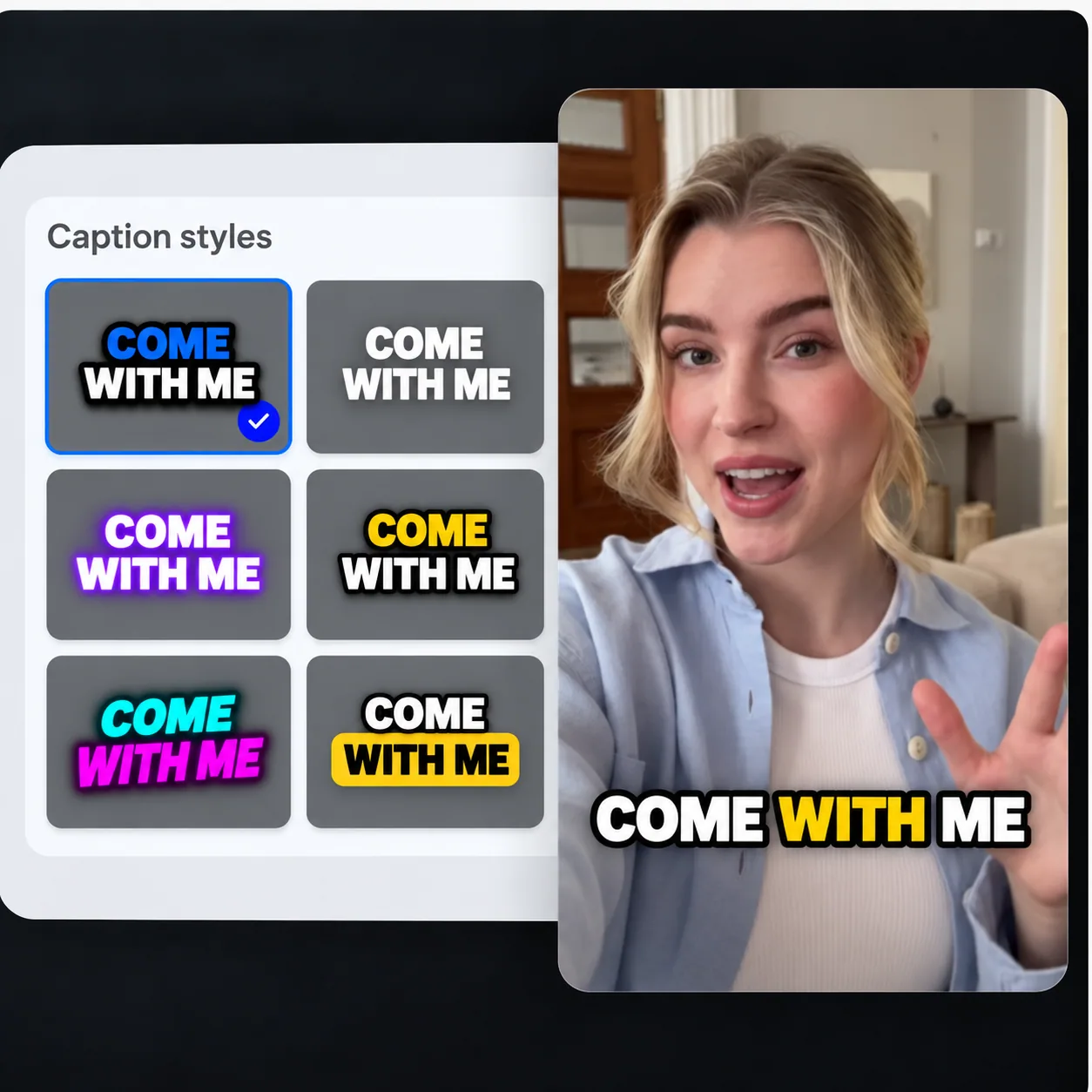
YouTube creator's video with styled on-screen narration

YOUTUBE CREATORS

Keep Viewers With the Story

Add on-screen captions to vlogs, reviews, and how-to videos without typing the narration from scratch. Spoken details remain visible throughout the video, while different caption styles let the text suit the look of the channel.

  • Add captions to vlogs, reviews, and how-to videos
  • Keep narration visible when a word is missed
  • Match on-screen text to the channel's style
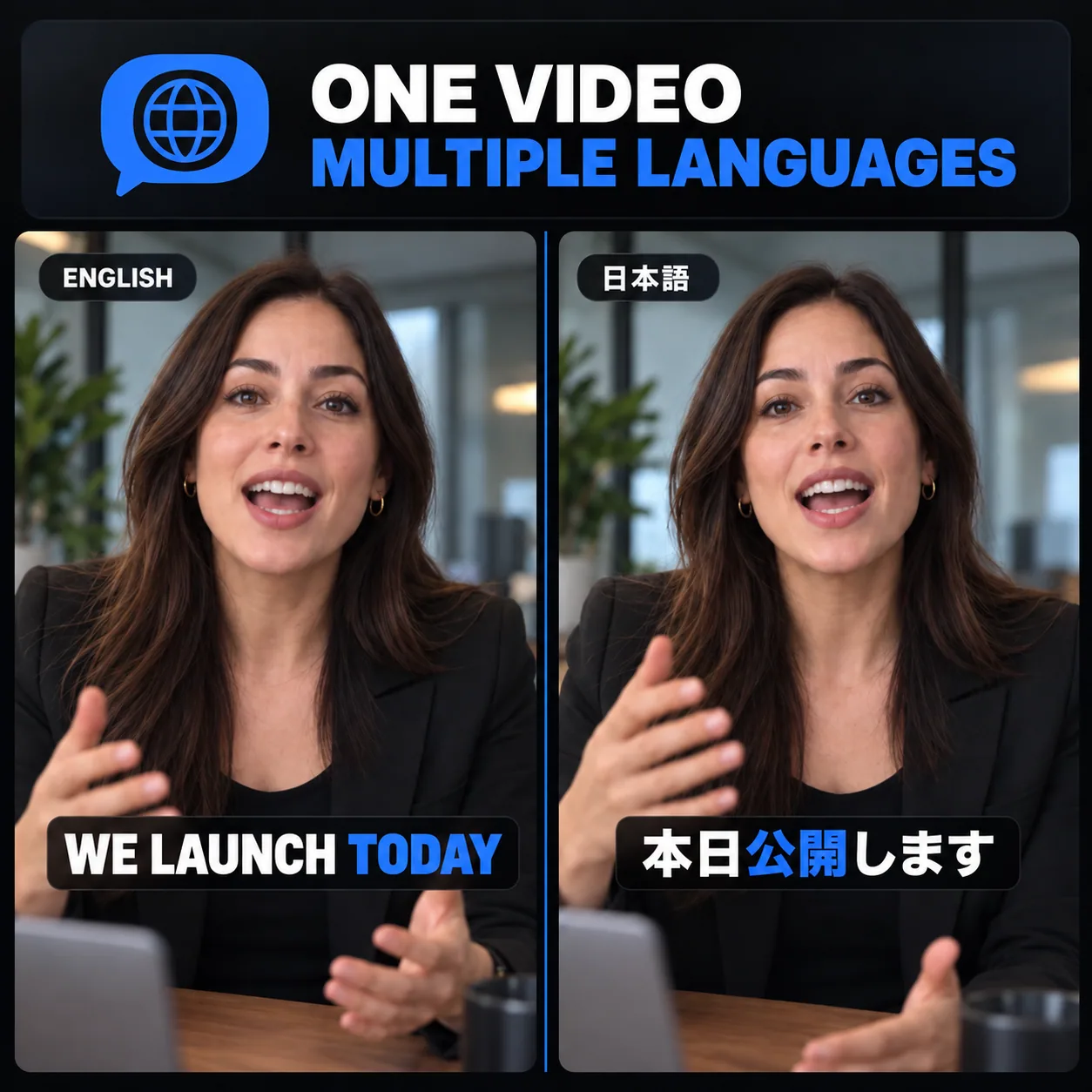
Same video with translated on-screen captions

MULTILINGUAL CREATORS

Make One Video Clear in More Languages

Translate on-screen captions so viewers in other languages can follow the same tutorial, update, or announcement while the original spoken audio remains in place. For projects focused on separate subtitle workflows, VideoTube's AI Subtitle Generator offers another path.

  • Translate captions for different language audiences
  • Create language-specific captioned versions
  • Keep the original voice with translated on-screen text

AI Video Caption Generator vs Manual Captioning

See how VideoTube's Video Caption Generator helps you create timed, styled, and translated on-screen captions without building every line by hand.

DimensionManual CaptioningVideoTube AI Workflow
Transcribing SpeechListen to the video repeatedly and type each spoken line.Start with an AI-generated caption draft, then review the words that matter.
Timing Each LinePlace and adjust every caption against the video timeline.Start with timed captions and check how each line appears alongside the video.
Checking Important DetailsReplay sections to catch names, numbers, and product terms.Review the caption text in context and correct important details before sharing.
Styling On-Screen TextFormat captions line by line to make them readable on video.Apply a caption style and preview how the text looks on your clip.
Reaching More LanguagesTranslate and time another set of captions separately.Translate captions into other languages, then review the wording for your audience.
Preparing the Final VideoCombine the text, timing, and visual formatting before exporting.Prepare a video with captions on screen, ready to share across your channels.

Less time placing captions. More time refining the video.

Make Your Next Video Easier to Follow with Captions

Upload a clip or paste a YouTube link. VideoTube creates timed text you can correct, style, and preview in the finished video before sharing.

What Video Creators Say About VideoTube Captions

I make short cooking videos, and many people watch them with the sound off. With VideoTube's Video Caption Generator, I can start with the spoken steps on screen, then check ingredient names and choose a style that stays clear over the food shots. I still review each clip, but I no longer have to type every instruction from the beginning.
JR

J. Rivera

Food Content Creator

Our team records quick product demos whenever a feature changes. The Video Caption Generator gives us a draft to review next to the screen recording, which matters when a button name or number has to be right. I like keeping the text visible in the final video so someone can follow the demo in a quiet office.
MC

M. Chen

Product Marketer

A full podcast episode has more conversation than we can share in one post. After we pick a short moment, VideoTube's Video Caption Generator helps us put the key lines on screen. I check names and the speaker's meaning before sharing the clip. That review makes the captions feel like part of the story.
AB

A. Brooks

Podcast Producer

My lessons often include terms that an automatic transcript can get wrong. I use the Video Caption Generator for a first pass, then read each line while watching the explanation. Clear text helps learners who pause or replay a section. I can also try another style when the slides make the first one hard to read.
SP

S. Patel

Online Educator

People open our help videos while they are trying to finish a task, so they need to see the next step clearly. VideoTube's Video Caption Generator gives me timed text to review beside the recording. I correct menu labels and short commands, then check that the words do not cover the part of the screen someone needs to click.
LM

L. Morgan

Customer Support Specialist

We share video updates with colleagues in several regions. The Video Caption Generator helps me prepare on-screen text and a translated version without starting over. I still ask someone to check local phrasing, especially for product terms. That matters when the same clip needs to make sense to different teams.
KN

K. Nguyen

Internal Communications Manager

Video Caption Generator FAQs for Everyday Videos