
Subject tracking · adaptive framing · social formats

Free AI Reframe: Keep Subjects in Frame

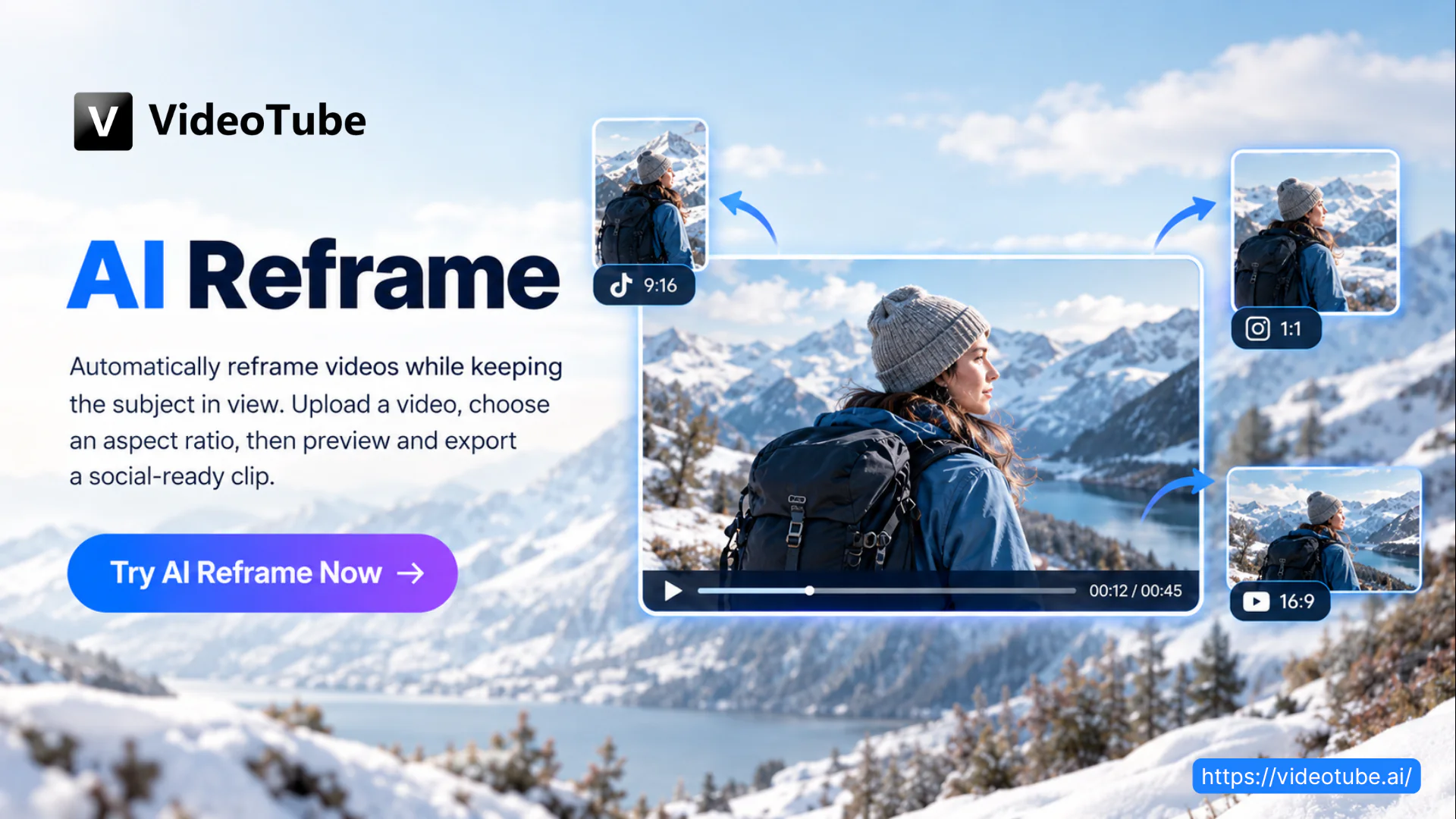
Automatically reframe videos while keeping the subject in view. Upload a video, choose an aspect ratio, then preview and export a social-ready clip.

Upload video
AI Reframe workflow keeping a moving subject inside a vertical video

Free AI Reframe: Keep Subjects in Frame

Track · reframe · resize · export

What Makes VideoTube's AI Reframe Stand Out

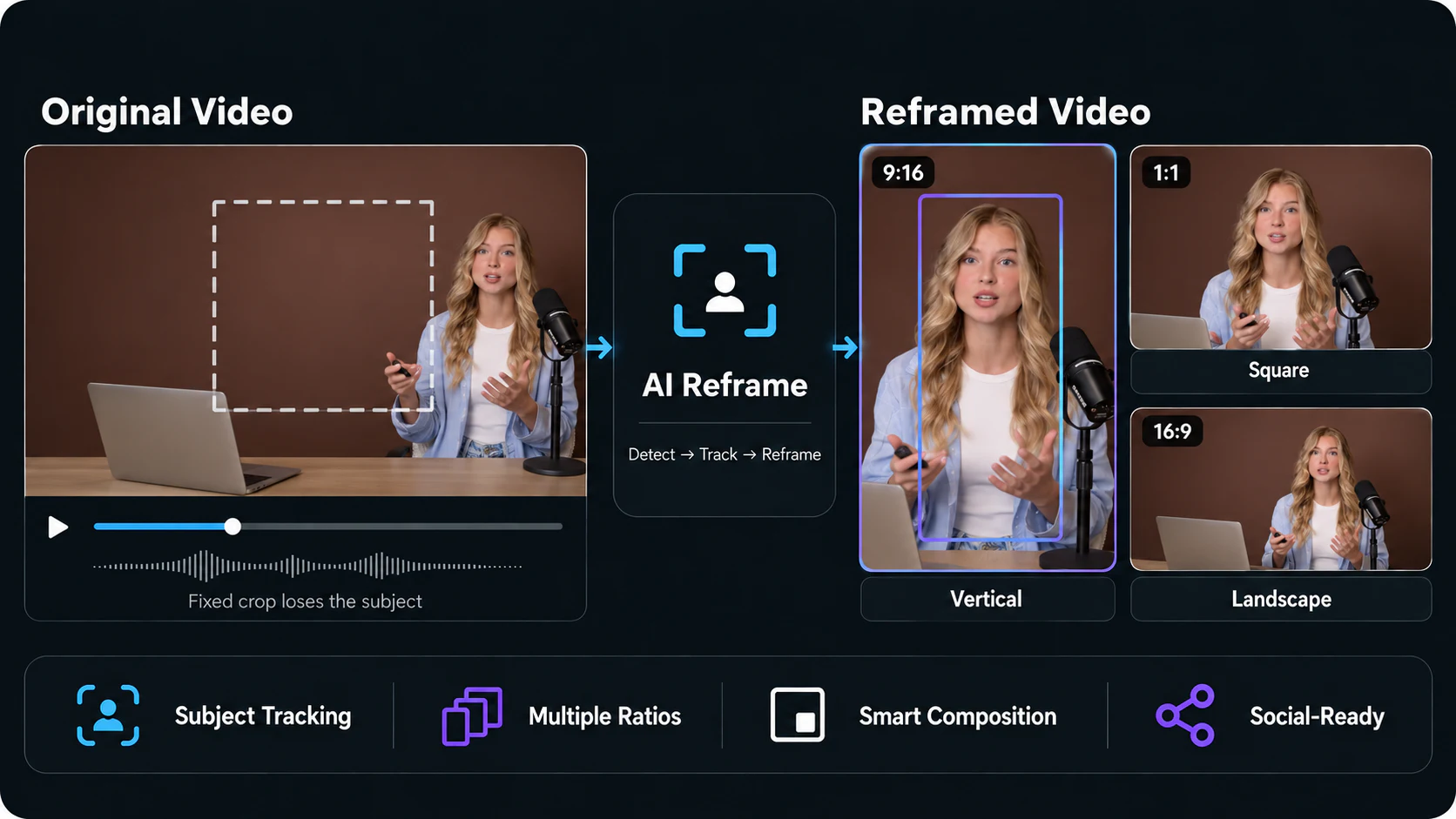
Reframe existing footage around what matters most. AI Reframe follows the subject as the composition changes, helping every output feel focused and ready for its destination.

Landscape footage automatically reframed around its main subject
  • Track the Main Subject

    AI Reframe follows the main person, product, or action as it moves so important visual content remains visible throughout the reframed video.

  • Go from Wide to Vertical

    AI Reframe turns landscape footage into vertical clips that use more of the mobile screen while keeping attention on the subject.

  • Switch Aspect Ratios

    Use AI Reframe to adapt the same footage to 9:16, 1:1, or 16:9 for vertical, square, and landscape placements without starting over.

  • Avoid Fixed Center Crops

    AI Reframe replaces a static center crop with framing that responds to subject movement instead of leaving the action outside the visible area.

  • Repurpose for Social

    Use AI Reframe to prepare existing videos for TikTok, Instagram Reels, and YouTube Shorts without rebuilding the composition for each platform.

  • Start and Export Freely

    Use AI Reframe online without signing up, then download a clean result without a VideoTube watermark on the finished video.

How to Use AI Reframe

Turn landscape footage into a focused social clip in three simple steps. Upload your video, choose an aspect ratio, and let AI Reframe keep the main subject in view.

1

Upload Your Video

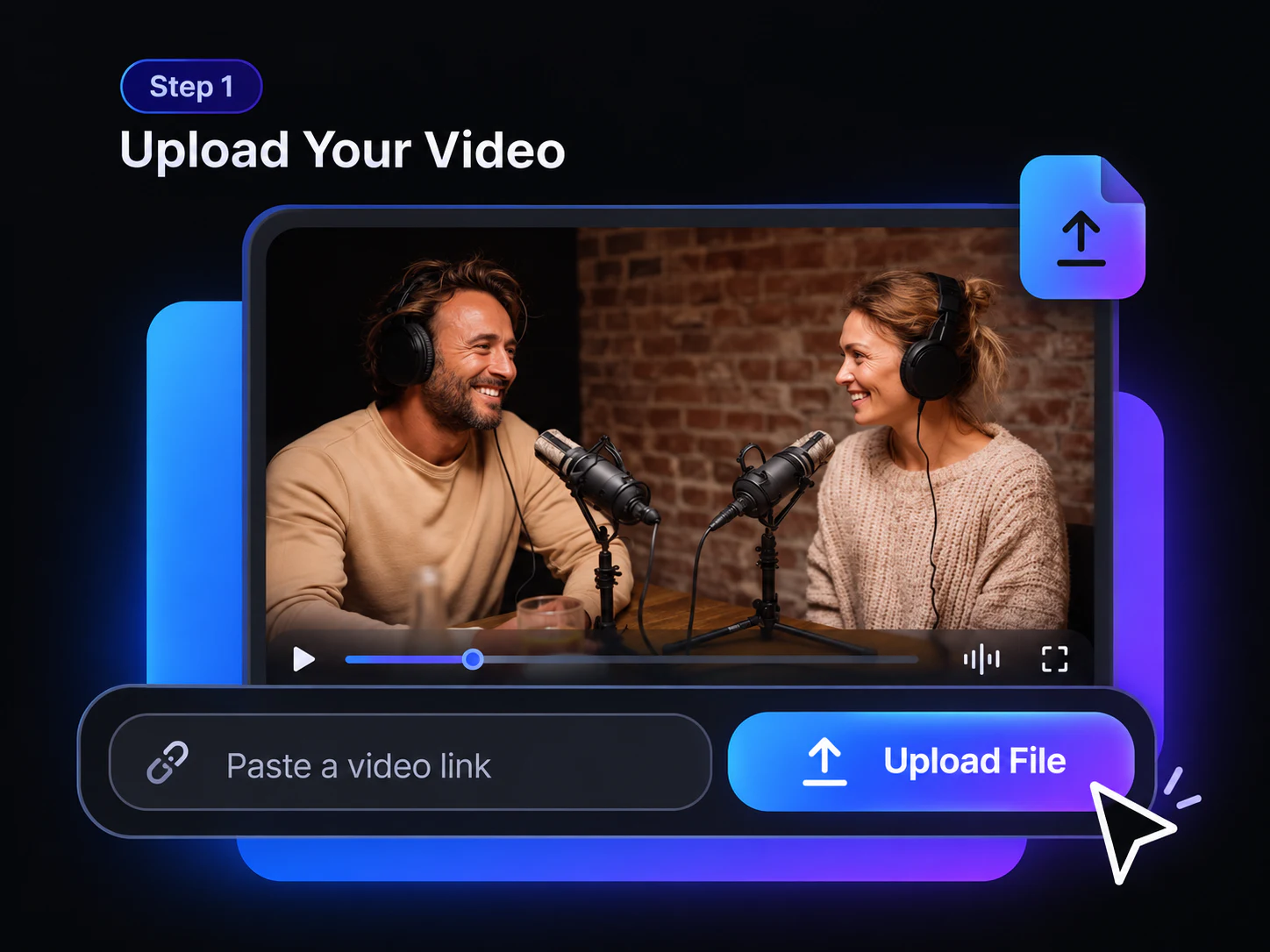
Upload a landscape video you own or have permission to edit. For better AI Reframe results, use clear footage where the main person, product, or action remains visible.

Landscape video uploaded to AI Reframe
2

Choose an Aspect Ratio

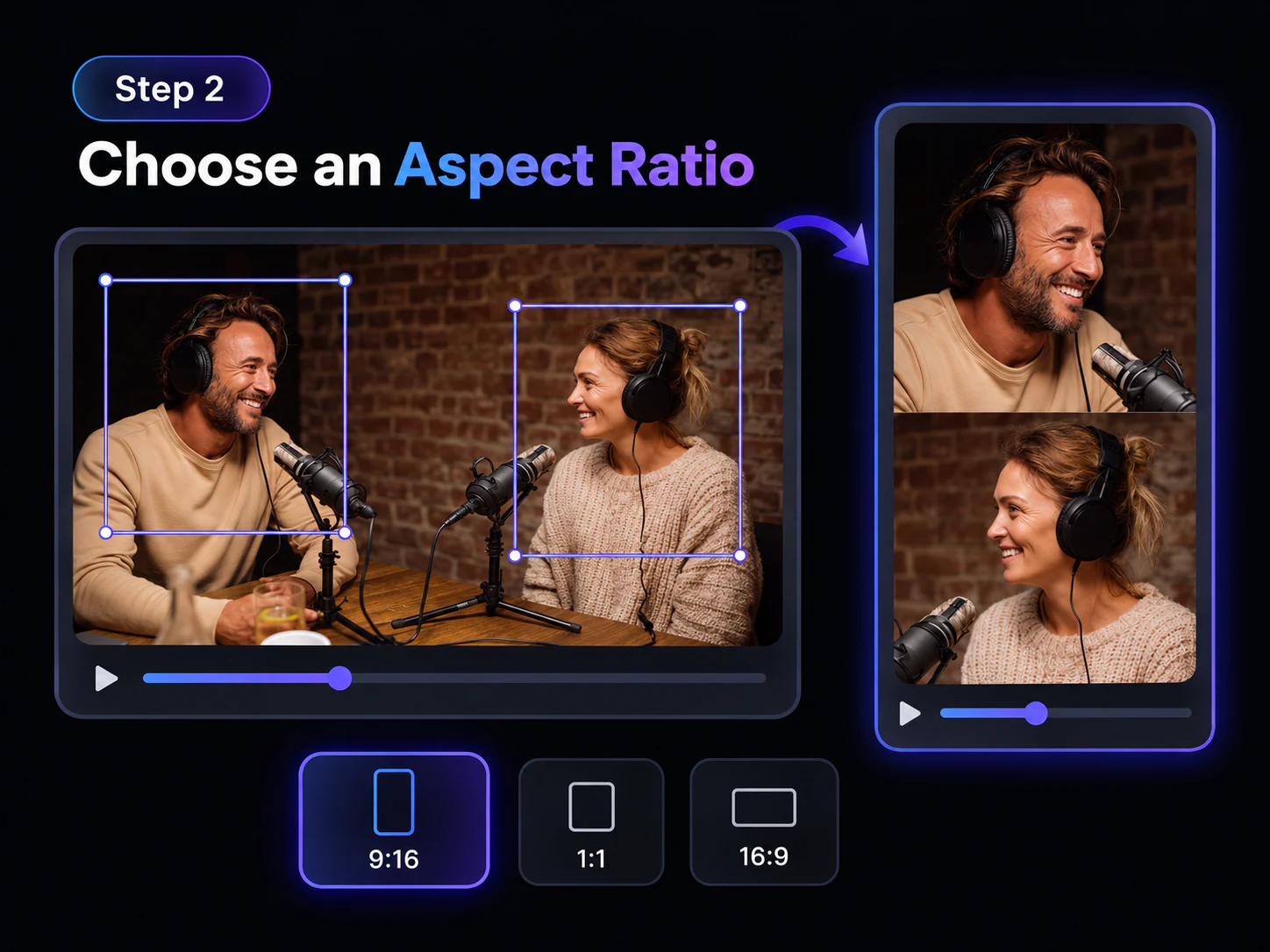
Select an available aspect ratio for your destination, such as 9:16 for TikTok, Reels, and Shorts. AI Reframe analyzes the footage and follows the main subject across the frame.

Selecting a vertical aspect ratio for AI Reframe
3

Preview and Download

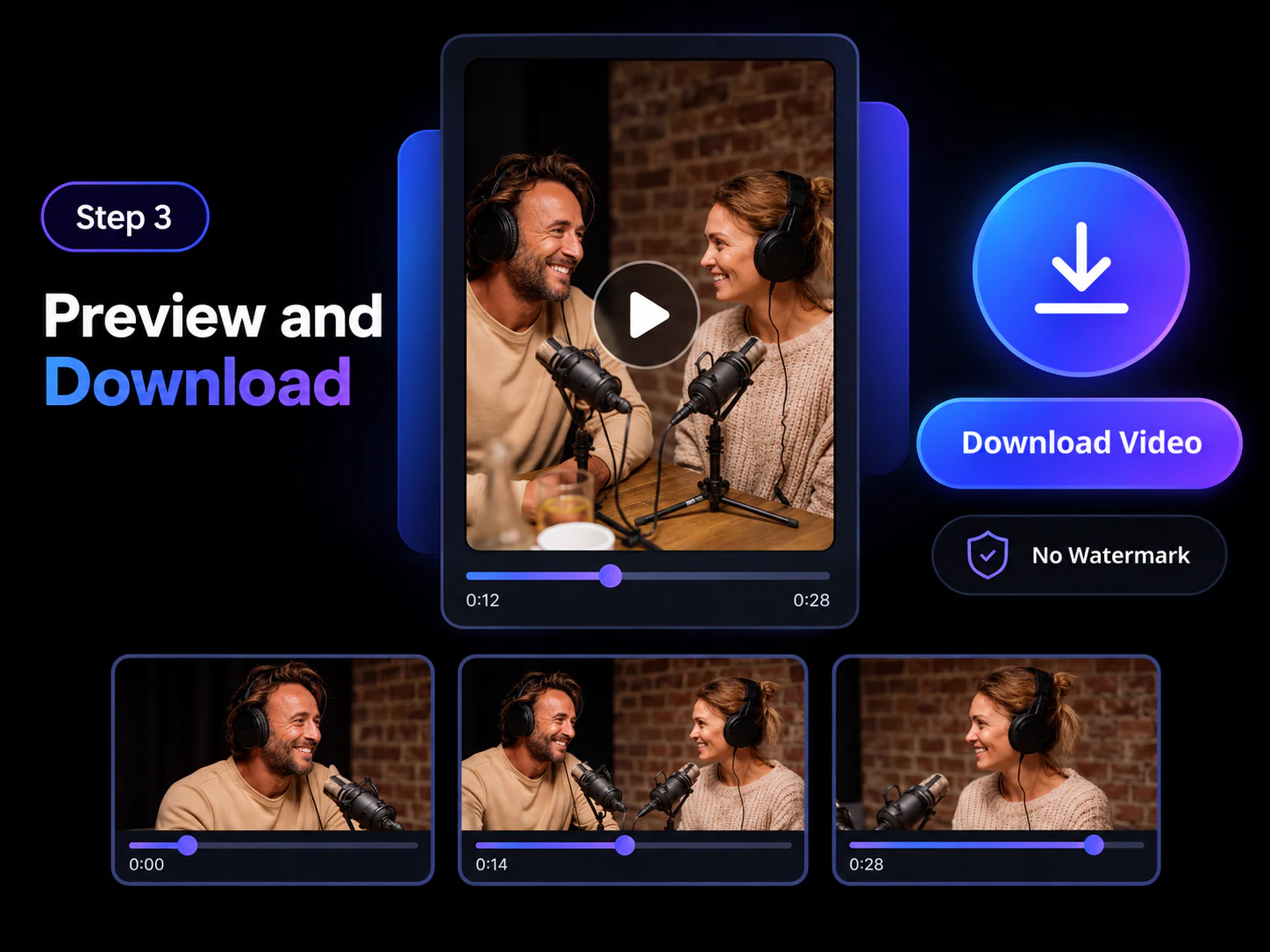
Preview the AI Reframe result from start to finish and confirm that the subject stays visible in the new composition. When the result looks right, download the finished social clip without a watermark.

Previewing and downloading an AI-reframed social video

AI Reframe for Videos with Moving Subjects

Keep the main subject visible as landscape footage moves into a new format. AI Reframe follows the action to create focused vertical, square and widescreen versions.

Podcast speakers kept visible in a vertical frame with AI Reframe

Podcasts & Interviews

Keep Conversations Properly Framed

Wide podcast and interview setups often place speakers on opposite sides of the screen. AI Reframe follows the main on-screen subject as their position changes. This creates a vertical view that stays focused instead of holding a fixed crop between speakers. For longer recordings, use AI Clip Maker to find a focused section before adapting its composition for vertical viewing.

  • Keep the main on-screen subject visible in a narrow frame with AI Reframe
  • Adapt wide conversations to vertical viewing
  • Reduce repeated crop adjustments across the recording
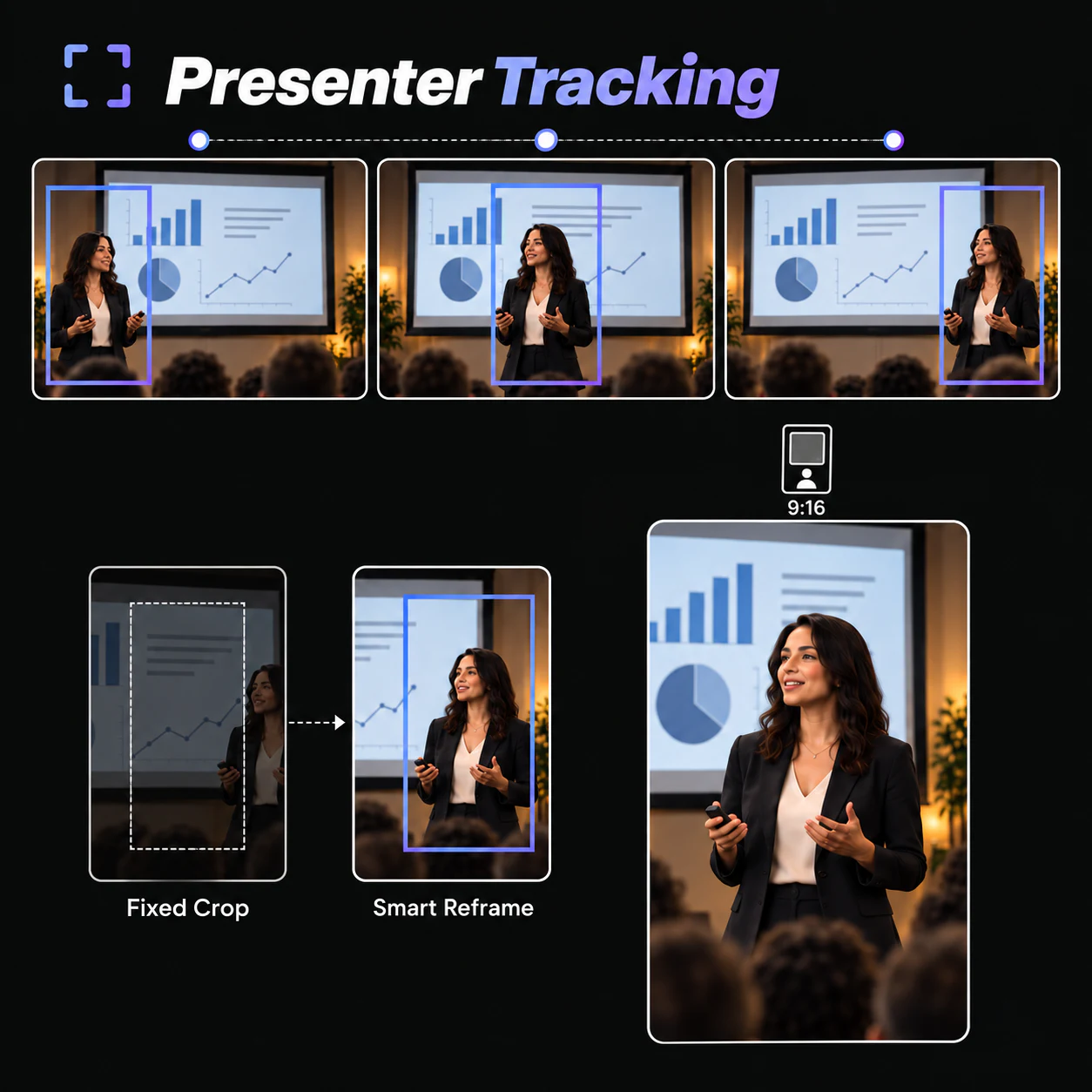
Presenter followed across a mobile-friendly reframed video

Webinars & Presentations

Keep Presenters Visible on Mobile

Recorded presentations often begin in a wide frame that leaves the presenter near the edge on mobile. AI Reframe follows the main on-screen subject through the room and adapts the composition for a clearer mobile view.

  • Follow presenters as they move across the scene with AI Reframe
  • Adapt widescreen recordings for mobile viewing
  • Preserve a clear visual focus throughout the talk
Tutorial action preserved inside a reframed video

Tutorials & Demonstrations

Keep Important Actions Inside the Frame

When an instructor moves, a fixed crop can lose the hands or demonstration area. AI Reframe adjusts the composition throughout the video so viewers can continue following the person and each step. Once the framing is ready, use Video Caption Generator to add readable on-screen text to the lesson.

  • Keep instructors and demonstrations visible with AI Reframe
  • Follow movement across worktables or teaching spaces
  • Keep each demonstrated step inside the new frame
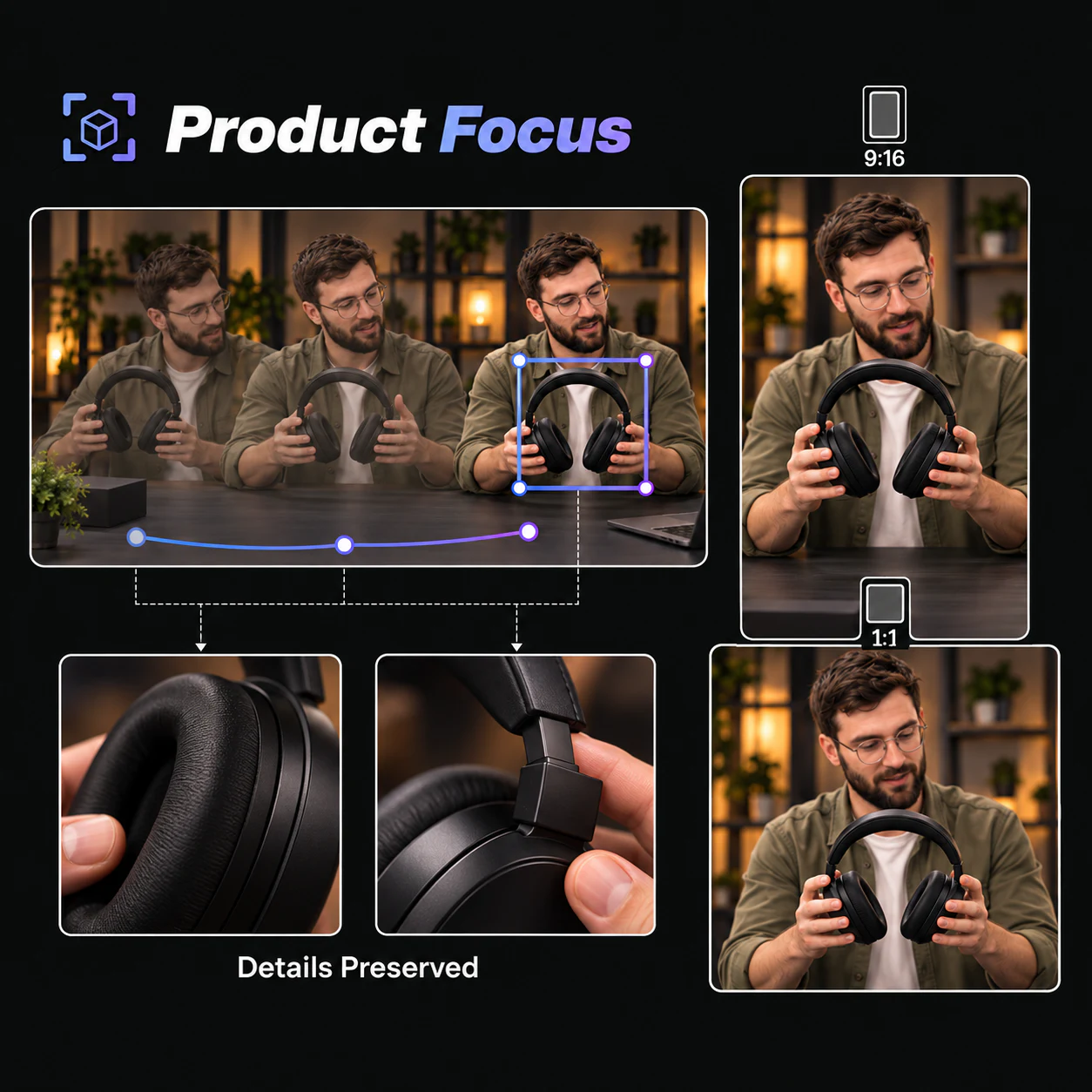
Moving product demonstration kept in focus by AI Reframe

Product Videos

Keep the Product in Focus as the Demo Moves

Product demonstrations rarely remain centered from beginning to end. AI Reframe follows the main subject as it moves through the original shot. This helps vertical and square versions maintain attention on the demonstration.

  • Follow the main subject through the demonstration
  • Keep the product and supporting details in view with AI Reframe
  • Adapt product videos for vertical and square placements
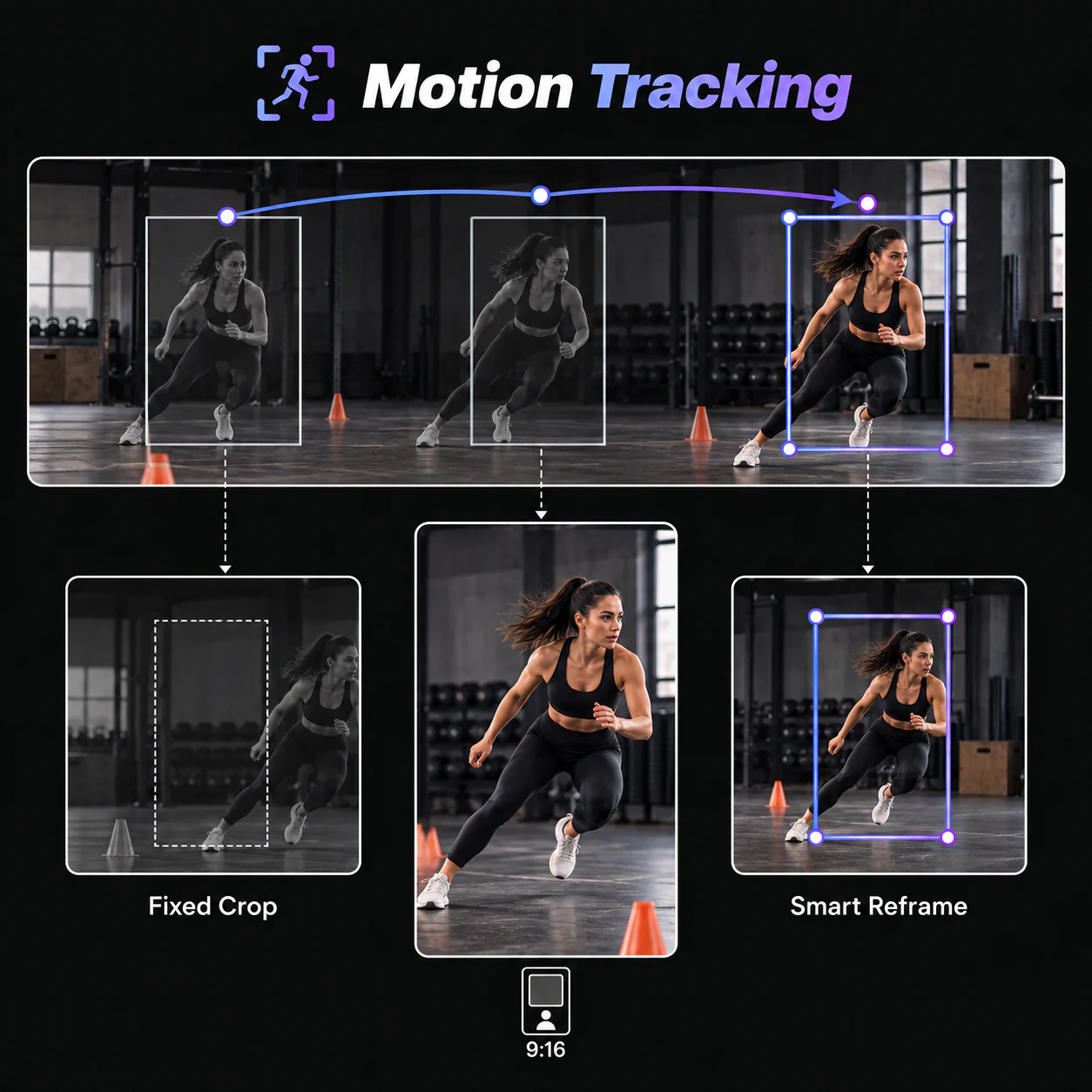
Sports action followed inside a vertical social video

Sports & Fitness

Follow Action Across the Frame

Fast movement can quickly carry an athlete or trainer beyond a fixed center crop. AI Reframe follows the main subject through the footage and helps keep the action visible in a vertical social format. When a long recording also needs clip selection and captions, use AI YouTube Shorts Generator to prepare complete Shorts for review.

  • Follow athletes and trainers through moving scenes
  • Keep key action inside a vertical composition
  • Reduce frame-by-frame crop repositioning with AI Reframe
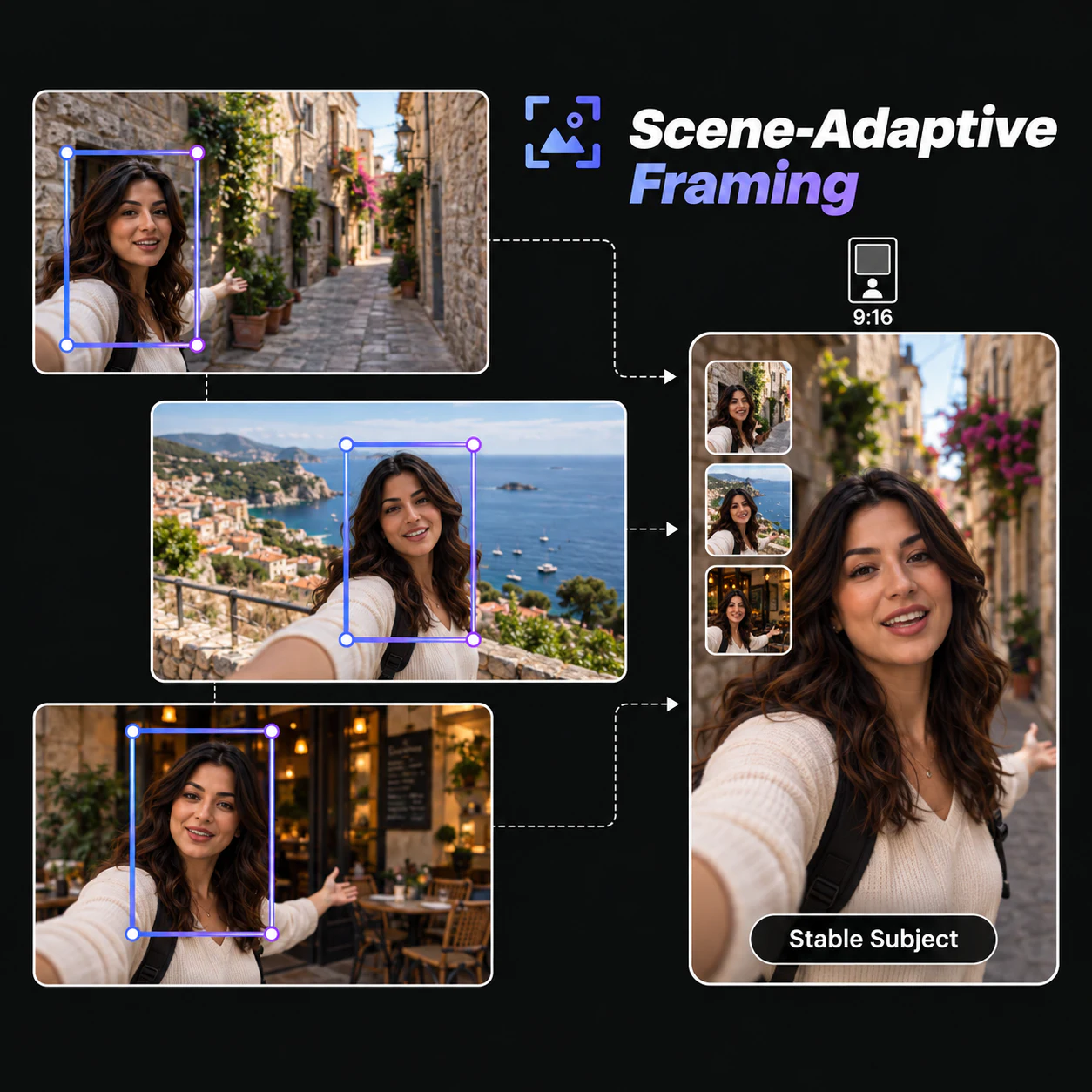
Travel vlogger kept in frame through changing scenes

Vlogs & On-Location Videos

Stay in Frame as the Scene Changes

Travel footage and handheld vlogs often shift between new backgrounds and changing subject positions. AI Reframe helps keep the creator or main point of interest visible as the composition changes.

  • Follow creators through changing environments
  • Maintain visual focus as the subject changes position
  • Prepare portrait or square versions for social viewing

AI Reframe vs Manual Video Cropping

Turning landscape footage into 9:16 takes more than a fixed center crop. When the main subject moves, AI Reframe adjusts the composition to help keep the action inside the vertical frame.

ComparisonManual Video CroppingVideoTube AI Reframe
Framing MethodUse VideoTube's Video Cropper to position the visible area around the subject manually.AI Reframe analyzes the footage and builds the composition around the main subject.
Moving SubjectsThe crop remains fixed unless you reposition it or add keyframes as the subject moves.AI Reframe tracks the main subject and adjusts the framing as its position changes.
Editing EffortEach movement may require another crop adjustment followed by a visual check.AI Reframe's subject tracking reduces repeated positioning work across the video.
Aspect RatiosYou set up and review the composition again for each output ratio.Choose a supported ratio such as 9:16, 1:1, or 16:9 and generate a reframed version to review.
Social FormatsPreparing another platform version usually means repeating the framing process.Adapt the same source footage for TikTok, Instagram Reels, YouTube Shorts, and other supported placements.
Final ReviewThe result reflects the crop positions and keyframes you set throughout the video.Preview the AI Reframe result, confirm the composition, and download the finished video without a watermark.

Less time adjusting crops. More time creating for every screen.

Keep Your Main Subject in Frame with AI Reframe

Turn landscape footage into a focused vertical or square video while AI follows the main subject. Start free online and download without a watermark.

What Users Say About VideoTube's AI Reframe Tool

I edit a weekly interview show, and reframing wide conversations used to mean checking the crop throughout each clip. AI Reframe gives me a useful first version that follows the main on-screen subject. I still review each transition, but the vertical composition is much easier to prepare for our social channels.
MB

Maya Brooks

Podcast Producer

Our team reuses campaign footage across several social platforms, so each recording needs more than one layout. AI Reframe helps me turn a landscape source into focused vertical and square versions without rebuilding the composition from the beginning. I can review the subject position and prepare each video for its destination.
DK

Daniel Kim

Social Media Manager

My lessons include a presenter and a work area, which makes a fixed center crop difficult to use. AI Reframe helps keep the main part of the demonstration visible when I prepare a mobile version. I check every step before exporting, but I spend less time moving the frame whenever the instructor changes position.
ER

Elena Ramirez

Online Educator

Product demos rarely stay centered because the presenter picks up items and moves them around the set. AI Reframe gives me a stronger starting composition for vertical posts by following the main subject. I can check the details that matter, review the finished framing, and download a clean version for our content plan.
JL

Jordan Lee

Product Marketing Manager

Workout videos include constant movement, and a static vertical crop can quickly lose the trainer near the edge. AI Reframe follows the main subject as the exercise moves across the original shot. I preview the result to make sure each motion remains clear, then prepare the vertical video for our mobile audience.
MB

Marcus Bennett

Fitness Creator

I often film travel videos in landscape because it gives me more room to capture the location. When I need a portrait version, AI Reframe helps keep me or the main point of interest visible as the scene changes. The result gives me a practical version to review before I share the same story on a vertical feed.
ST

Sofia Turner

Travel Vlogger

AI Reframe FAQs