
One interview can give you more than one video to post. A great answer, an unexpected reaction, or a useful explanation can become its own Short, Reel, or TikTok—without filming again. The best AI clip makers find those moments and turn them into captioned clips, saving you the work of searching through an entire recording.
But the differences become clear when it is time to download: some tools add watermarks, some offer only previews, and others require a subscription once the free credits run out. VideoTube is free to use and exports clips without a watermark, combining automatic highlights, captions, and reframing in one workflow.
Below, compare VideoTube with OpusClip, Vizard, WayinVideo, Restream, Choppity, Eklipse, quso.ai, and Ssemble. Each has a different strength, from gaming-event detection to social scheduling. The useful question is which features you need—and what you have to pay to get a finished clip.
Best AI Clip Makers at a Glance
| AI clip maker | Recommended use | Features that shape the workflow |
|---|---|---|
| VideoTube | Turning existing recordings into multiple short videos | Automatic highlights, animated captions, reframing, and imports from YouTube, Google Drive, TikTok, Instagram, or local files |
| OpusClip | Clipping and distributing content across social channels | Virality Score, animated captions, direct posting, and scheduling on Pro |
| Vizard | Repurposing interviews, podcasts, and webinars | AI clips, online editor, speaker-aware reframing, and team workspaces |
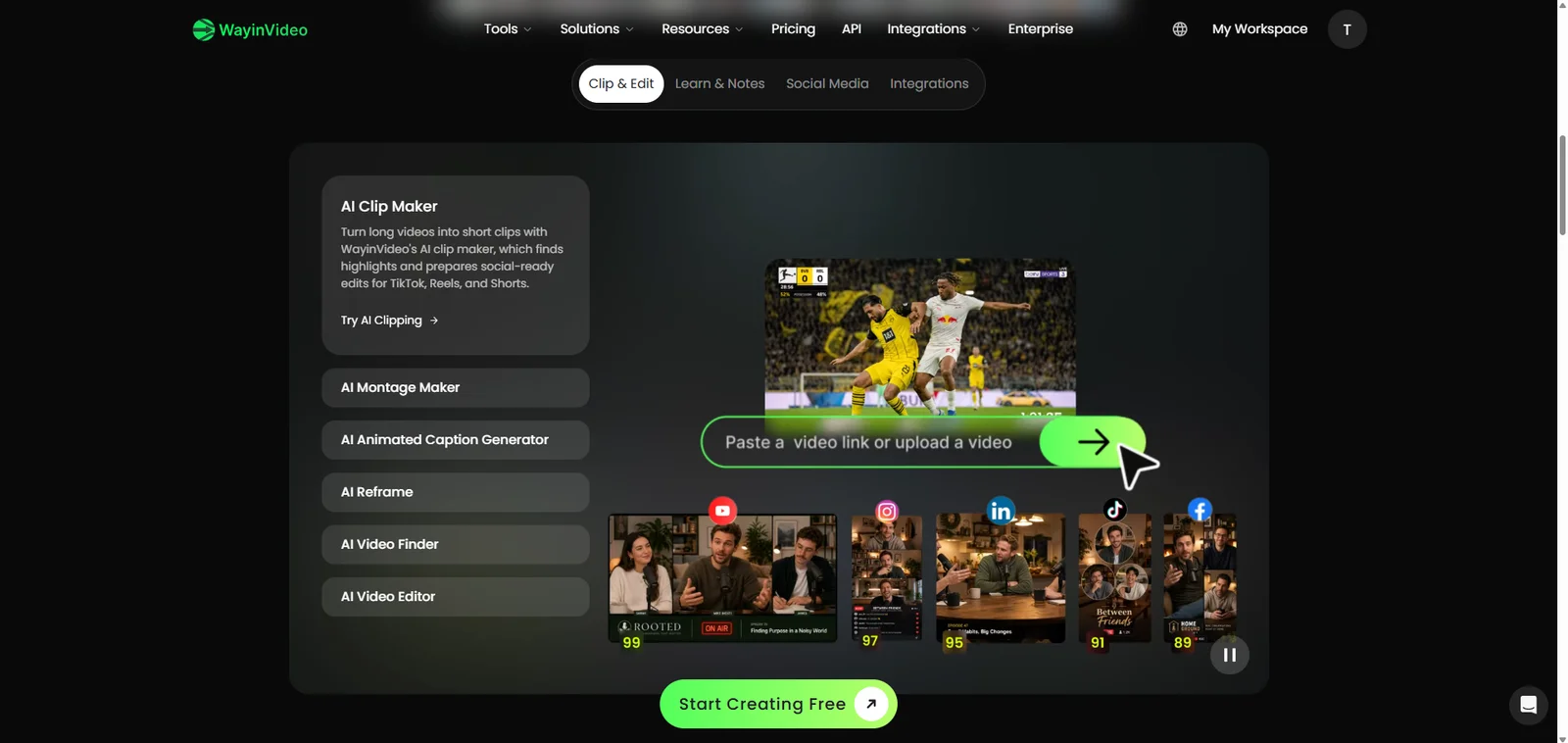
| WayinVideo | Clipping from supported video links | AI clipping alongside video search, summaries, and transcripts |
| Restream | Reusing recorded live shows | AI clips within a streaming platform, with layouts and speaker-focused presentation |
| Choppity | Combining clipping with further editing | Text-based editing, speaker tracking, captions, and scheduling |
| Eklipse | Extracting moments from gaming streams | Game-event detection and templates for vertical highlights |
| quso.ai | Combining short videos with social content management | Clipping, content planning, scheduling, and analytics across its plans |
| Ssemble | Building short-form content from YouTube videos | YouTube-link input, automatic captions, and scheduled social posting |
How We Selected These AI Clip Makers
These recommendations focus on three practical questions: what the AI handles automatically, what the finished clips include, and how the product fits a creator's budget and posting routine.
Automatic Clipping Features and Supported Video Types
The AI video clipping tools here find potential moments within a longer recording and generate short clips. Their specialties differ. Conversation-based content needs complete answers and clear speaker framing; gaming highlights depend on recognizable events and action. Source options also matter when recordings are stored in the cloud, published on social platforms, or saved on your device. Direct link imports reduce the steps needed to bring existing footage into a clipping workflow.
Captioning, Reframing, and Export Capabilities
A useful short video needs more than a cut. Automatic captions make the message readable, while reframing adapts wide footage for vertical feeds. We considered these features alongside downloadable output, editor access, and publishing options, so the comparison covers the steps between a source recording and a finished post.
Ease of Use, Pricing, and Free Access
For occasional clipping, a simple upload-and-generate workflow can be enough. A weekly show or agency needs processing capacity and delivery options that support repeat use. The pricing comparison separates recurring free plans, introductory credits, previews, and paid subscriptions.
Top AI Clip Makers for Turning Long Videos into Shorts
1. VideoTube — For Automatically Turning Long Videos into Clips
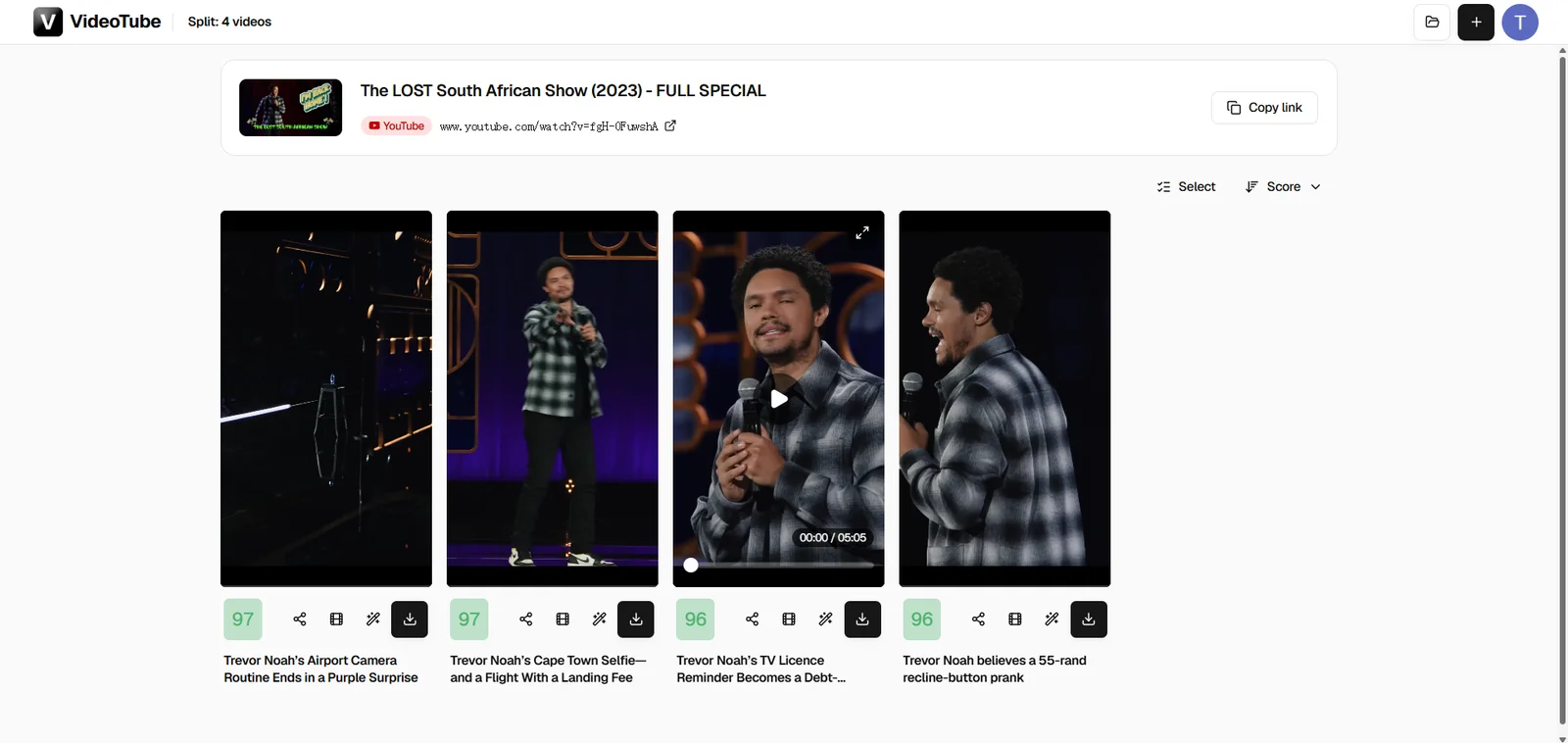
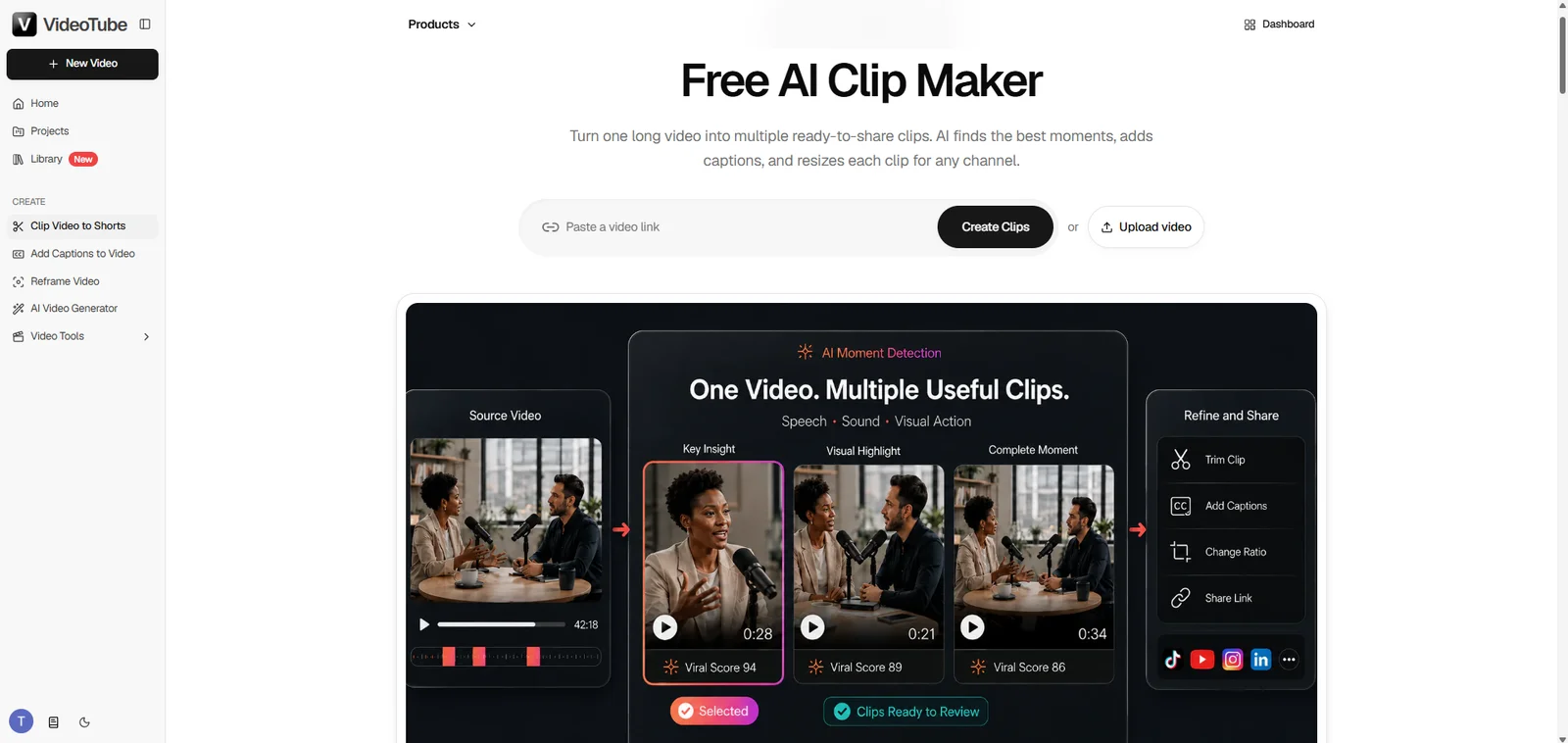
VideoTube turns a long recording into a selection of short clips with titles, scores, and download buttons. Its AI clip maker handles moment discovery and clip creation, with settings for the output format and caption style. It is free to use, and exported clips are watermark-free.
You can upload a local file or paste a link from YouTube, Google Drive, TikTok, or Instagram. That makes it easy to start with a published interview, a webinar in cloud storage, or a recording on your device.
Here is what the workflow looks like:
-
Add your source video. Paste the link and select Get free clips, or choose Upload files for a local recording.
-
Choose the output you want. The settings screen offers Clip Focus, Clip Model, and Clip Length. You can leave the model on Auto and the length on Auto (0–3 min). Choose a ratio—9:16, 16:9, 3:4, 1:1, or 4:5—and a caption preset, including a no-caption option. A processing-range slider lets you focus on part of the source when needed. Select Get free clips to generate the results.
-
Preview and download. The results appear as separate clip cards, each with a title, score, and download button. Use the Score sorting control to organize the results, then preview the clips you want to keep.
For example: A stand-up recording lasting 1:03:02 produced five clips in the example shown. Each result has its own title and score, with captions visible in the vertical previews. One recording becomes a set of clips you can preview and download individually. The number of clips varies with the source content and generation settings.
You can begin without signing up or entering a credit card. For videos that only need subtitles, VideoTube also offers an AI Subtitle Generator.
Recommended for: Creators, marketers, educators, and small teams who want more short videos from footage they already have.
2. OpusClip — For AI Clipping and Social Publishing
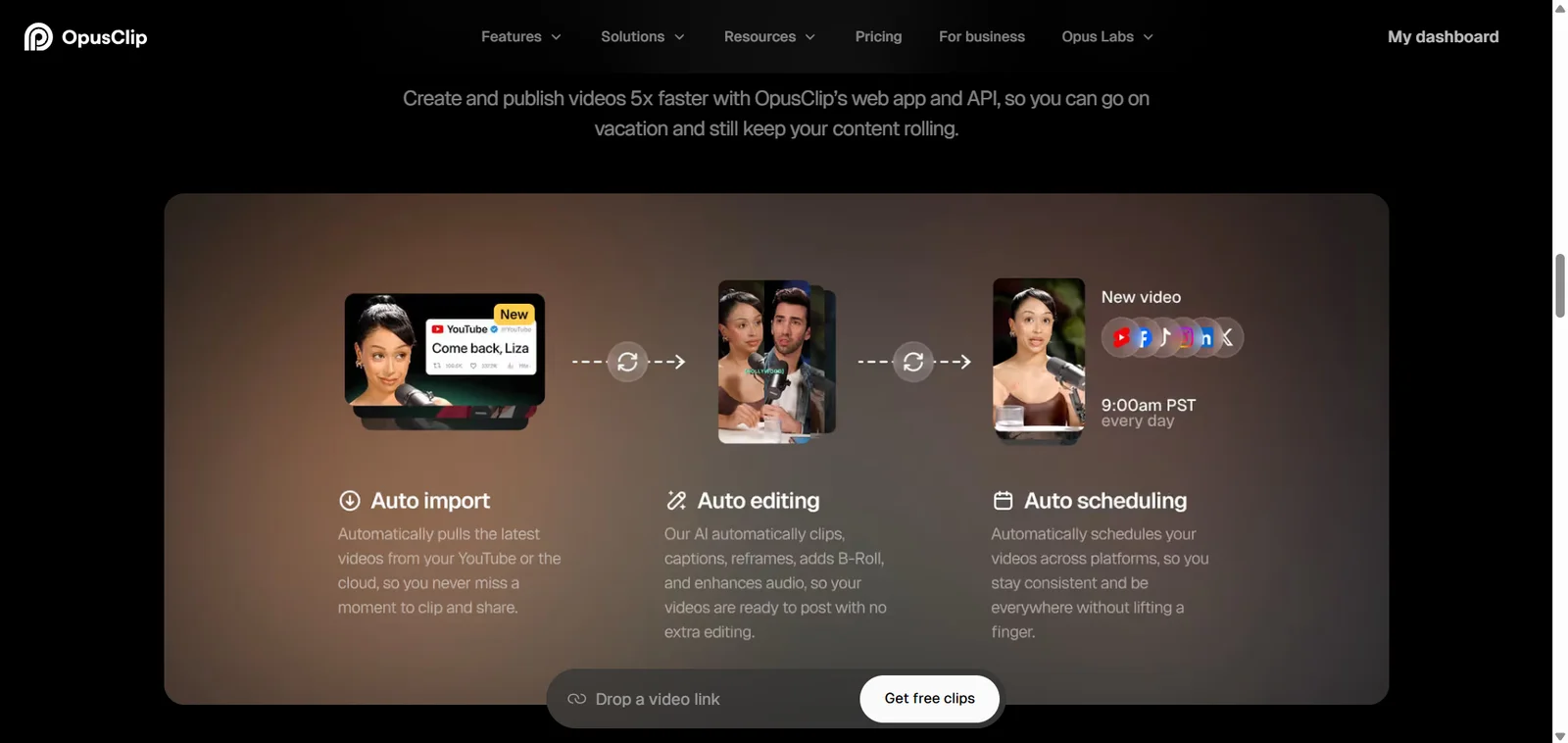
OpusClip stands out for connecting highlight discovery with distribution. It generates captioned, reframed clips, assigns a Virality Score, and offers direct social posting. Pro adds scheduling and exports to Premiere Pro and DaVinci Resolve, which suits creators whose workflow extends beyond downloading an MP4.
The trade-off is ongoing cost. Starter is USD 15 per month with 150 credits; Pro is USD 29 per month with 300. For someone who only needs a few finished clips, that is a recurring subscription to budget for. The free plan provides 60 credits per month but adds a watermark and limits the export window to three days.
User feedback: G2 reviews include praise for time savings and easy clip generation. One reviewer objected to renewal charges while unused credits remained; others mentioned awkward clip boundaries or wanting more control over a particular moment. Alongside the published prices, these comments help explain why value depends on how often you use the tool and which parts of the workflow you need.
Recommended for: Creators who publish frequently across several channels and want clipping, direct posting, and paid scheduling in one platform.
3. Vizard — For Repurposing Podcasts and Webinars
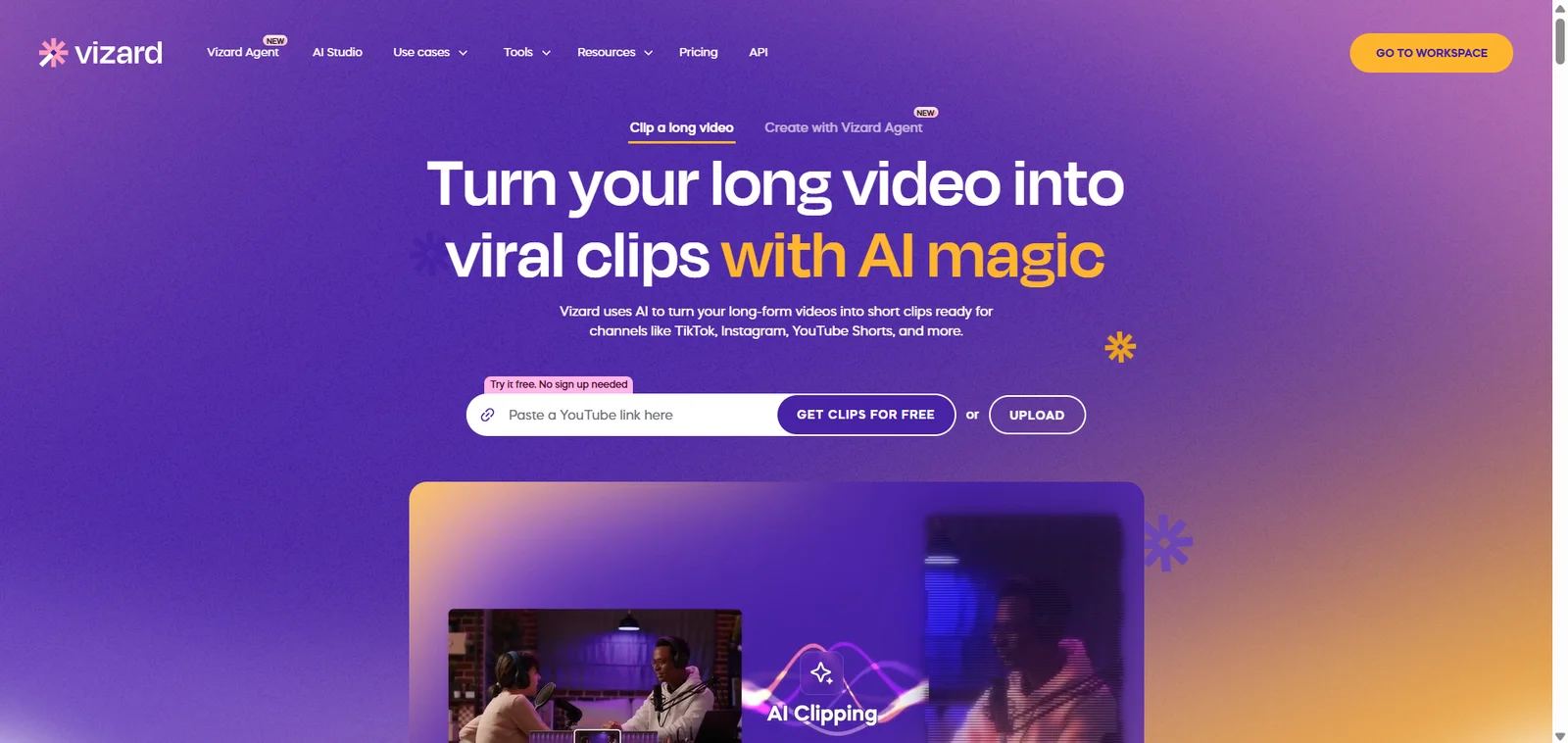
Vizard is a useful fit for interviews, podcasts, and webinars, especially when a team wants clipping and browser-based editing together. Creator includes watermark-free exports up to 4K, scheduling, and six social accounts. Business adds a shared workspace and brand kit.
Its free allowance is easy to understand but modest for long recordings: 60 upload credits per month, at one credit per minute. One hour-long episode uses the entire allowance. Free exports are 720p, and projects are stored for three days.
What users notice: On G2, some reviewers say credits run out quickly when they work with 50–60-minute videos. Others describe monthly pricing as a stretch for a beginning creator, even while praising the time saved. For a weekly podcast, the free plan is therefore a way to try the workflow rather than cover the full month's recordings.
Recommended for: Podcasters, educators, and teams that need browser-based editing and shared production workflows.
4. WayinVideo — For Creating Short Clips from Video Links
WayinVideo's distinction is video search. AI Clipping creates a general selection of highlights, while Find Moments lets you search for a particular topic or event. Summaries and transcripts make the same source useful beyond short-video production.
The search and transcript tools add value beyond a batch of clips, but are optional extras for someone who only needs finished short videos.
Free access: Its 100 signup credits are a one-time balance, not a monthly allowance. Free exports are watermark-free at 720p, but local uploads and automatic social publishing require payment. Creators with files on their device therefore face a different entry path from those using supported public links. Pro is USD 26.99 per month with 1,000 credits.
Recommended for: Creators who work from supported public links and want to search recordings, read transcripts, and generate clips from the same source.
5. Restream — For Repurposing Live Recordings
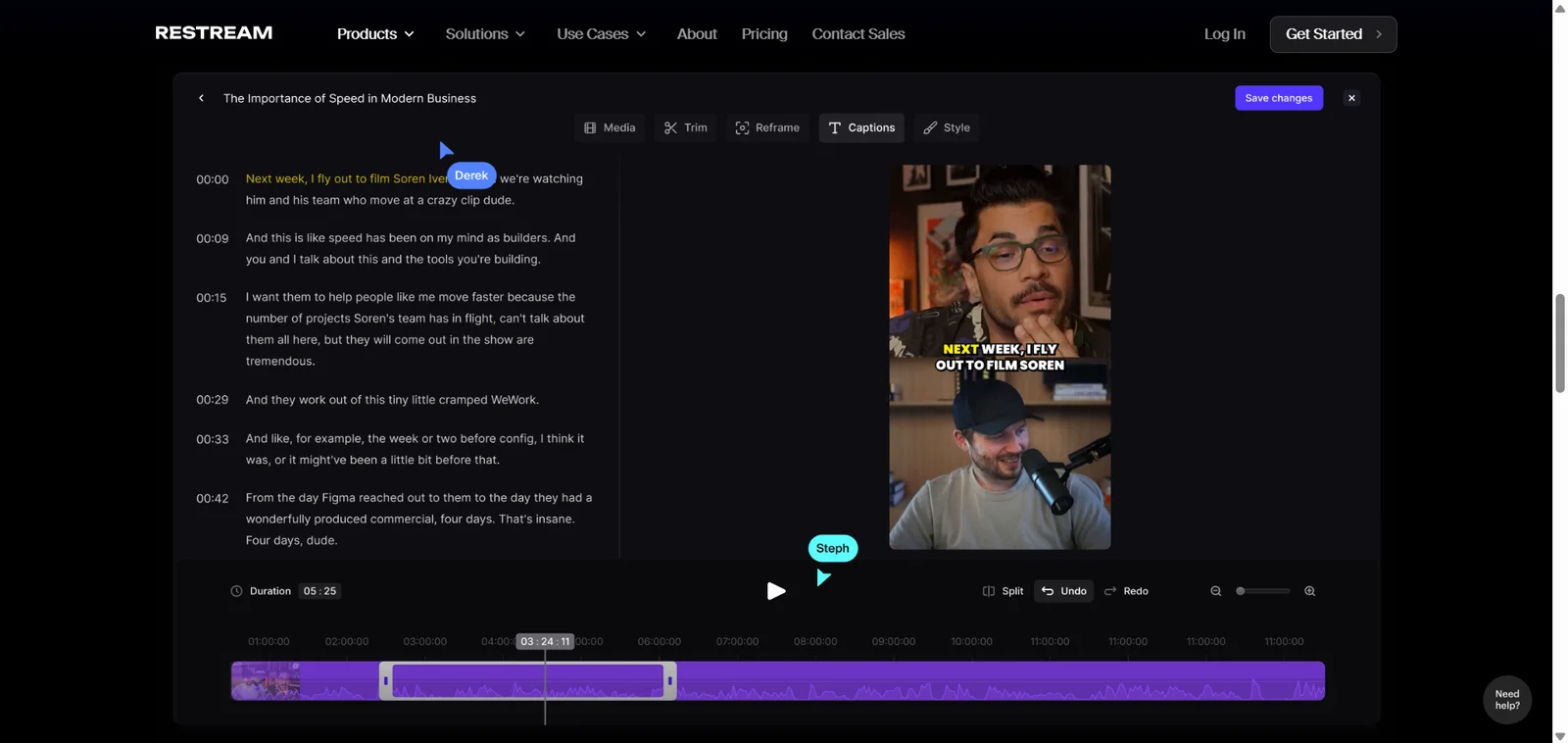
Restream combines live production with AI clipping. Its AI Clip Maker turns recorded shows into captioned excerpts, with layouts, speaker emphasis, logos, and B-roll options for presenting a live conversation as short-form content.
The important cost distinction: Clips is a paid add-on to the base subscription. The monthly add-on tiers are USD 19 for 50 generated clips, USD 29 for 100, and USD 59 for 250. Downloading a generated clip again does not use another generation allowance.
For a creator who only wants to cut an uploaded video, a standalone tool avoids paying for a wider streaming setup. Its seven-day Clips trial also renews into a paid subscription unless canceled.
Recommended for: Existing Restream users and live-show teams that want to reuse recordings within their streaming setup.
6. Choppity — For Clipping, Editing, and Scheduling
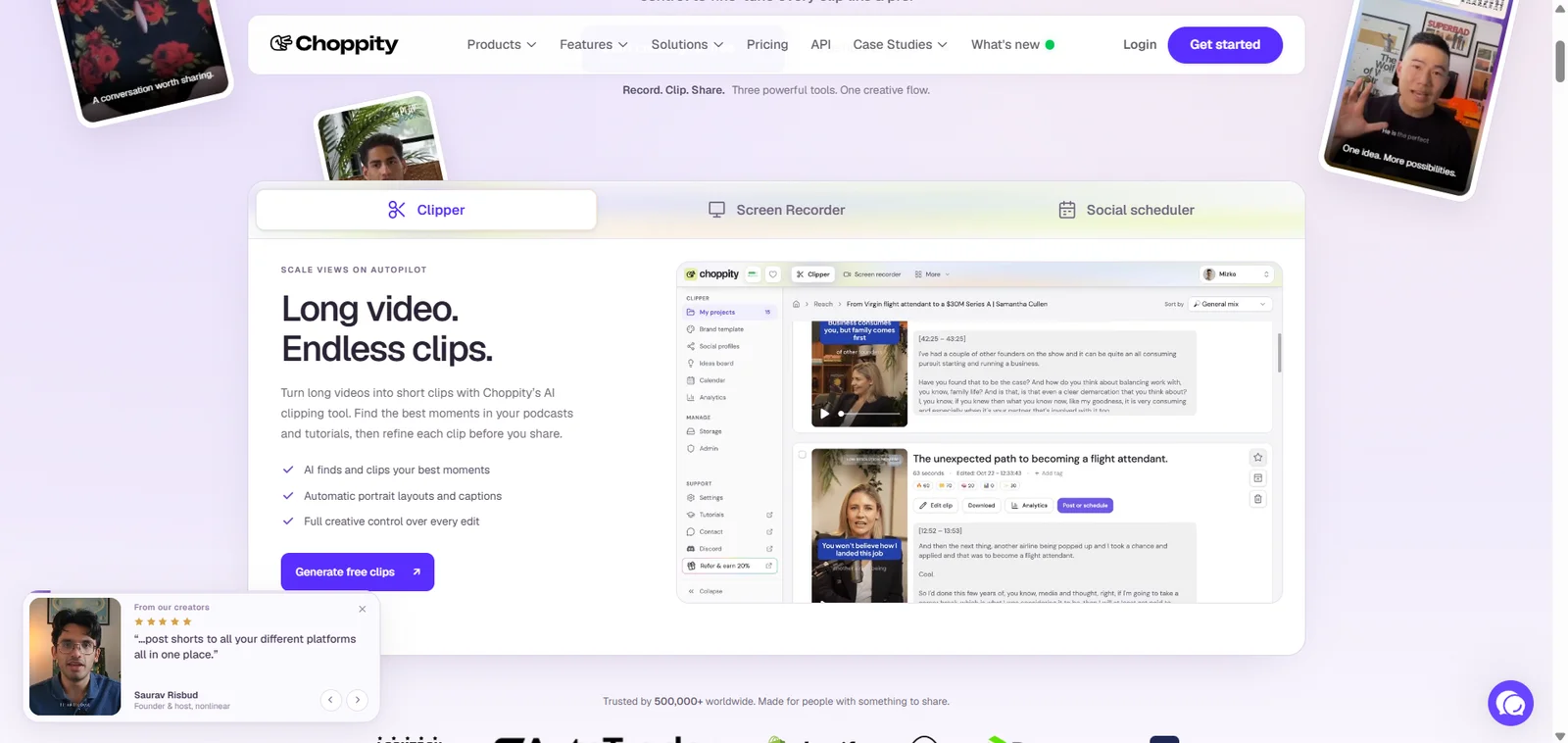
Choppity's useful difference is transcript-based editing. Once AI has found the clips, you can trim material by working with the spoken text. Speaker tracking, automatic captions, and reframing support interviews, while a content calendar and scheduling keep the publishing steps nearby.
For example, you can shorten a spoken passage by selecting the corresponding words in the transcript, making precise adjustments easier to follow.
Where the plans differ: Free access includes one hour of AI analysis and three-day project storage. Starter costs USD 24 per month, or USD 201.60 annually, and includes three analysis hours, 30-day project storage, 1080p and 4K exports, scheduling, and one connected social account. Creators who need time for approvals will benefit from the longer window; those who only need quick clip downloads may not need the wider editing and scheduling package.
Recommended for: Interview and podcast creators who want transcript-based editing alongside automatic clipping and scheduling.
7. Eklipse — For Automatic Gaming Highlights
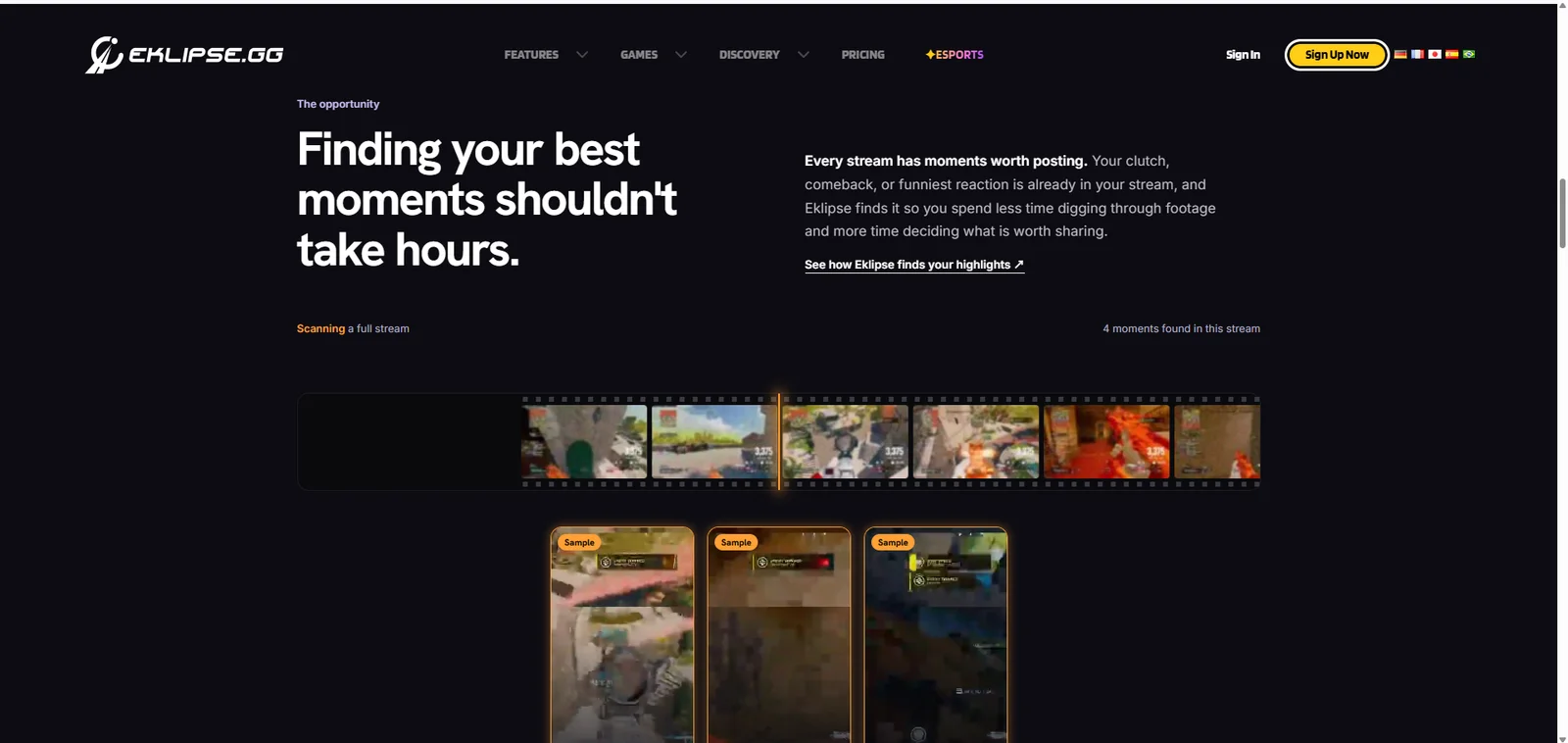
Eklipse looks for recognizable game events: eliminations, multi-kills, goals, and clutch victories across supported titles. This is a meaningful specialty when the highlight is gameplay rather than a spoken answer. Premium adds vertical templates, captions, effects, and watermark-free output up to 1080p at 60fps.
User feedback adds context: Trustpilot reviews include praise for extracting moments from lengthy streams and saving editing time. Some reviewers also report uninteresting selections or editor and integration issues.
Signup and an initial stream scan provide previews, but producing and exporting clips requires Premium. The web subscription costs USD 24.99 monthly or USD 179.99 annually.
Recommended for: Gaming streamers whose content centers on supported in-game events and who want vertical highlight clips.
8. quso.ai — For AI Clipping and Social Media Management
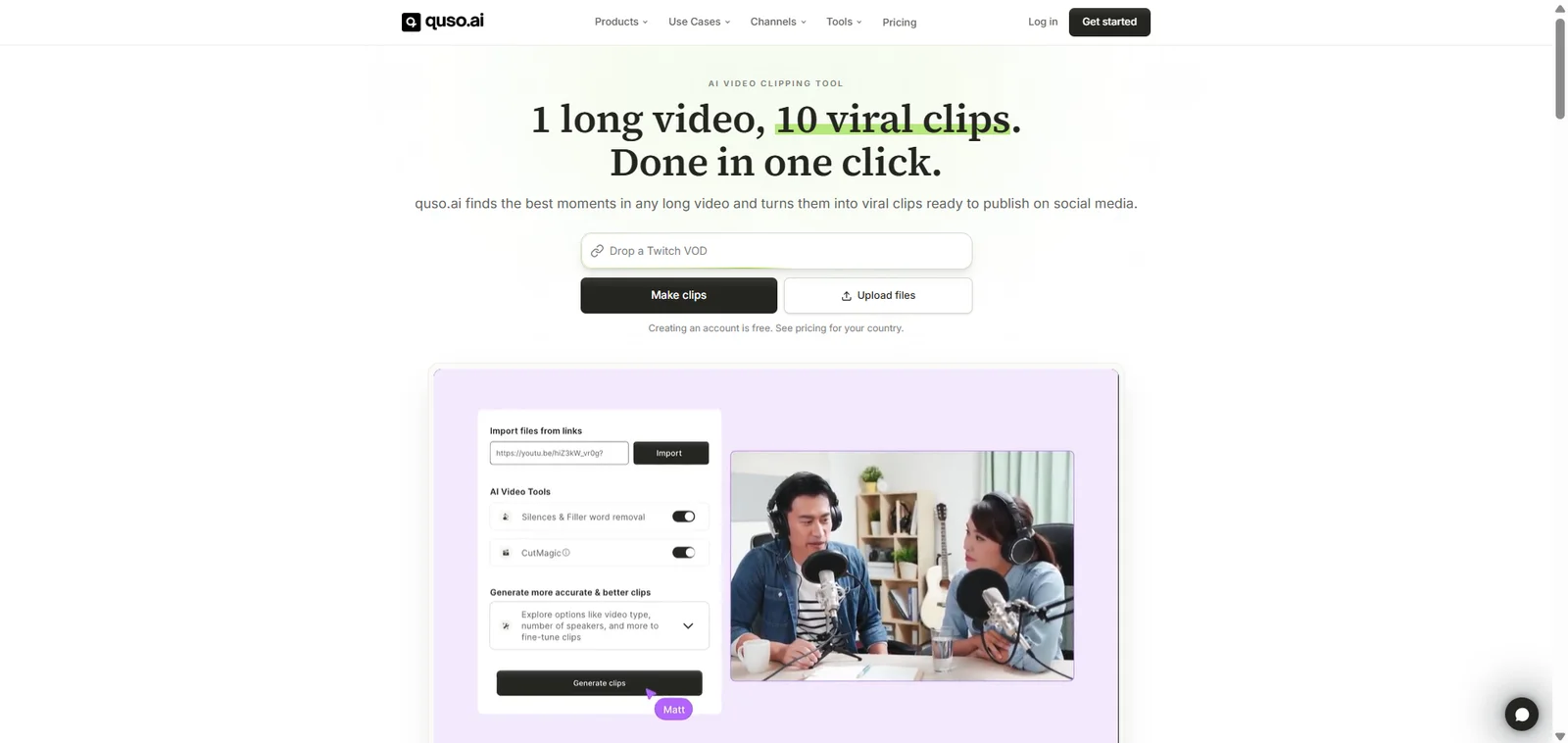
quso.ai is closer to a social-content workspace than a single-purpose clipper. It combines AI clips and captions with content planning, scheduling, brand tools, and analytics across its plans.
The tier structure matters. Lite costs USD 29 per month and focuses on video creation and TikTok publishing. Scheduling to seven platforms starts with Essential at USD 39, alongside filler-word and silence removal. Growth is USD 49 and adds brand kits, templates, and analytics.
Its free plan includes 75 credits per month, watermarked 720p rendering, and seven-day retention. If you already have a scheduler and just need short videos, the wider suite adds functions you may not use.
Recommended for: Social media managers and small teams that need content planning and distribution as well as short-video production.
9. Ssemble — For Turning YouTube Videos into Shorts
Ssemble pairs YouTube-link clipping with channel automation. Its automation can monitor a connected channel, process videos, and schedule clips according to posting rules. That is a different proposition from submitting one video whenever you need a few excerpts.
It also uses a different credit unit: one credit covers up to 20 minutes of source video. Processing a full hour uses three credits, and a 45-minute recording also uses three. Pro includes one social connection; higher tiers increase channel and credit allowances.
You can preview the initial clips before subscribing, but downloads and publishing require a paid plan. Pro is USD 15 monthly or USD 72 annually, equivalent to USD 6 per month, with 360 credits on the annual plan. The lower annual equivalent requires paying for a year upfront; monthly billing is the shorter commitment for a creator trying channel automation.
Recommended for: YouTube creators who publish regularly and want connected-channel automation rather than only occasional manual submissions.
AI Clip Maker Pricing and Free Options Compared
Prices and plan details checked in October 2026. Amounts below are in USD; annual equivalents require annual payment.
Free Plans and Free Trials
Free access can mean a recurring allowance, a one-time credit balance, or a preview before paying. The distinction matters if you want to keep producing clips every week.
| Tool | Free access or allowance | Paid pricing or plan upgrade | Key delivery condition |
|---|---|---|---|
| VideoTube | Free to use | Free; no watermark-removal subscription | Watermark-free clip downloads; local uploads and supported links |
| OpusClip | 60 credits/month | Starter: USD 15/month; Pro: USD 29/month | Free exports have a watermark and a three-day window |
| Vizard | 60 upload credits/month | Creator and Business, with usage-based tiers | Free: 720p and three-day storage; Creator adds watermark-free exports and scheduling |
| WayinVideo | 100 one-time credits | Pro: USD 26.99/month, including 1,000 credits | Free: watermark-free 720p; local uploads and publishing require payment |
| Restream | Seven-day Clips trial; renews into a paid subscription unless canceled | Add-on: USD 19/50 clips, USD 29/100 clips, or USD 59/250 clips per month | Add-on cost is separate from the base subscription |
| Choppity | One hour of AI analysis | Starter: USD 24/month or USD 201.60/year | Starter includes three analysis hours, higher-resolution exports, and scheduling |
| Eklipse | Initial stream scan and previews | Premium: USD 24.99/month or USD 179.99/year | Premium required for production and watermark-free 1080p 60fps exports |
| quso.ai | 75 credits/month | Lite: USD 29; Essential: USD 39; Growth: USD 49 per month | Free: watermarked 720p; scheduling to seven platforms starts with Essential |
| Ssemble | Initial clip previews | Pro: USD 15/month or USD 72/year | Subscription required for downloads and publishing |
Paid Plans and Included Features
The most useful upgrade is the one that removes a real bottleneck. For occasional clipping, watermark-free downloads may be enough. For a weekly show, source-video capacity and project storage matter more. For an agency, connected accounts and scheduling can determine the right tier.
Compare equivalent workloads rather than credit balances. Some plans measure source minutes, Restream counts generated clips, and Ssemble uses source-video blocks. An hour-long input and ten finished downloads therefore do not represent the same billable task across products.
A weekly one-hour recording totals roughly four hours of source material in a four-week month. Compare that workload with each plan's allowance before comparing extra features. The resulting budget should reflect the videos you already produce, not the maximum number of clips a headline promises.
Watermarks, Processing Limits, and Export Quality
Use the table to separate processing access from delivery. A free preview shows what the AI found; a downloadable export gives you the file to publish. Watermark rules determine whether platform branding appears on that file, and retention periods determine how long it remains available. These conditions affect the finished asset even when two tools offer similar clipping features.
Higher resolution is useful for branded assets and fine on-screen detail. Storage matters when clips need approval before posting. For an existing clip that needs a different aspect ratio, VideoTube's AI Reframe adapts the framing to keep the subject in view.
Which AI Clip Maker Should You Choose?
Choose VideoTube when you want free, watermark-free clips from footage on your device, in cloud storage, or on social channels. Automatic clip generation, caption presets, and multiple output ratios bring the core work together without adding a clipping subscription to your budget.
For a more specialized workflow, Eklipse targets gaming events, Restream connects clipping with live production, and Vizard combines conversation-based clipping with online editing. WayinVideo adds video search and transcripts. OpusClip, Choppity, quso.ai, and Ssemble offer different combinations of editing and social distribution.
Your next short video may already be inside your latest recording. Try VideoTube's AI Clip Maker to turn that footage into more content to share.
Frequently Asked Questions About AI Clip Makers
Do I Need Editing Experience to Use an AI Clip Maker?
No. AI clip makers automate highlight selection and clip creation, while captioning and reframing tools prepare the results for social viewing. You can begin with an existing recording, generate clips, and preview the output without building each edit on a timeline.
Is VideoTube Free to Use Without a Watermark?
Yes. VideoTube is free to use, and exported clips do not carry a VideoTube watermark. You can generate and download clips without purchasing a subscription to remove branding.
How Many Short Clips Can AI Create from One Video?
There is no fixed clip count for every recording. Output depends on the number of distinct moments in the source, the target clip length, and the tool's generation settings. An interview with several separate answers offers more clipping opportunities than a recording focused on one continuous explanation. Several clips can come from one upload; they do not each require a new recording.
Which Video Links Can I Use with VideoTube?
VideoTube accepts links from YouTube, Google Drive, TikTok, and Instagram, as well as local video uploads. You can start with a recording on your device, in cloud storage, or already published on a supported social platform.
Can I Use AI-Generated Clips on TikTok, Reels, and YouTube Shorts?
Yes. AI clipping tools with captioning and vertical reframing can prepare existing footage for these platforms. Choose the appropriate output format and download the clips for uploading. Direct publishing and scheduling are separate features, offered by some tools and plans.