
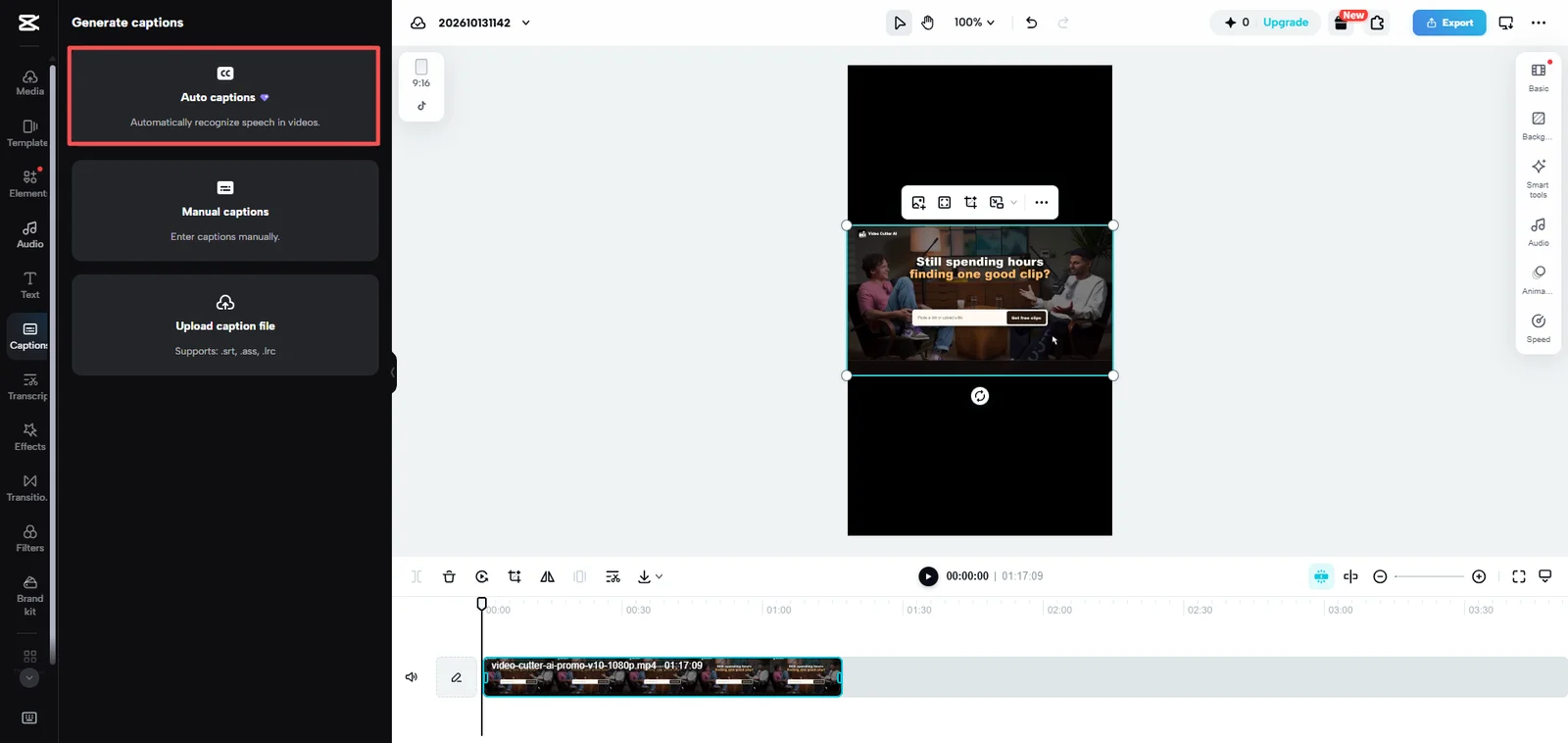
Your video is edited and ready for captions, but CapCut asks you to upgrade to Pro before generating them. If you only need on-screen text for a tutorial, talking-head video, or podcast clip, paying for a full editing subscription may not feel worthwhile.
You can keep using CapCut for editing and handle captions separately. VideoTube's Video Caption Generator provides a free way to turn spoken audio into timed on-screen text without typing every sentence manually.
The right choice depends on how you use CapCut. If you rely on several advanced editing features, Pro may fit your workflow. If captions are the only feature you need, a separate tool can help you finish the video without changing the edit you already completed.
What Are Your Options When CapCut Auto Captions Require Pro?
CapCut includes Pro-only functionality within its auto-caption tools. Access can vary by platform and account, but if your editor asks you to upgrade before captions are generated, you have two practical options: subscribe to the required plan or complete the captioning step elsewhere.
Consider Pro If You Regularly Use Its Editing Features
A subscription makes more sense when captions are only one of several paid features you use. Premium templates, effects, transitions, and other editing tools may all be part of your weekly production process.
Keeping everything in one project also helps when you frequently revise a video. If you remove a sentence, move a clip, or change the pacing, you can review the related captions within the same timeline.
Evaluate CapCut Pro based on your complete workflow. If automatic captions are the only paid feature you need, a separate caption tool may be a more practical choice.
Use a Separate Caption Tool If Your Edit Is Already Finished
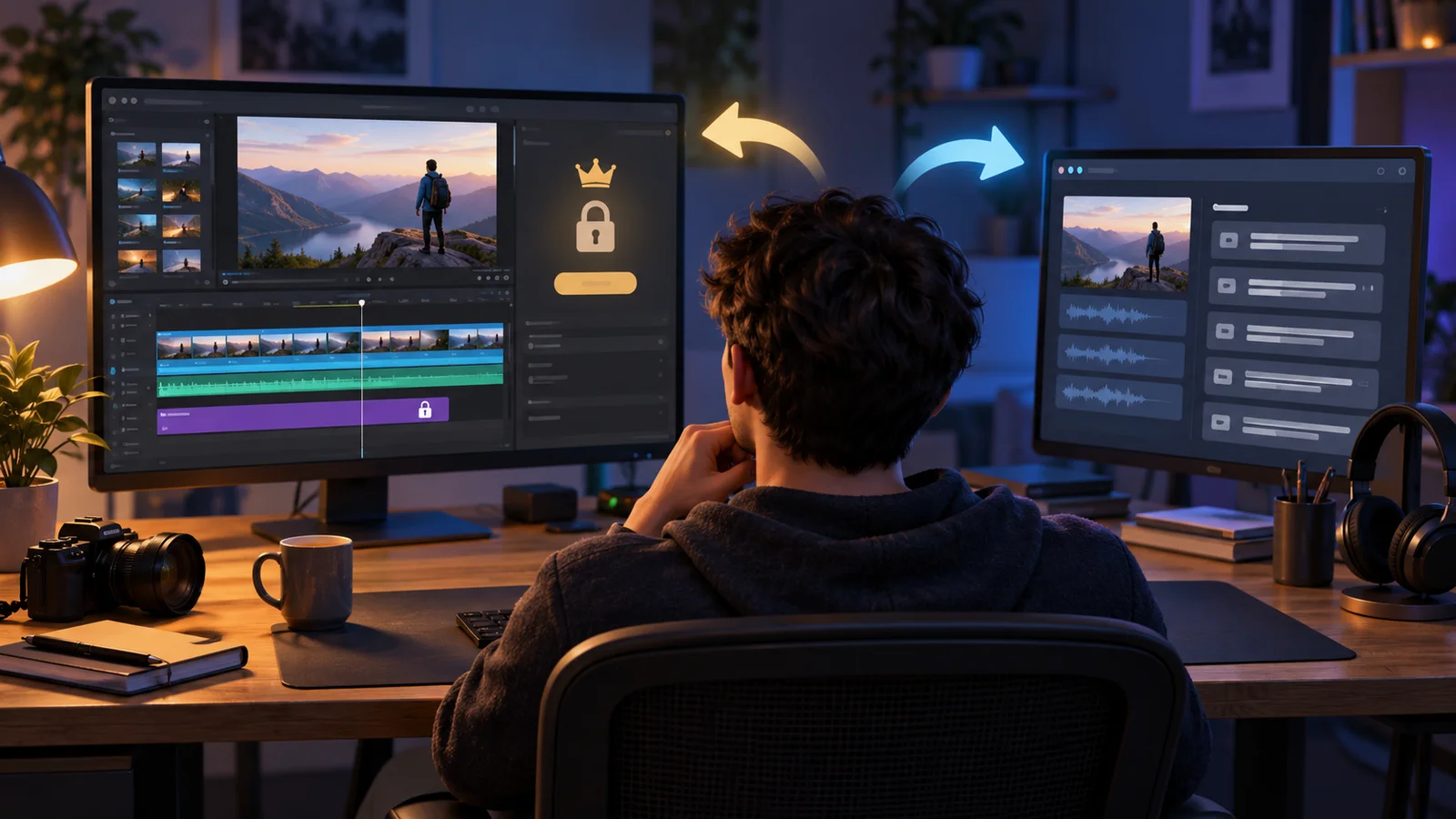
A finished video usually needs three caption tasks: generate the words, check their timing, and make them readable on screen. None of these requires rebuilding the entire edit.
A CapCut auto captions alternative lets you keep your existing workflow:
-
Finish editing in CapCut and export a clean video.
-
Generate and review captions in VideoTube.
-
Download the captioned version for publishing.
This works well for a product tutorial that already has its cuts and voiceover, or for a podcast excerpt selected from a longer conversation. You replace one step instead of replacing your entire editing process.
Keeping a clean export also makes future versions easier. If you need to correct a product term or apply another caption style, you can start from a video without old text embedded in the image.
How to Add Auto Captions for Free With VideoTube
Upload Your Video and Generate Captions
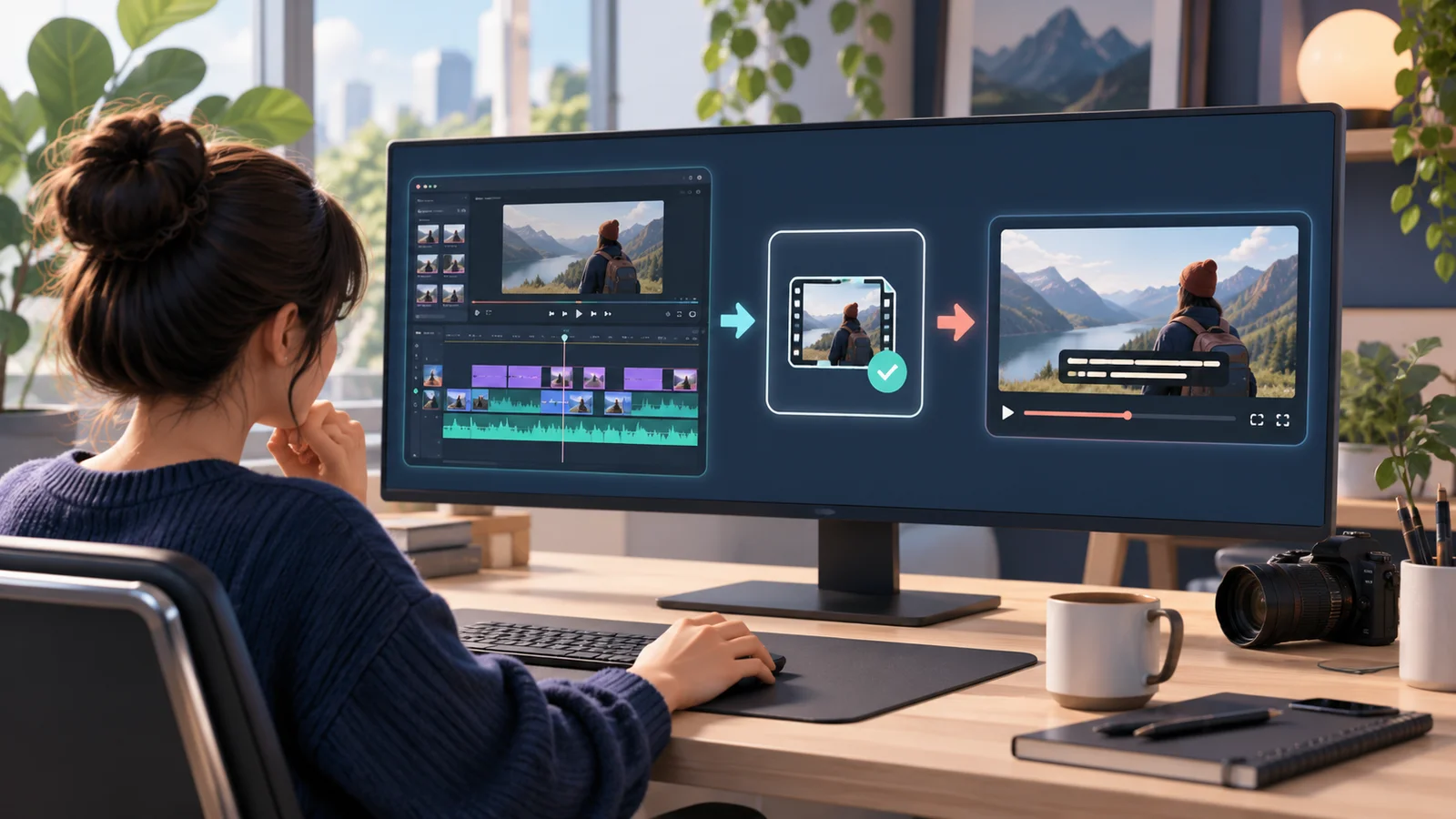
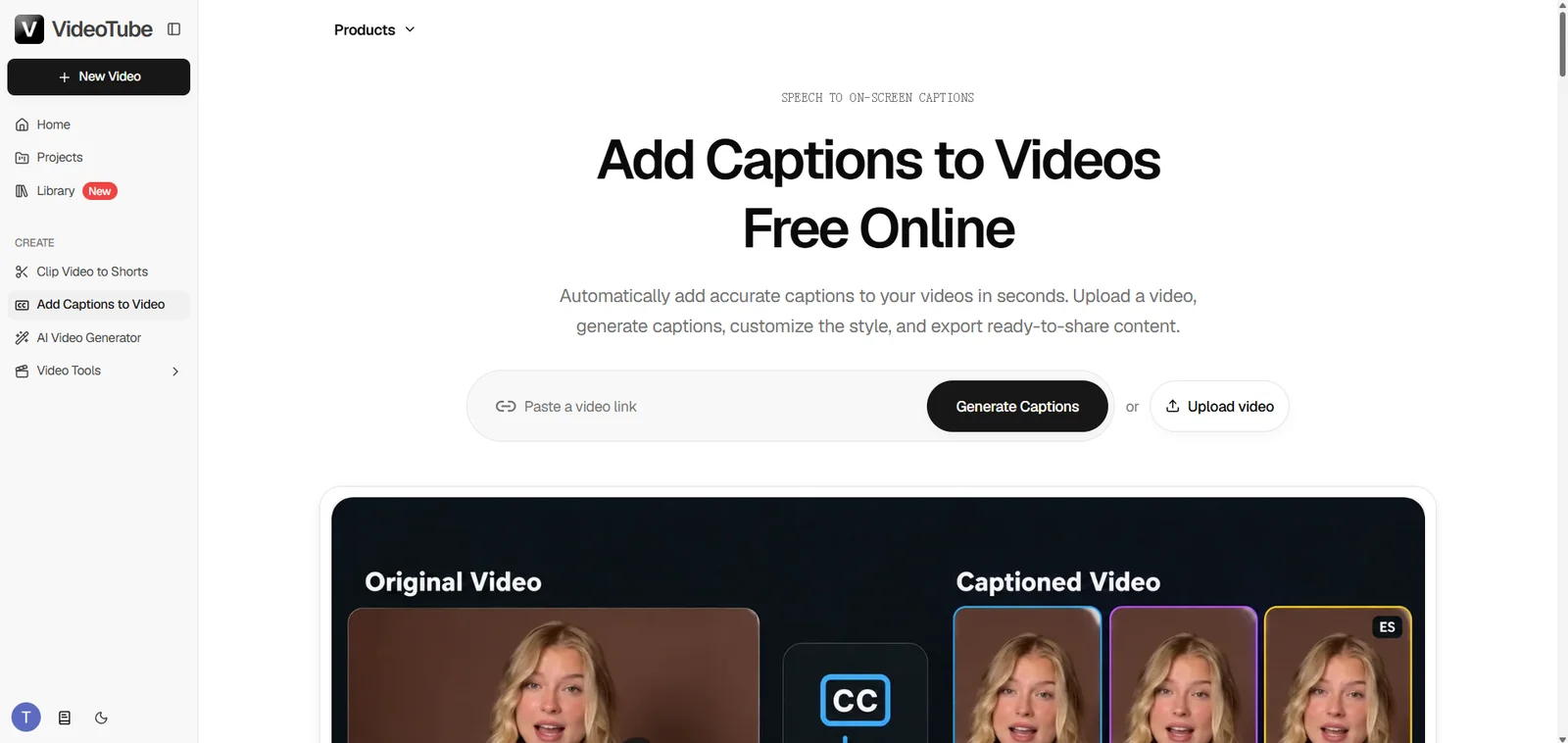
Upload your finished video to VideoTube's online video caption generator, or begin with a supported YouTube link. VideoTube generates a timed caption draft from the spoken audio.
Use the version you intend to publish. Finish trimming pauses, rearranging scenes, and changing playback speed before generating captions so the text follows the final edit.
Clear audio also improves the result. If music is louder than the speaker, reduce it in your editing project first. A clean voice track means less correction work later.
Correct the Text and Adjust the Caption Style
Read the generated captions while listening to the video. Check names, numbers, product terms, and words that change the meaning of an instruction.
For example, "choose Plan B" and "choose plan bee" sound similar, but only one is correct in a product tutorial. Correct important wording before spending time on visual styling.
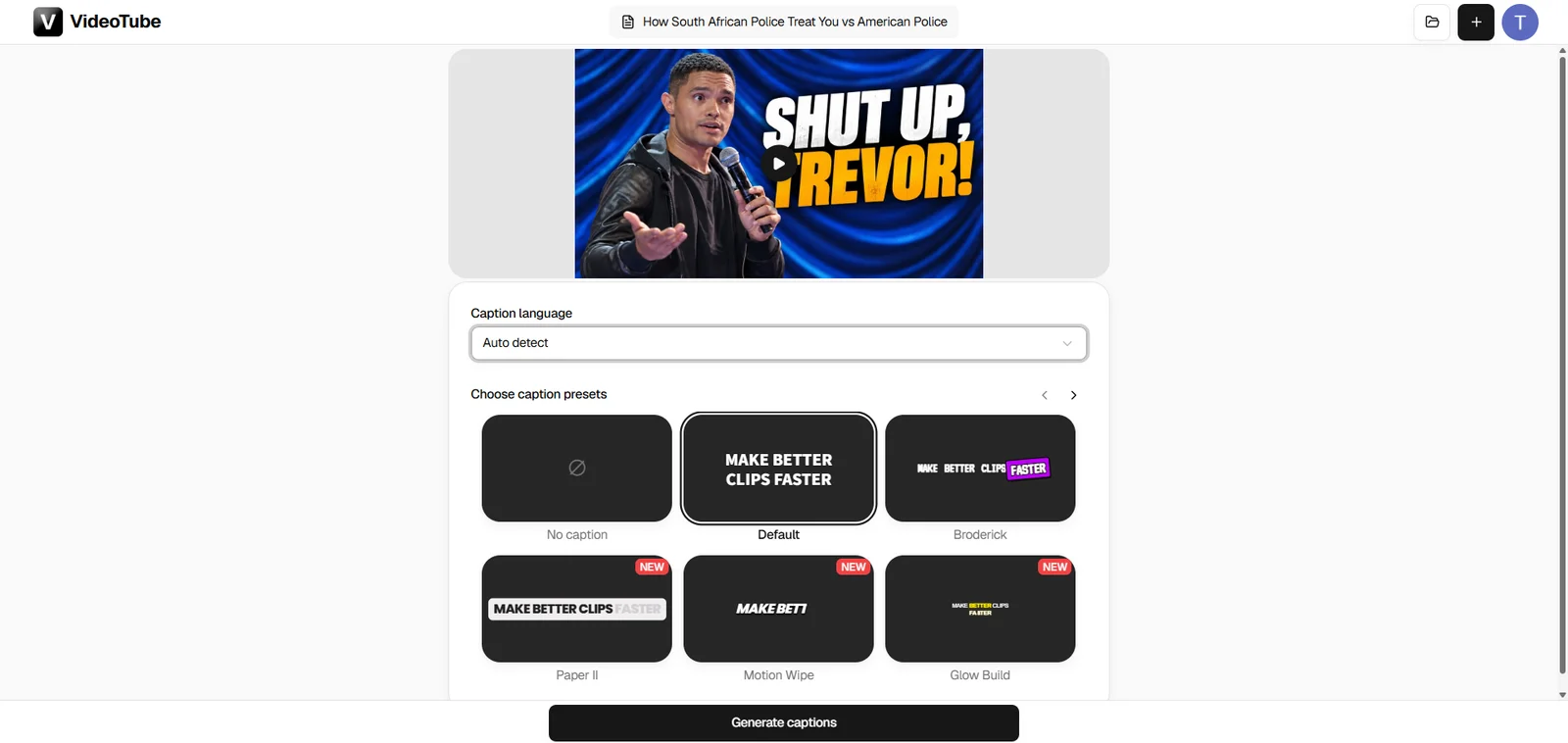
Then choose a style that matches the video:
-
Tutorials: Keep captions away from buttons, menus, and demonstrations.
-
Talking-head videos: Avoid covering the speaker's face or gestures.
-
Product videos: Leave product labels and important details visible.
-
Vertical social videos: Keep space around platform controls and descriptions.
Short, readable lines are usually more effective than complicated styling. Preview the video at phone size to make sure viewers can follow the text in a vertical feed.
Preview and Export Your Captioned Video
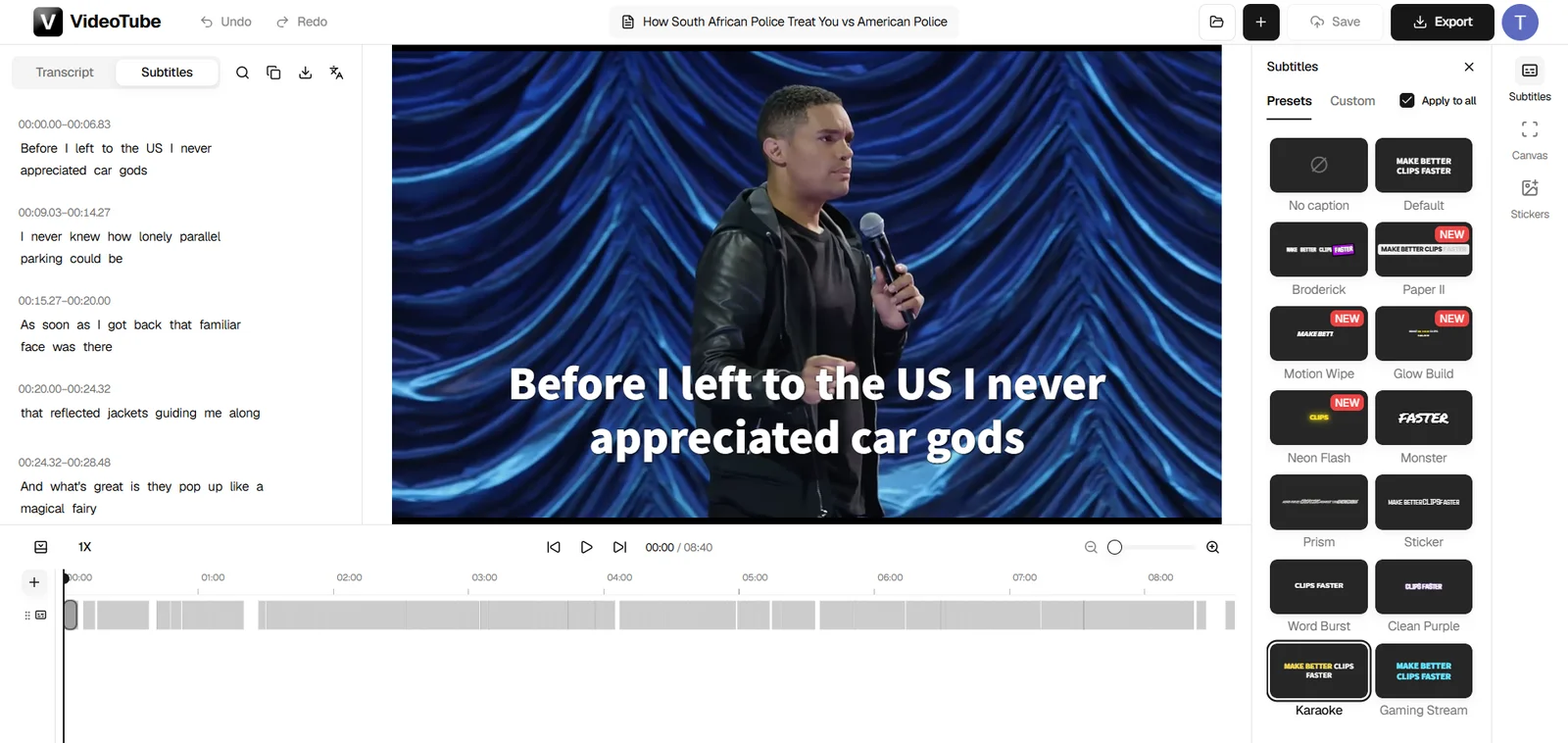
Watch the complete video with sound. Make sure the first words appear at the right moment, each line remains visible long enough to read, and the final sentence is included.
Then watch it without sound. The captions should communicate the main message while keeping important visual details visible.
Export the finished video and inspect the downloaded file before publishing. Pay particular attention to captions near the edges and text placed over busy or changing backgrounds.
Keep Editing in CapCut and Add Captions Elsewhere
Finish Your Edit in CapCut and Export Without Captions
If you already know CapCut, continue using it for the editing tasks that suit your workflow. Complete the cuts, framing, audio adjustments, and other available edits before exporting a version without captions.
If the export still triggers a Pro prompt, check the project for other premium materials or restricted output settings. Moving caption generation to another tool does not remove unrelated paid elements from the project.
Save the original CapCut project and the clean export. Together, they give you a reliable starting point for future edits and different captioned versions.
Add Captions With VideoTube After Your Final Edit
Once the edit is complete, upload the clean video to VideoTube and finish the captioning step.
For example, a podcaster can cut a useful exchange in CapCut and then add captions to the finished excerpt. A marketer can edit a product demonstration first and then prepare it for viewers who watch with the sound off.
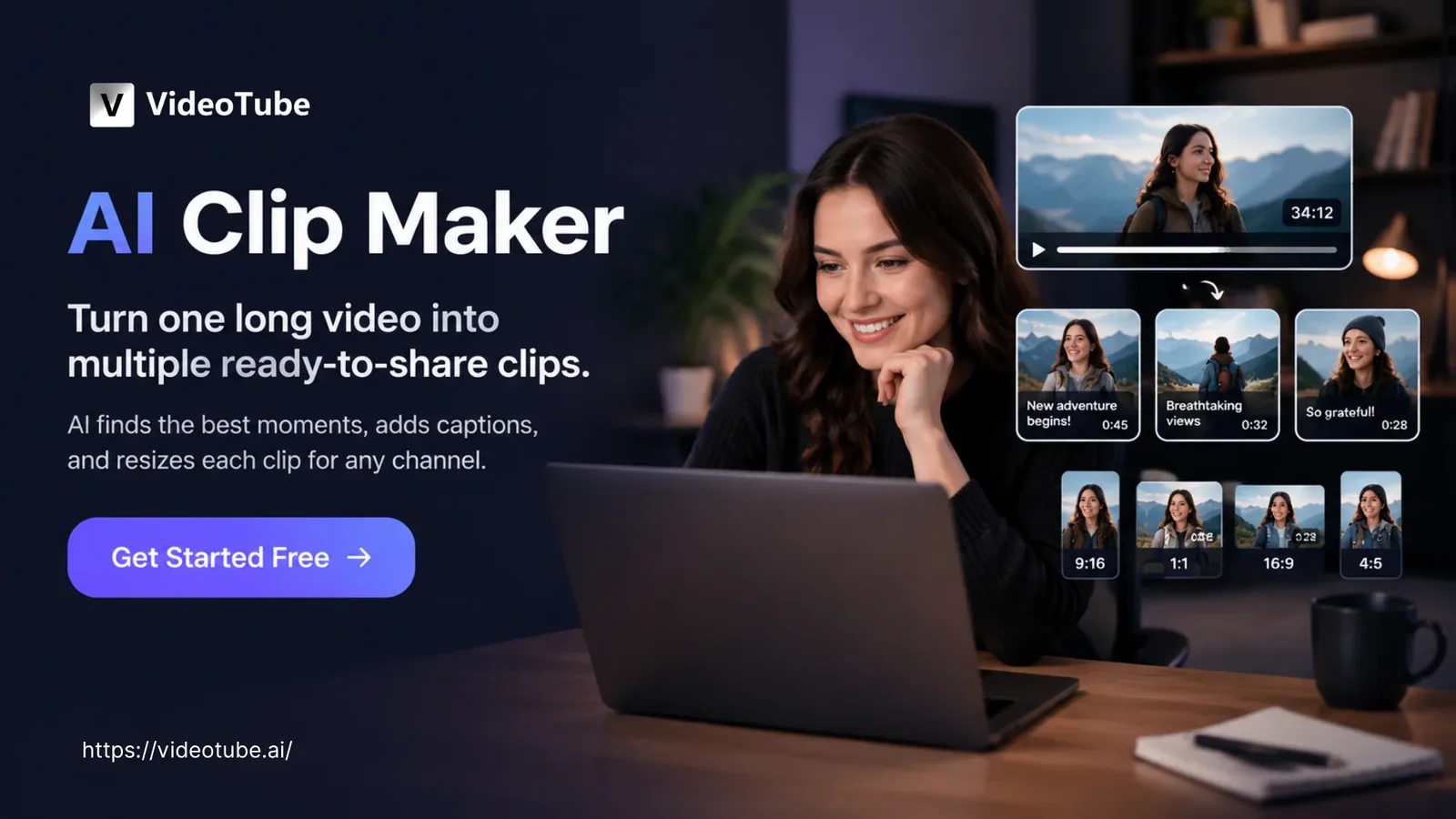
If you are starting with a complete podcast, interview, or webinar, VideoTube can also help before the captioning stage. Its AI Clip Maker analyzes long videos, identifies highlight moments, turns them into short clips, and automatically adds captions.
Instead of watching the entire recording, cutting every segment manually, and captioning each clip separately, you can review ready-made captioned clips and prepare them for TikTok, Instagram Reels, or YouTube Shorts. If your source footage is horizontal, crop the video to 9:16 first, so both the subject and the captions stay inside the vertical frame when you publish.
For example, a webinar may contain several useful explanations that work as independent short videos. AI can identify those moments, create shorter clips, and add captions automatically. You can then review the context, correct important terms, and choose the clips that are ready to publish.
This gives you two ways to work with VideoTube: upload an edited clip for captions, or turn a long recording into captioned short-form content first. In both cases, finalizing the video before making detailed caption corrections keeps the workflow efficient.
Frequently Asked Questions
Will Reinstalling CapCut Restore Free Auto Captions?
Reinstalling CapCut does not change your account's subscription permissions. If Auto captions opens an upgrade prompt, reinstalling will not unlock the feature.
A crash, connection failure, or generation error is a separate technical issue and should be handled differently from a subscription prompt.
Can I Replace Captions That Are Already Burned Into a Video?
Burned-in captions are part of the video image. They cannot be switched off like an editable text layer.
Return to the original editing project, remove or hide the old captions, and export a clean version. Adding new captions over an already captioned video can create overlapping text and make the result difficult to read.
Will Adding Captions in Another Tool Reduce Video Quality?
Another export involves video compression, so the source file and output settings matter. Use the original export instead of a copy downloaded from a social platform, and avoid unnecessary rounds of processing.
Keep the source resolution and frame rate where available. After downloading the final video, check fine details, motion, and small text before publishing.
What Can I Do With VideoTube's Free Caption Option?
VideoTube provides a free way to generate timed captions from spoken audio. You can review the wording, correct important details, adjust the caption style, and preview the text on your video.
For an edited tutorial, product demonstration, or talking-head video, this lets you complete the captioning step separately without subscribing to CapCut Pro just to unlock auto captions.
VideoTube can also turn longer recordings into short videos with its AI Clip Maker. It identifies useful moments and adds captions automatically, reducing the manual work involved in selecting clips, editing them, and captioning them one by one.
Can I Change the Captions After Exporting the Video?
To correct a word, change a style, or adjust timing, return to the editable caption project and export a new version.
The downloaded video does not preserve burned-in captions as editable text. Keep the original video and caption project until the final version is approved so later corrections remain simple.
If CapCut's upgrade prompt is delaying a finished video, keep the edit and move the captioning step to VideoTube. Start with Video Caption Generator, review the words and timing, and prepare a video your audience can follow even when the sound is off.