
You have already recorded the clip. The product looks clear when you watch it full-screen, but in a square post it sits in a sea of empty desk space. Turn the same clip into a vertical short and half the product disappears off the side. A screen recording can cause a different problem: thick black borders make the button you are demonstrating look tiny. Often, you do not need another take. You just need to decide which part of each frame the viewer sees. A thoughtful crop can also help the same footage fit a social post without the distracting space around it.
To crop a video, choose the file, set the area you want to keep, then preview and download it. The steps below show that quick online workflow. You will also see how to choose a frame shape and catch the details—moving subjects, captions, and small text—that are easy to lose in a crop.
Crop Your Video with VideoTube
VideoTube's Video Cropper lets you choose a file, position a crop frame, and download the result in your browser. The video is processed locally on your device, with no sign-up and no watermark added to the download.
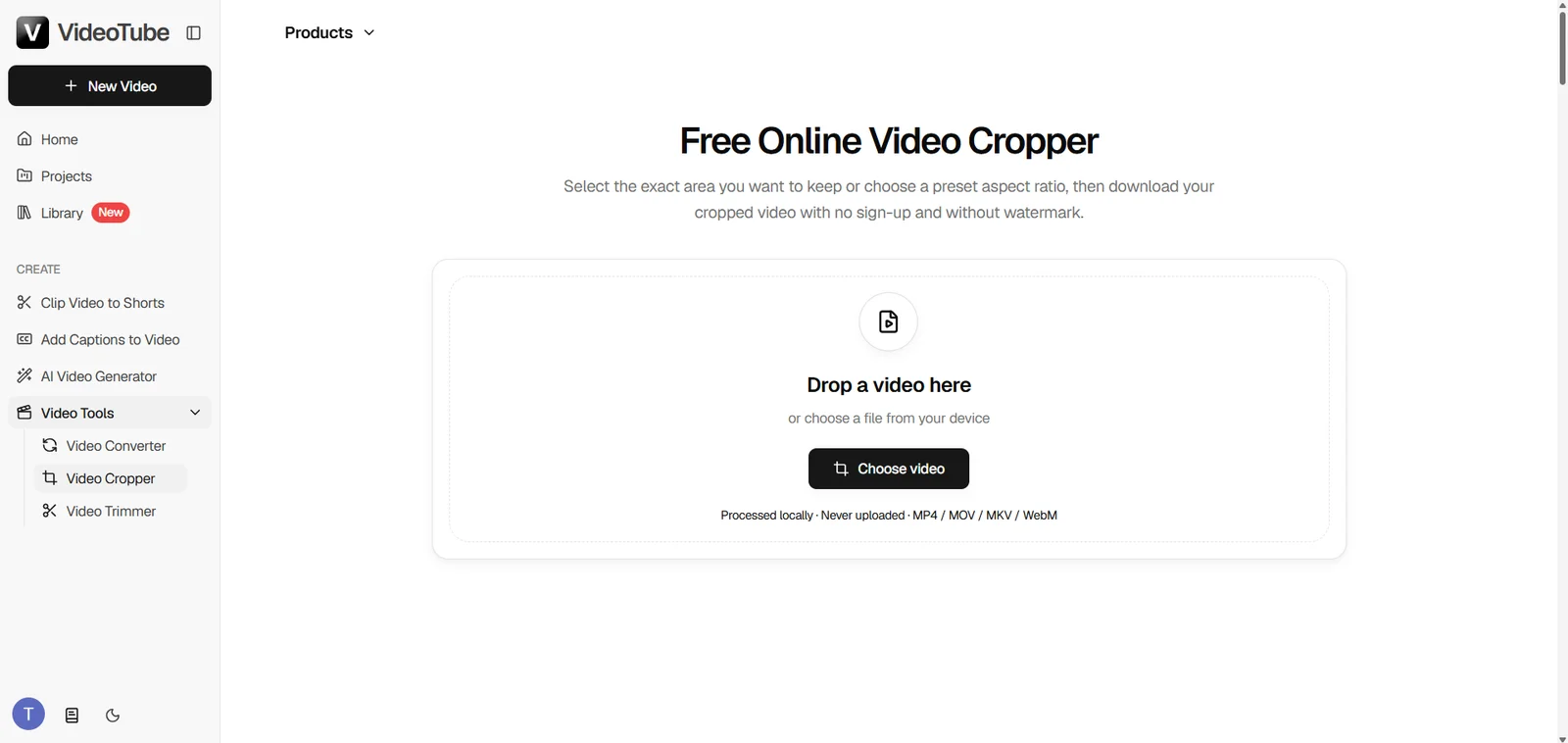
Step 1 — Choose Your Video
Select a video from your device, or drop it onto the page. The cropper accepts MP4, MOV, MKV, and WebM files. Once the preview appears, you are ready to set the frame. For example, if you want to remove the black edges from a screen recording, choose the original recording rather than a version that has already been cropped tightly; the original gives you more room to work.
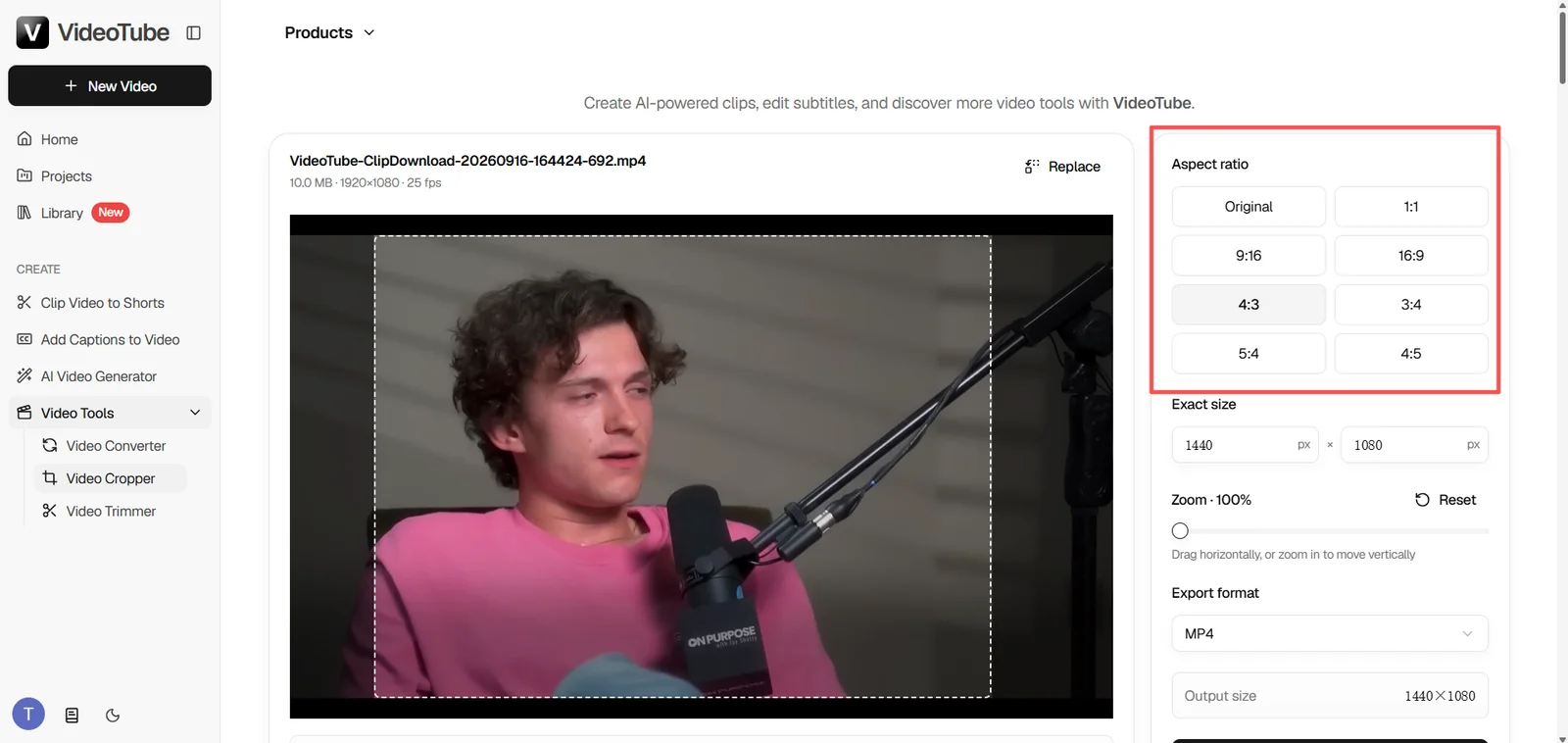
Step 2 — Adjust the Crop Frame or Pick an Aspect Ratio
Drag and resize the crop frame around what you want viewers to see. Move it to remove unwanted edges or bring the subject closer. For a standard shape, choose a preset aspect ratio; for a specific layout, set custom dimensions.
Imagine a wide product demo with a phone on the right and empty desk space on the left. Select a vertical ratio, then move the crop frame over the phone. The preset sets the shape; it does not know which object matters. If you simply accept the centered crop, you could keep the empty desk and cut off the product. The same principle applies to a talking-head clip: choose the ratio first, then place the person's face inside the frame.
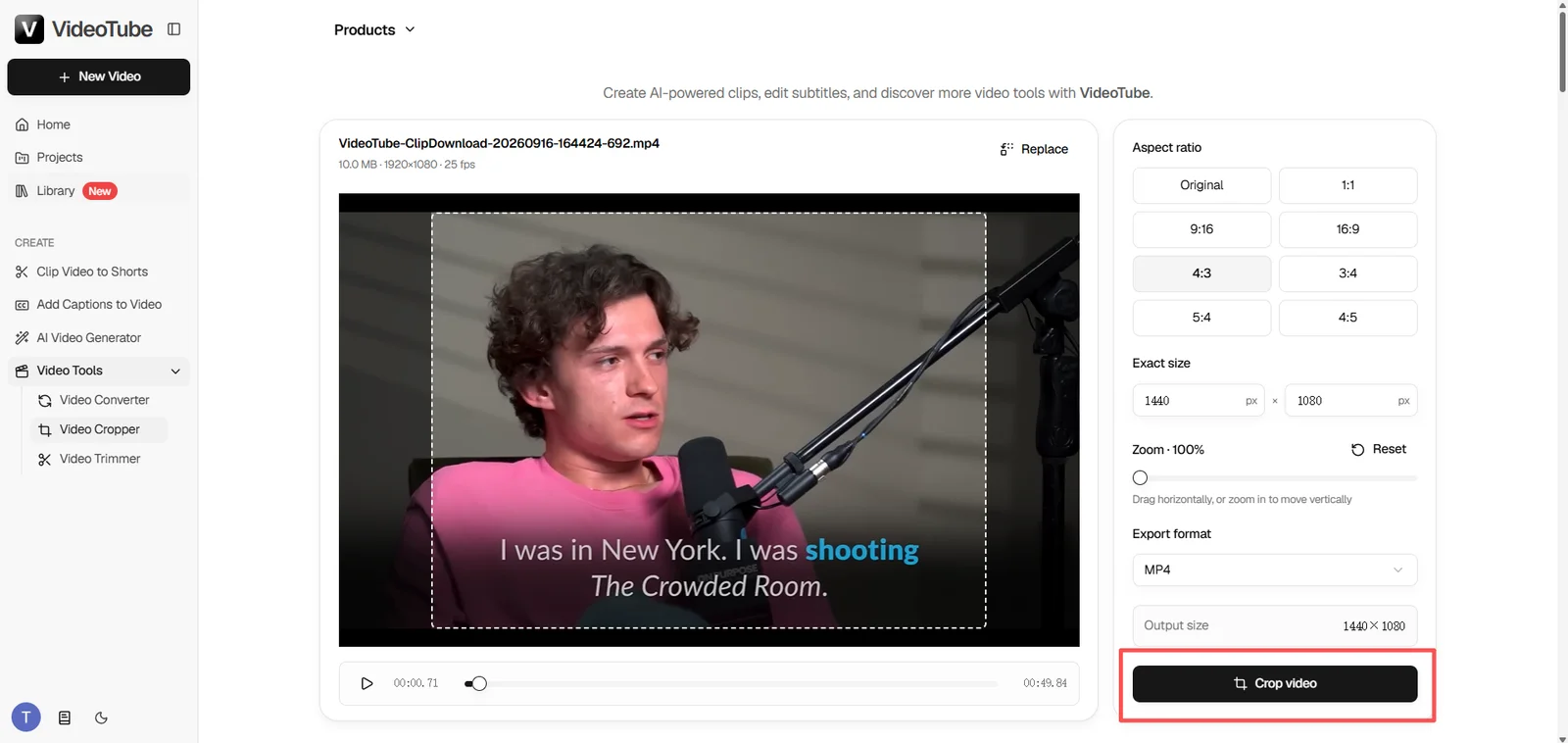
Step 3 — Check the Preview and Download
Preview the new framing, apply the crop, and download the finished file. Play the downloaded video once to confirm the result. In the product-demo example, check that the product is still visible when someone picks it up or turns it toward the camera. If the frame looks wrong, use the three-point checklist below to find what needs adjusting.
That's the quick edit: choose, frame, and download. The next question is which frame shape fits your destination—and what you might lose when you crop it.
What Aspect Ratio Should You Crop Your Video To?
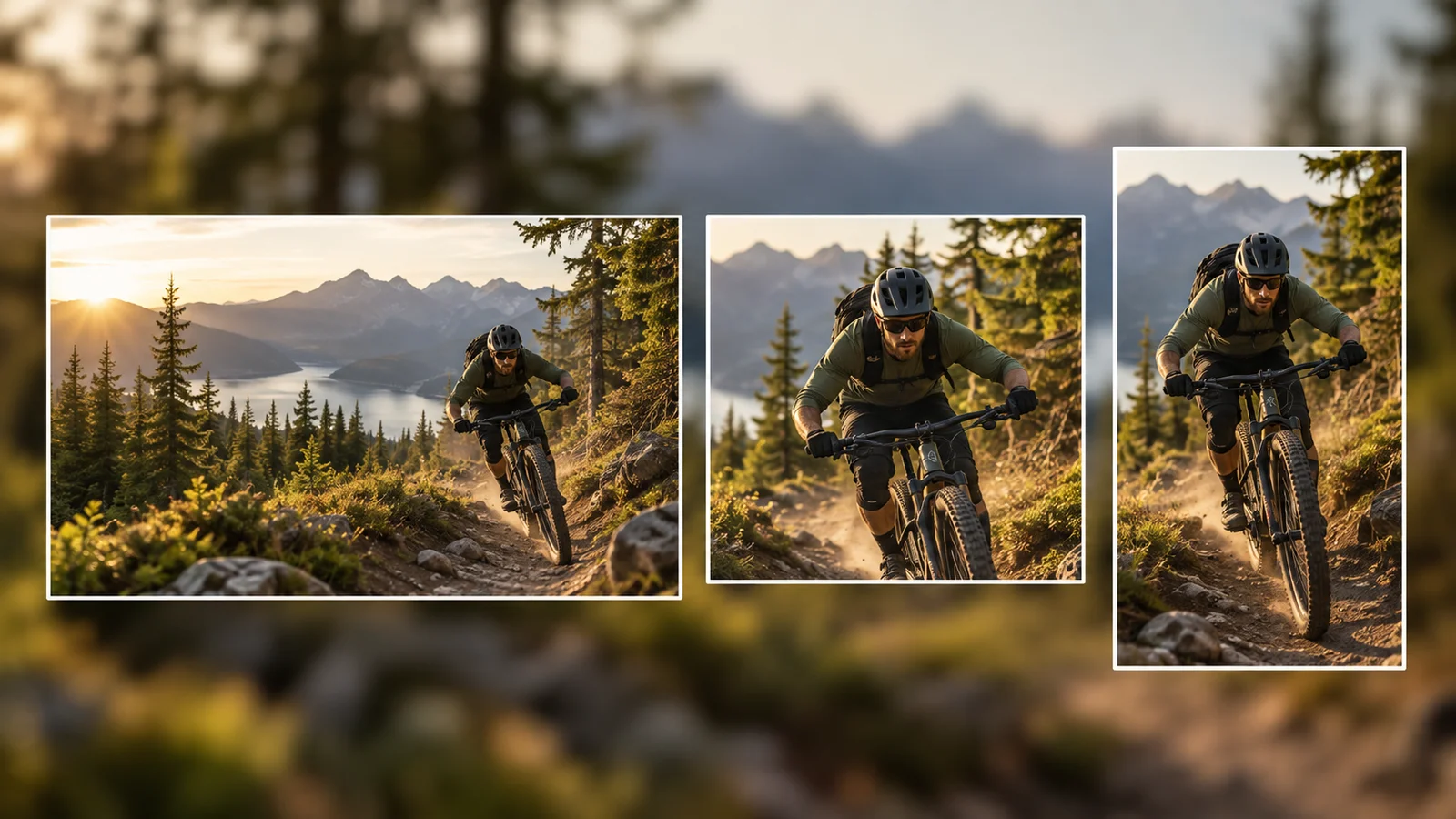
An aspect ratio describes the frame's shape, not its length. Choose it based on where the video will appear, then adjust the crop position to protect the subject. VideoTube's Video Cropper offers preset ratios and custom dimensions. The ratios below are useful starting points; check the current requirements of the platform or placement where you plan to publish.
16:9 for a Wide Video
Use 16:9 when you need a horizontal frame, such as a conventional wide video or a presentation. It preserves more of a landscape shot than a square or vertical crop. If your source is already 16:9 and the framing works, you do not need to crop it just to keep that ratio. You can still crop to remove unwanted edges or bring the subject closer. For a screen recording, imagine showing someone how to change a setting: leave enough width for both the menu they click and the result that appears beside it. A crop that shows only the pointer gives the viewer too little context.
1:1 for a Square Post
A square crop can focus attention on one person, product, or action while removing extra space at the sides. Think of a tabletop product demo: the item should be easy to see, but the person's hands may enter from either side to show how it works. Start with the product near the center, then check that the hands, labels, or other useful details are not cut off later in the clip.

9:16 for a Vertical Short
Use 9:16 for a full-height vertical layout. Turning a wide recording into a narrow frame removes a substantial amount of the left and right sides. In an interview, put the speaker inside the new frame and leave room for any text already embedded in the video. If two speakers sit far apart in the original shot, one fixed vertical crop may show only one of them. In that case, a different shot or a wider layout may tell the story more clearly.
Before You Download: A 3-Point Checklist
A crop that looks good in one paused frame may fail when the video plays. Run through these checks before saving the final version.
Is the Subject Visible Throughout the Clip?
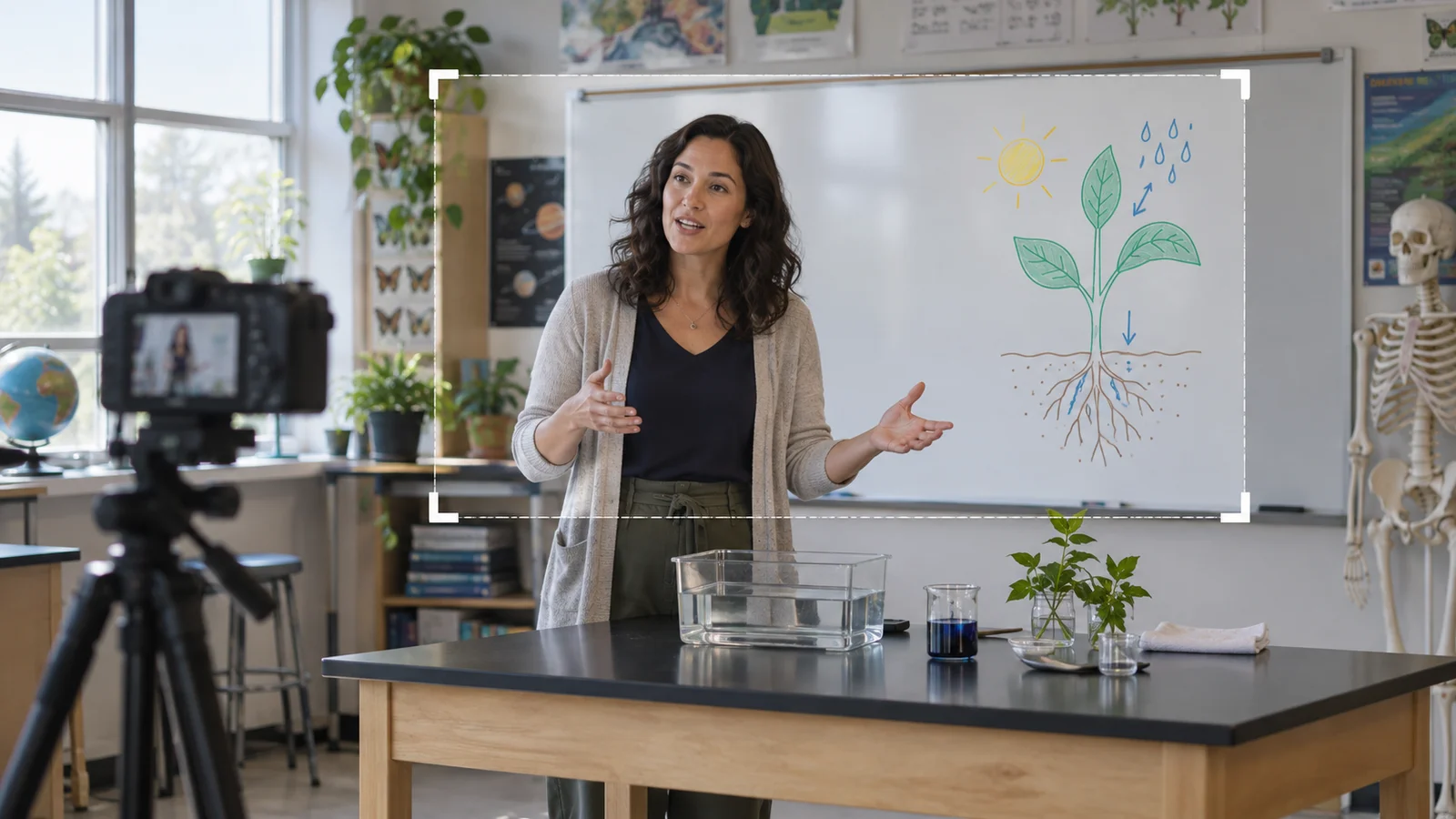
Check the beginning, middle, and end, especially where the camera or subject moves. A centered crop might show a speaker at the start but lose them when they step toward a whiteboard. The crop frame stays in one position; it does not follow the subject automatically. If the subject leaves the selected area, widen or reposition the frame. Footage that changes composition dramatically may need separate clips or more involved editing.
Are Captions and Important Details Inside the Frame?
Watch the edges for names, prices, subtitles, interface controls, and anything a viewer needs to understand the clip. In a tutorial, a button label at the right edge may be as important as the speaker's face. A crop that removes clutter can also remove that context. Keep a little breathing room around key details instead of placing them exactly against the new edge.
Does the Cropped Picture Still Look Clear?
Check small text and faces at the size where people are likely to watch. A tiny price tag may look readable in the large editor preview but turn fuzzy on a phone. If it looks soft, widen the crop before downloading. A less aggressive crop keeps more detail from the original frame.
Cropping vs. Trimming a Video: Which Do You Need?
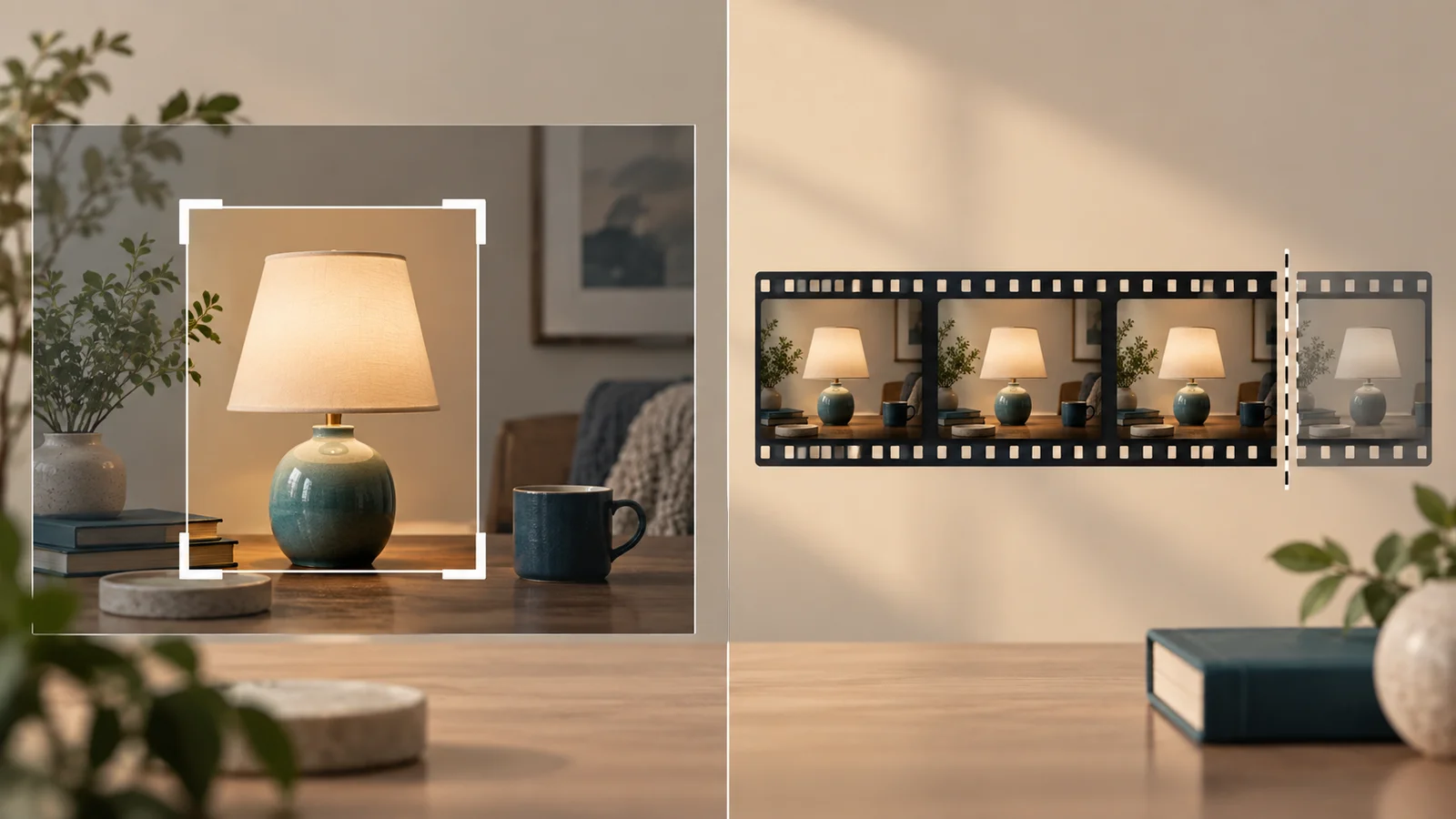
Cropping changes what is visible inside each frame. Trimming changes how long the video runs. To remove a black border or reframe a speaker, crop. To remove a slow introduction or the last few seconds, trim.
Sometimes you need both. Suppose a four-minute interview contains one useful 30-second answer, and that answer also needs a vertical frame. First select the answer by its start and end times; then check how the speaker fits in the new frame. If you need to remove time from the beginning or end, use VideoTube's Video Trimmer to select the range you want to keep. Use the cropper when you already know which video or clip needs reframing.
Frequently Asked Questions
Can I Crop a Video Online Without Signing Up?
Yes. You can select a file from your device, adjust the crop, and download the result without creating an account. Open the tool, choose your video, and move the crop frame around the part you want to keep. If you only need to remove a distracting edge or make a quick square or vertical version, you can complete that task without setting up a separate editing project. Check the preview before downloading so you do not have to repeat the crop.
Will the Downloaded Video Have a Watermark?
No. The cropper does not add a watermark to the downloaded video. If you see text or a logo after cropping, check the original video first: cropping does not erase a watermark already embedded in the footage. You can remove something near an outer edge only if that area can be cropped away without losing the content you need to keep. Otherwise, keep the useful picture intact rather than cutting away important content just to hide the mark.
Can Cropping Remove Black Borders?
Yes, if the black borders sit outside the useful picture. Drag the crop frame inward until the dark edges are outside the selected area, then preview several moments of the video. Check that captions, faces, and movement still fit inside the new frame. If the borders are uneven, a custom crop may work better than a preset ratio. If black bars were deliberately added behind subtitles or other content, cropping them away may also remove that content.
Does Cropping Change the Video's Length?
No. Cropping changes which part of each frame is visible; it does not remove time from the beginning, middle, or end of the video. For example, cropping a two-minute wide clip into a vertical frame still leaves you with a two-minute clip. If you want to cut a slow opening, remove a mistake, or keep only one section, trim the video instead. You can trim first and crop afterward when both the running time and the framing need work.
Will Cropping Reduce Video Quality?
It can make the picture look less sharp if you crop very tightly and then display the remaining area at a large size. Cropping keeps fewer pixels from the original frame; it cannot create detail that was never in that smaller area. For a clearer result, keep the crop as wide as your layout allows and start with the best-quality source available. Before downloading, check fine details such as small text, product labels, and faces in the preview. A modest crop may look perfectly fine, while an extreme close-up may not.
Which Video Formats Can I Crop Online?
The cropper accepts MP4, MOV, MKV, and WebM as input formats. If you are unsure what you have, look at the filename extension on your device, such as .mp4 or .mov, then try selecting the file. If the file does not open, first confirm that it plays normally on your device; a damaged video may fail regardless of its extension. For a different file type, convert a copy to a supported format before cropping, while keeping your original file.
Conclusion: Crop Smarter and Keep the Right Details in Frame
To crop a video online, choose the file, set the frame for its destination, and check the full clip before downloading. A good crop clears away distractions while keeping the action, captions, and context people need. The same clip can then work in a social post, a presentation, or wherever else you want to share it. When your clip is ready to reframe, open VideoTube's Video Cropper and make the version you need. For other ways to work with your footage, explore VideoTube.