Free Online Video Trimmer
VideoTube's Video Trimmer lets you keep the part you want, remove a middle section, or split one video into two clips in a few clicks.
Drop a video here
or choose a file from your device
Processed locally · Never uploaded · MP4 / MOV / MKV / WebM
How to Trim and Split a Video Online
Keep the part you need, remove an unwanted section, or split a video into separate clips using a clear timeline-based workflow.
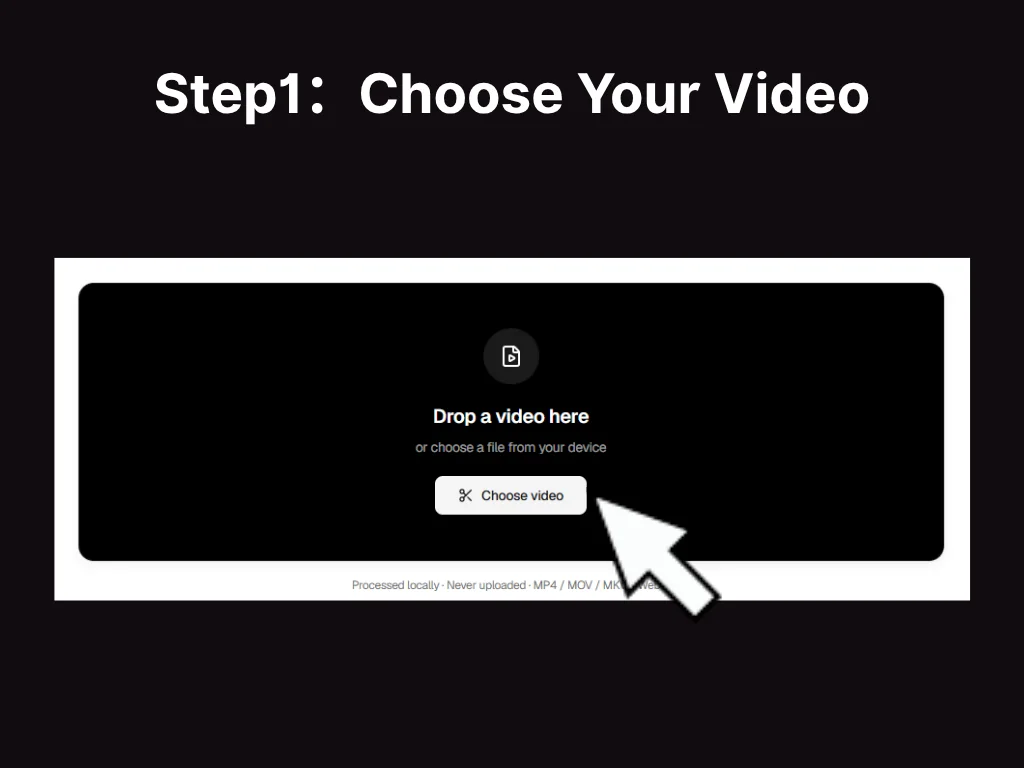
Choose Your Video
Select an MP4, MOV, or MKV video from your device. VideoTube's Video Trimmer will open the file and display its timeline, ready for you to find the section you want to edit.
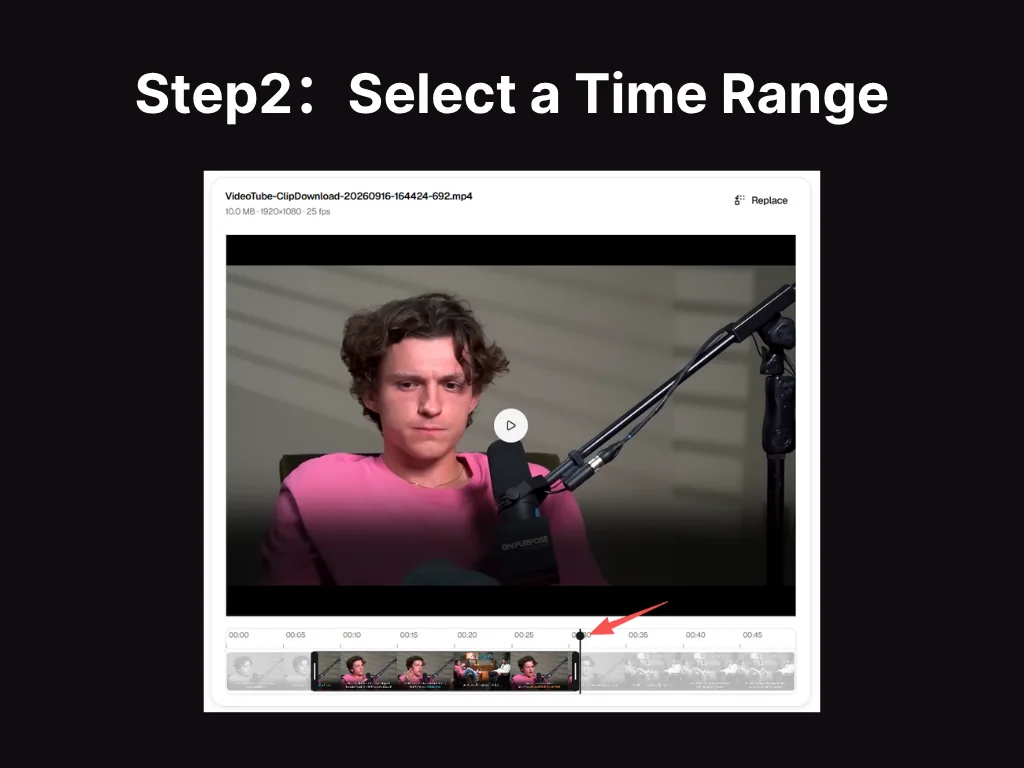
Select a Time Range
Set the exact start and end times on the timeline. You can keep the selected range, remove it, or cut out a middle section and retain the clips on both sides.
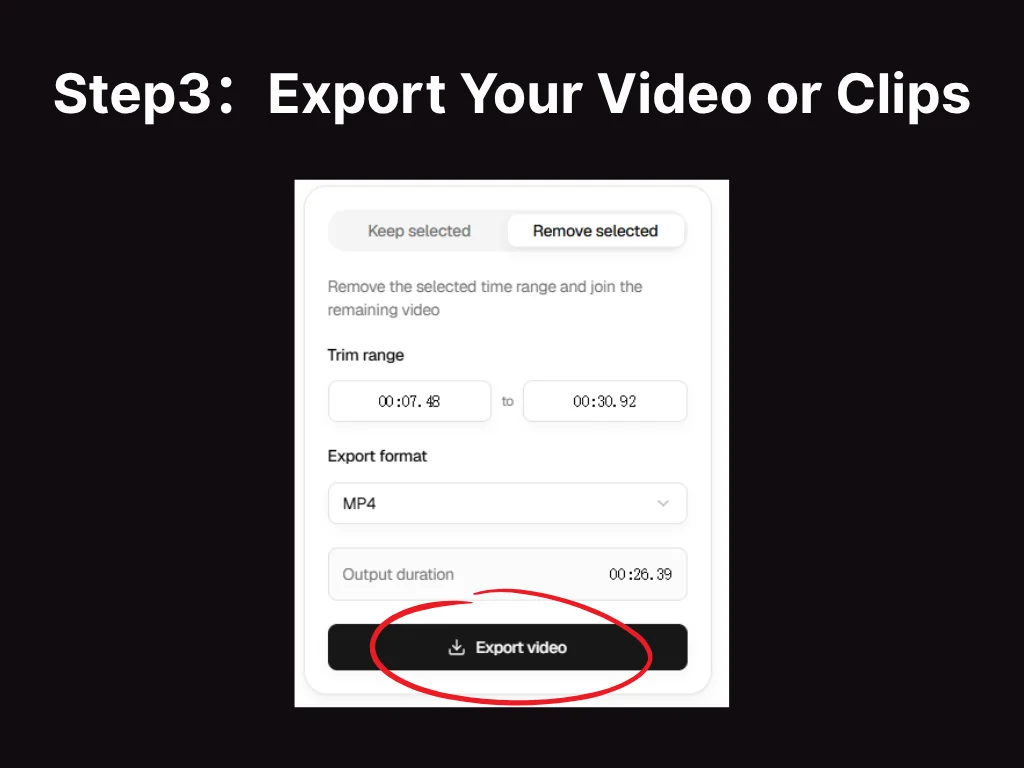
Export Your Video or Clips
Review the selected range, choose MP4, MOV, or MKV as the output format, and export your video or clips. No sign-up is required, and no watermark is added.
Simple and Precise Online Video Trimming
VideoTube's Video Trimmer combines precise timing controls, flexible range selection, and straightforward exporting in one browser-based workflow.
Set Precise Start and End Times
Enter exact start and end times or adjust the timeline to select the section you want to keep or remove.
Keep or Remove the Selected Range
Keep one useful section from a longer recording, or remove an unwanted range while retaining the footage around it.
Keep Your Videos Private
Your video is processed locally in your browser and is not stored on VideoTube's servers by default, helping keep your content private throughout the trimming workflow.
Works with Popular Video Formats
Open and export videos in MP4, MOV, or MKV for easier use across common sharing and editing workflows.
Edit Directly in Your Browser
Trim your video online without installing editing software or creating an account before you begin.
Export Without a Watermark
Download the finished video with no VideoTube watermark added, ready for sharing, teaching, or work.
Use Video Trimmer for Everyday Editing Tasks
Turn long recordings into focused clips, remove moments you do not need, and prepare clearer videos for sharing, teaching, or work.
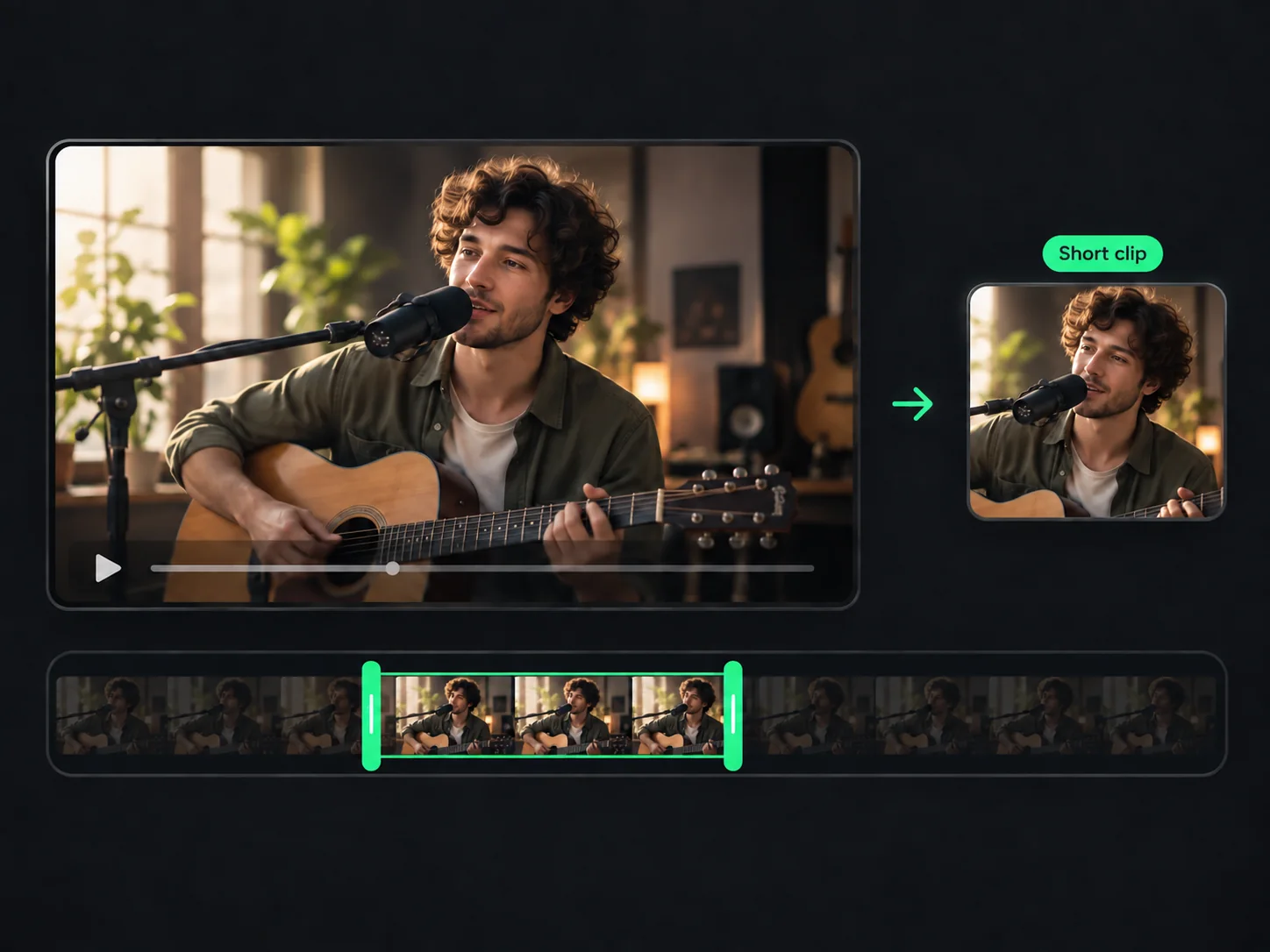
Create Short Clips from Long Videos
Long recordings often contain moments worth sharing on their own. Use VideoTube's Video Trimmer to set the exact start and end of the section you want, then export it as a shorter clip for social feeds, stories, or short-form posts. If you want AI to find the highlights automatically, try VideoTube's AI Clip Maker.
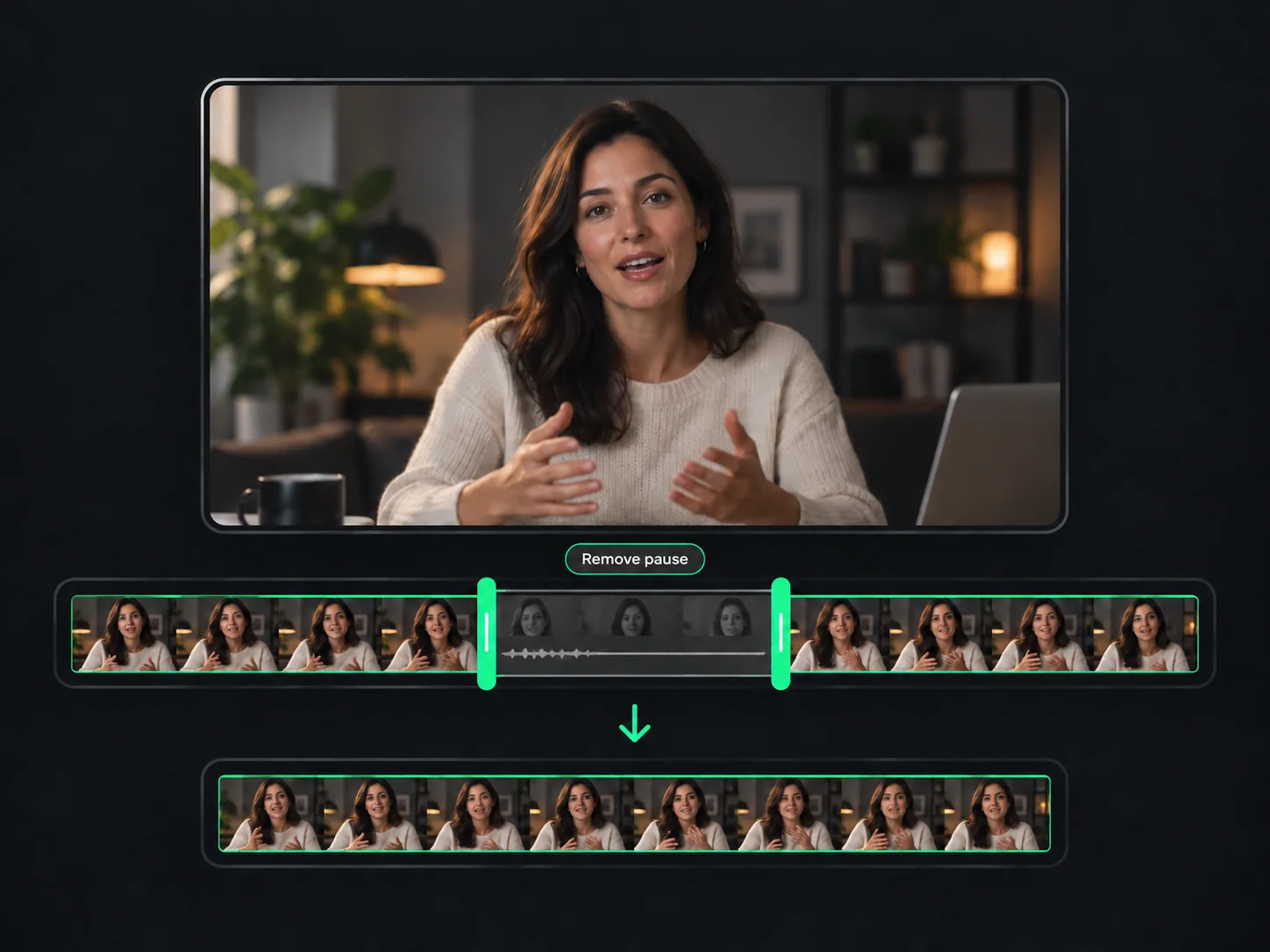
Remove Mistakes and Dead Time
A good take can still include a slow start, a long pause, or a mistake in the middle. Select the unwanted time range and remove it while keeping the useful footage around it. This makes it easier to clean up interviews, webcam recordings, voice-over videos, and casual clips without rebuilding the project in a full editor.
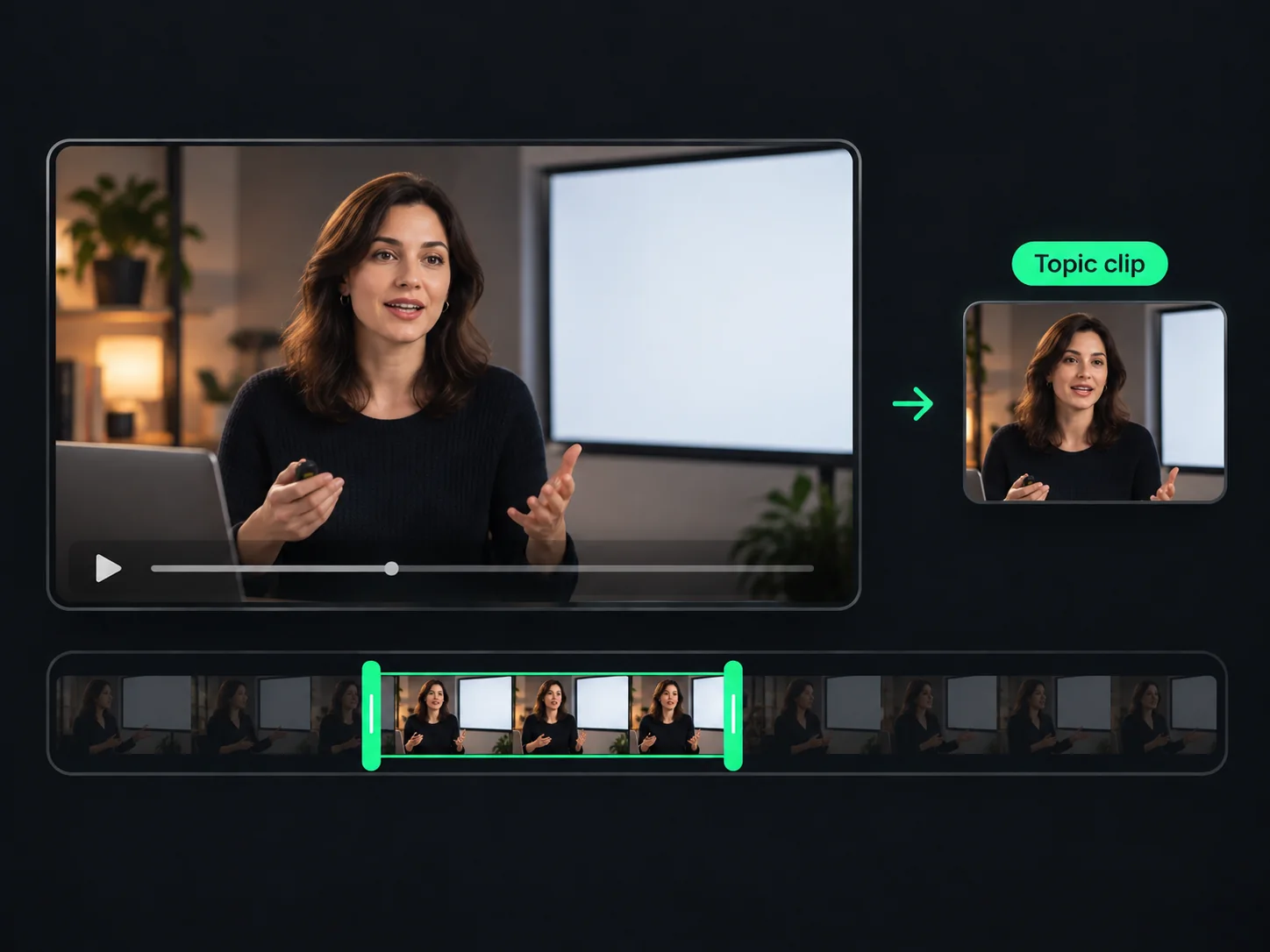
Extract Clips by Topic
Webinars, lessons, meetings, and podcasts are often easier to use as focused clips. Select the start and end of a topic, chapter, or speaker segment, then export it as a separate clip. Repeat the process for other sections you want to save, share, review, or edit individually.
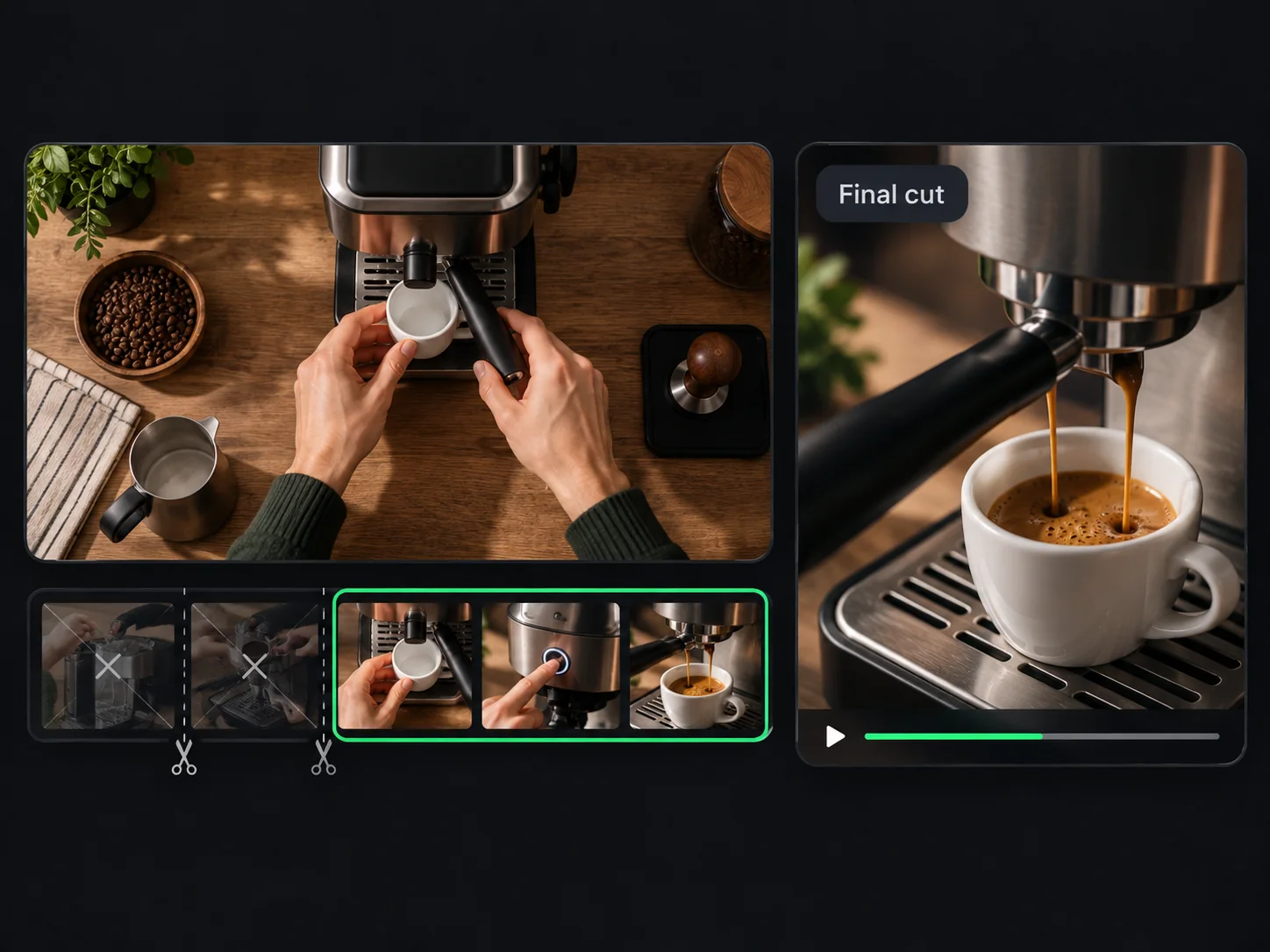
Tighten Demos and Tutorials
Product demos and tutorials work best when viewers reach the useful steps quickly. Trim setup time from the beginning, remove repeated attempts, and cut away anything that does not support the explanation. Video Trimmer helps you keep the sequence clear while producing a shorter clip that is easier to publish, present, or send to a customer.
What Users Say About VideoTube's Video Trimmer
I record long tutorials and often need shorter versions for different posts. VideoTube's Video Trimmer lets me select the exact section I want and export it as a focused clip. I can repeat the process for other moments without opening a full editing suite, which makes preparing content much easier to manage.
Jessica Lee
Content Creator
My online lessons often begin with setup time and include pauses between topics. VideoTube's Video Trimmer helps me remove those parts or select a useful section by setting clear start and end times. I can then export the result in a familiar format without placing a watermark over the lesson.
Aaron Kim
Online Educator
Product demos rarely go perfectly on the first take. I may pause too long, repeat a line, or leave extra footage at the end. VideoTube's Video Trimmer gives me a direct way to remove those moments while keeping the useful explanation. The finished video is easier for customers to follow, and I do not have to record the full demo again.
Maya Rodriguez
Product Marketer
Our podcast recordings contain introductions, guest answers, breaks, and moments we want to share on their own. VideoTube's Video Trimmer makes it easy to select one useful time range and export it as a promotional clip. I can repeat the process for other highlights while keeping the full episode for the main release.
Thomas Wilson
Podcast Producer
After a webinar, different teams often ask for specific sections of the same recording. VideoTube's Video Trimmer lets me select and export the relevant topic instead of sending everyone the full session. I can prepare focused clips for training, follow-up emails, or internal notes through one clear workflow.
Sophia Patel
Training Coordinator
I make simple videos for my shop and do not need a full editing suite for every small change. VideoTube's free online Video Trimmer helps me shorten a recording, remove mistakes, and export the section featuring a particular product. The controls are easy to follow, and I can download the result without creating an account first.
Chloe Nguyen
Small Business Owner
Common Questions About VideoTube's Video Trimmer
Ready to Trim Your Video?
Use VideoTube's Video Trimmer to set exact start and end times, keep the section you need, or remove an unwanted range—with no sign-up and no watermark.