
You’ve found the exact moment you want to share on YouTube. But sending a link still leaves viewers inside the original video. How do you turn that section into a separate clip you can save, edit, and post?
You can clip a YouTube video online with VideoTube in two ways. If you already have the video file and know which section to keep, Video Trimmer lets you select its start and end points. If you want to begin with a YouTube link, AI Clip Maker finds candidate highlights that you can review and refine before exporting.
| Your Starting Point | Choose |
|---|---|
| You have a video file and know which section to keep | Method 1 — set the start and end points manually |
| You have a YouTube link or video file and want help finding highlights | Method 2 — generate, review, and refine AI-suggested clips |
Both methods work in your browser. To start from a YouTube link without downloading the source video first, use Method 2.
Method 1: Trim a Section with VideoTube’s Video Trimmer
An interview answer, a product demonstration, or a specific tutorial step can work as a standalone video. When you already know which section you need, VideoTube’s Video Trimmer helps you keep it and remove the surrounding footage.
This method starts with a file stored on your device. Video Trimmer processes the video locally in your browser without uploading it.
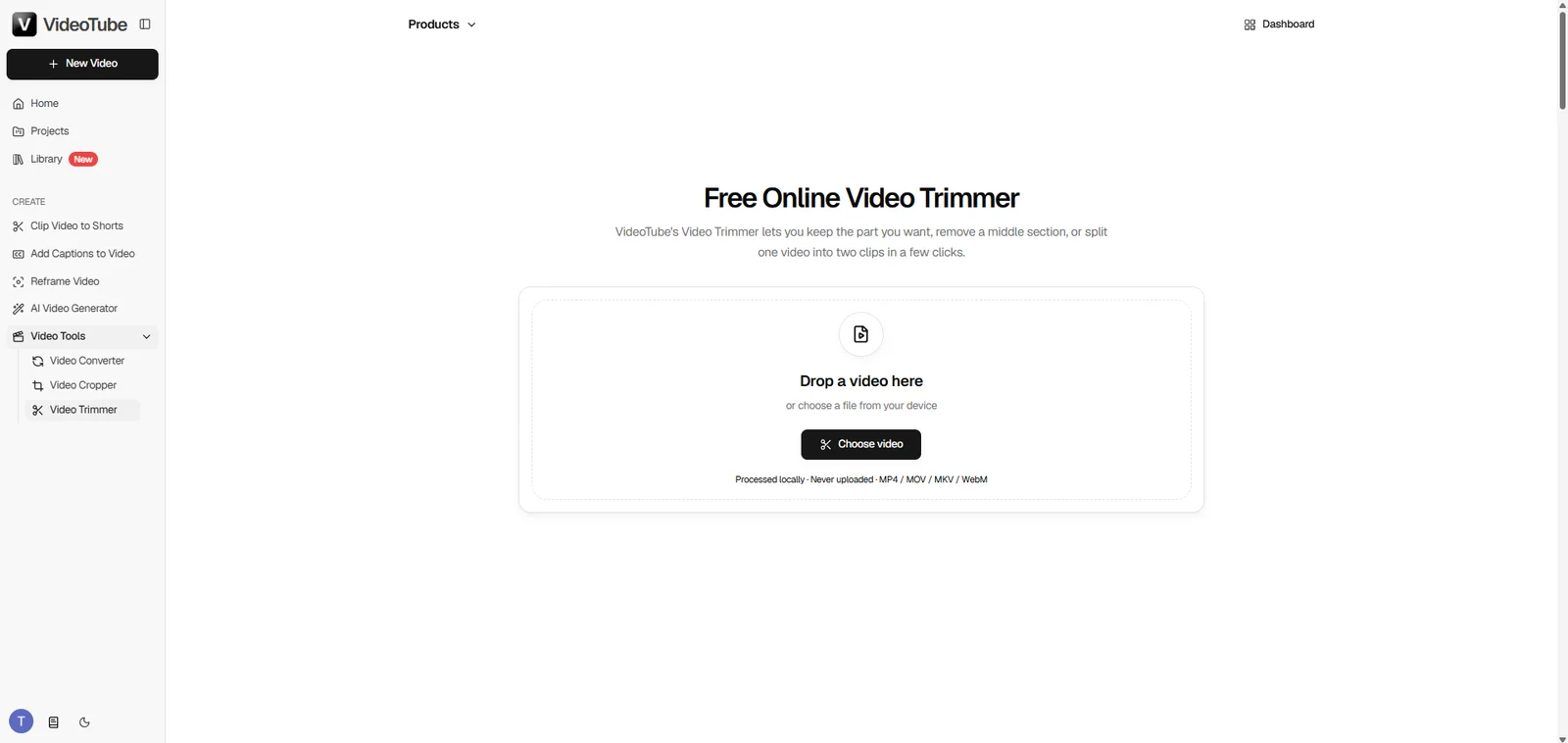
Choose Your Video File
Click Choose video or drag your file into the selection area. Supported formats include MP4, MOV, MKV, and WebM.
Use an original recording, an exported video, or footage you have permission to edit. If you have already published your own video on YouTube, the source file you used for that upload is a convenient starting point.
Set the Start and End Times
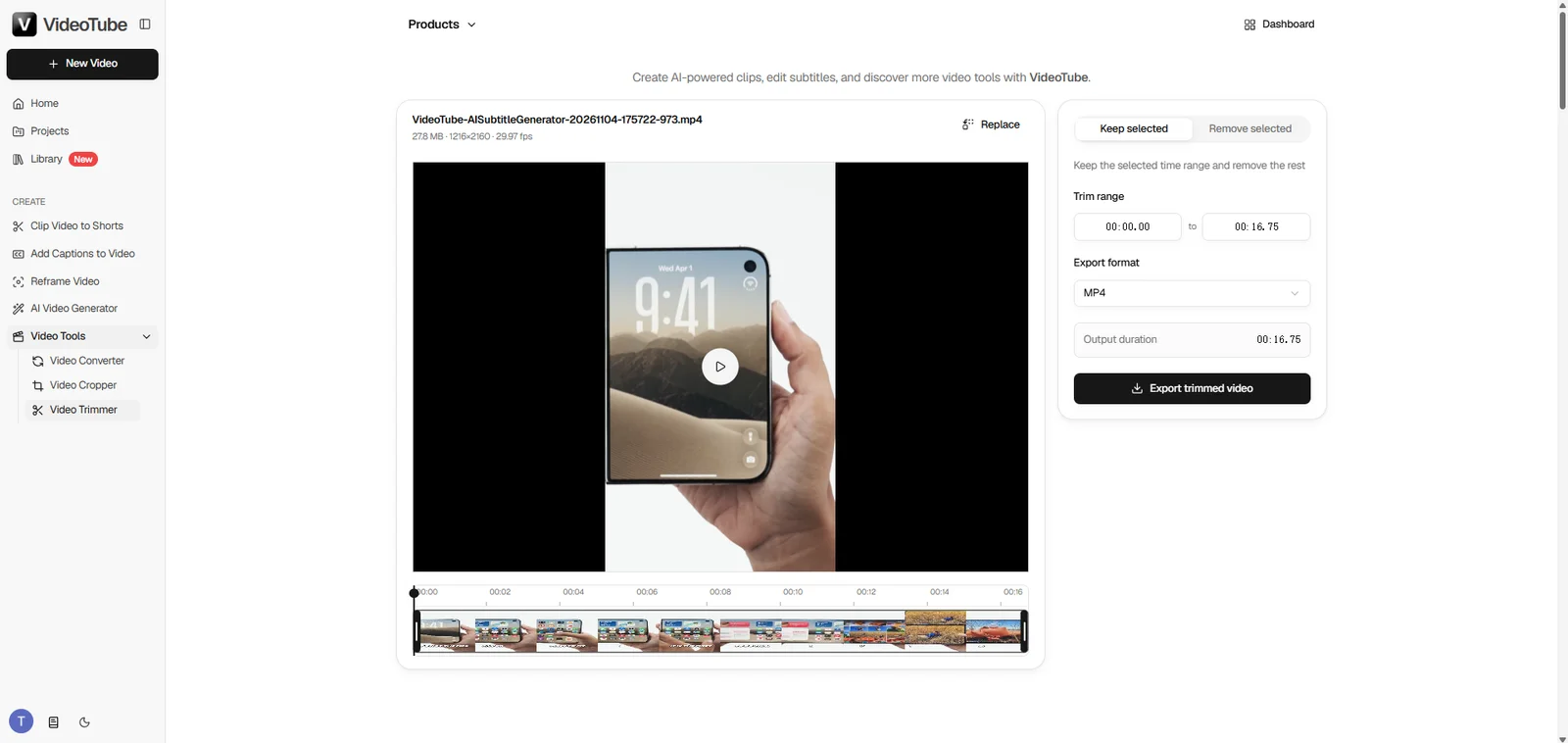
Select the beginning and end of the section you want to keep, then play through both boundaries.
For spoken content, start with enough context for a new viewer to understand the topic. An answer beginning with “That’s why it works” may make sense in the full interview but feel confusing on its own. Including the question or the previous sentence can make the clip easier to follow.
For a tutorial, begin just before the relevant action. Keep the result on screen long enough for viewers to see what changed before ending the clip.
Watch the selection as if you have never seen the original video. Can you identify the topic, follow the explanation, and understand the ending? Adjust the boundaries until the section feels complete.
Preview and Export Your Clip Without a Watermark
Play the selected section from beginning to end. Listen for words cut off at the boundaries, and check that the final sentence or action finishes naturally.
Once the timing feels right, choose your export format—MP4, MOV, or MKV—then click Export trimmed video to download your clip. VideoTube’s Video Trimmer adds no VideoTube watermark, giving you a clean segment for a social post, presentation, or another editing project.
Manual trimming works especially well when your decision is already made. You choose the moment and control exactly where it begins and ends.
Method 2: Create YouTube Shorts with VideoTube’s AI Clip Maker
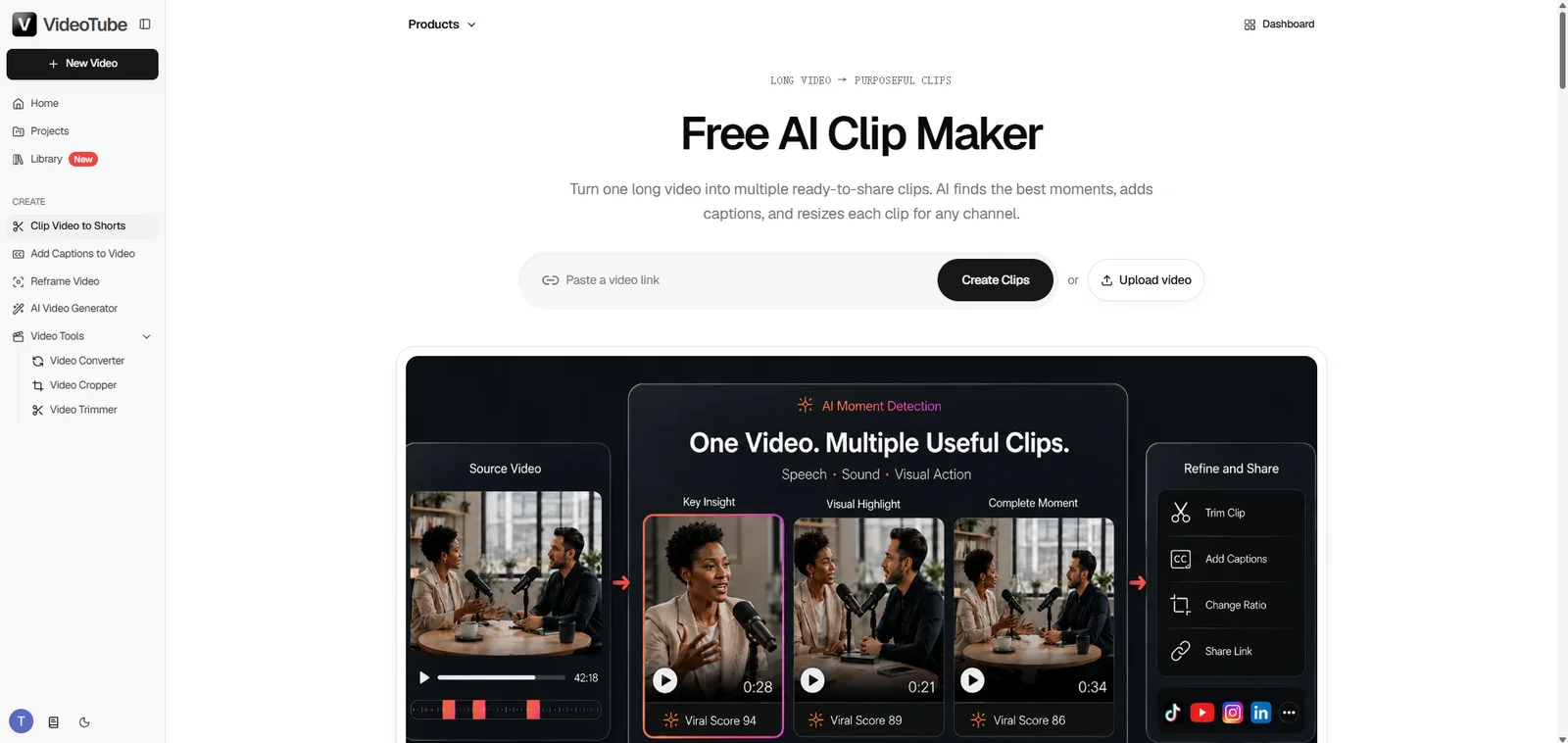
Finding the right section takes more work when you are looking through a long podcast, webinar, interview, or performance. VideoTube’s AI Clip Maker generates candidate highlights so you can focus on comparing moments and choosing what deserves to be published.
It also accepts YouTube links, bringing source import, highlight discovery, and clip refinement into one workflow.
Paste a YouTube Link or Upload a Video
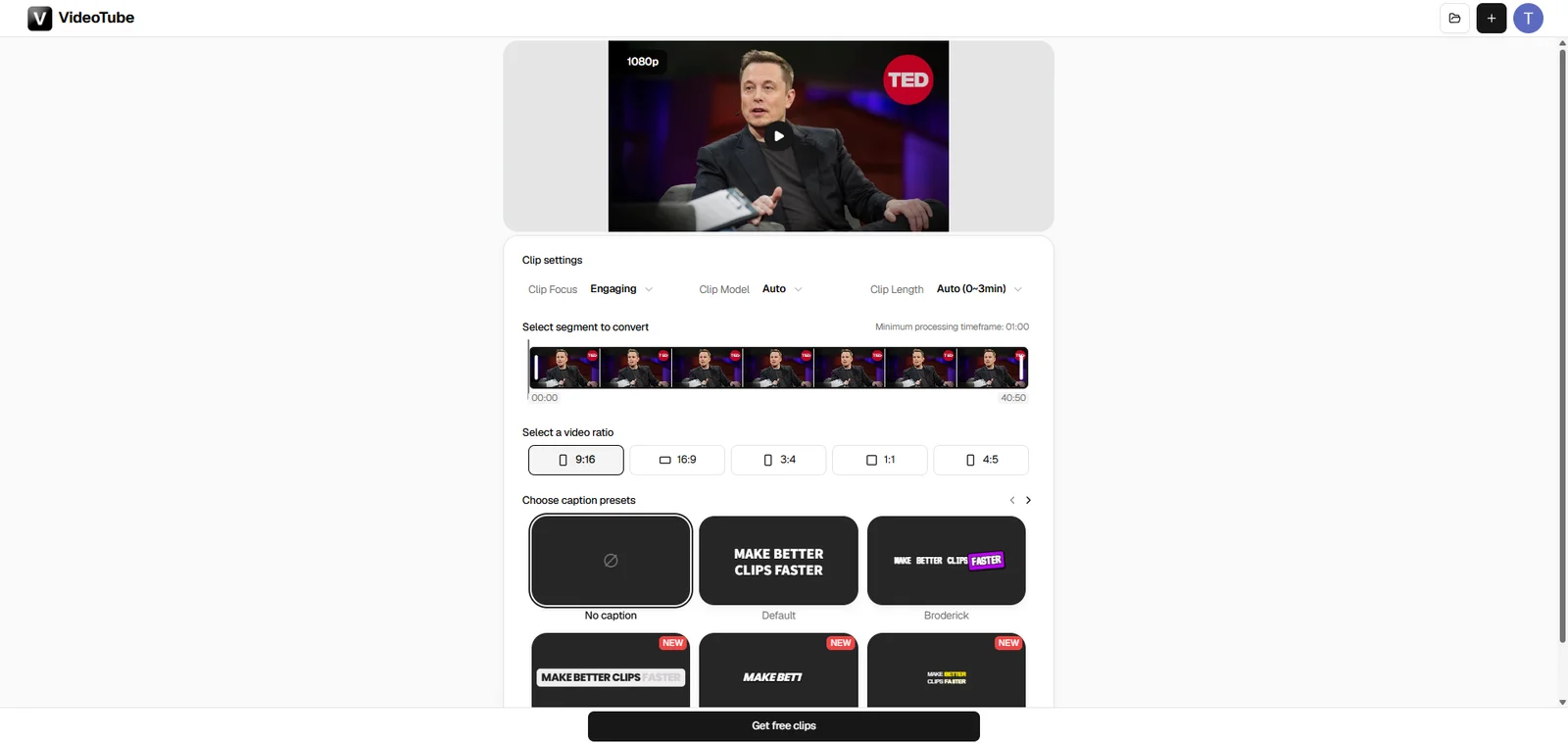
Paste your video URL into the field labeled Paste a YouTube video link, then click Get free clips. To use a recording stored on your device, select Upload files instead.
The link option lets you begin without downloading the YouTube source video first. Use an accessible video you own or have permission to edit.
Set Clip Options and Generate Highlights
In Clip settings, select the source segment you want AI to analyze. For example, if a webinar opens with a lengthy introduction, focus the selection on the discussion that follows.
This range defines the material AI will examine. You can review and refine the resulting clips after generation.
Choose a target clip length, an aspect ratio, and a caption preset. For vertical YouTube Shorts, select 9:16. The settings also offer 16:9, 3:4, 1:1, and 4:5, giving you options for different layouts.
Select No caption to leave out generated subtitles, or choose a caption preset for a consistent visual style. Click Get free clips when the settings are ready.
Review, Refine, and Export Your Clips
Preview the generated clips individually. The results include titles, scores, and Clip Insights, which provide a short explanation of the suggested moment.
Use these details to compare candidates, then check each clip for three things.
-
A clear opening. A new viewer can understand the topic without watching the full recording.
-
One focused idea. The clip delivers an answer, demonstration, story, or reaction.
-
A complete ending. The main point lands before the video stops.
A memorable reaction may depend on a question asked just beforehand. For example, an exchange that begins with “Where are you from?” needs that question to establish the context. Starting later with “Nobody’s from London” would remove the prompt that makes the response easy to follow.
When a suggested clip needs more context, Extend clip lets you adjust the selection using the surrounding transcript and start and end time fields. Bring back the question or detail the opening depends on, then preview the revised clip.
Keep the added context focused. A few extra words can make the story clear without slowing down the opening.
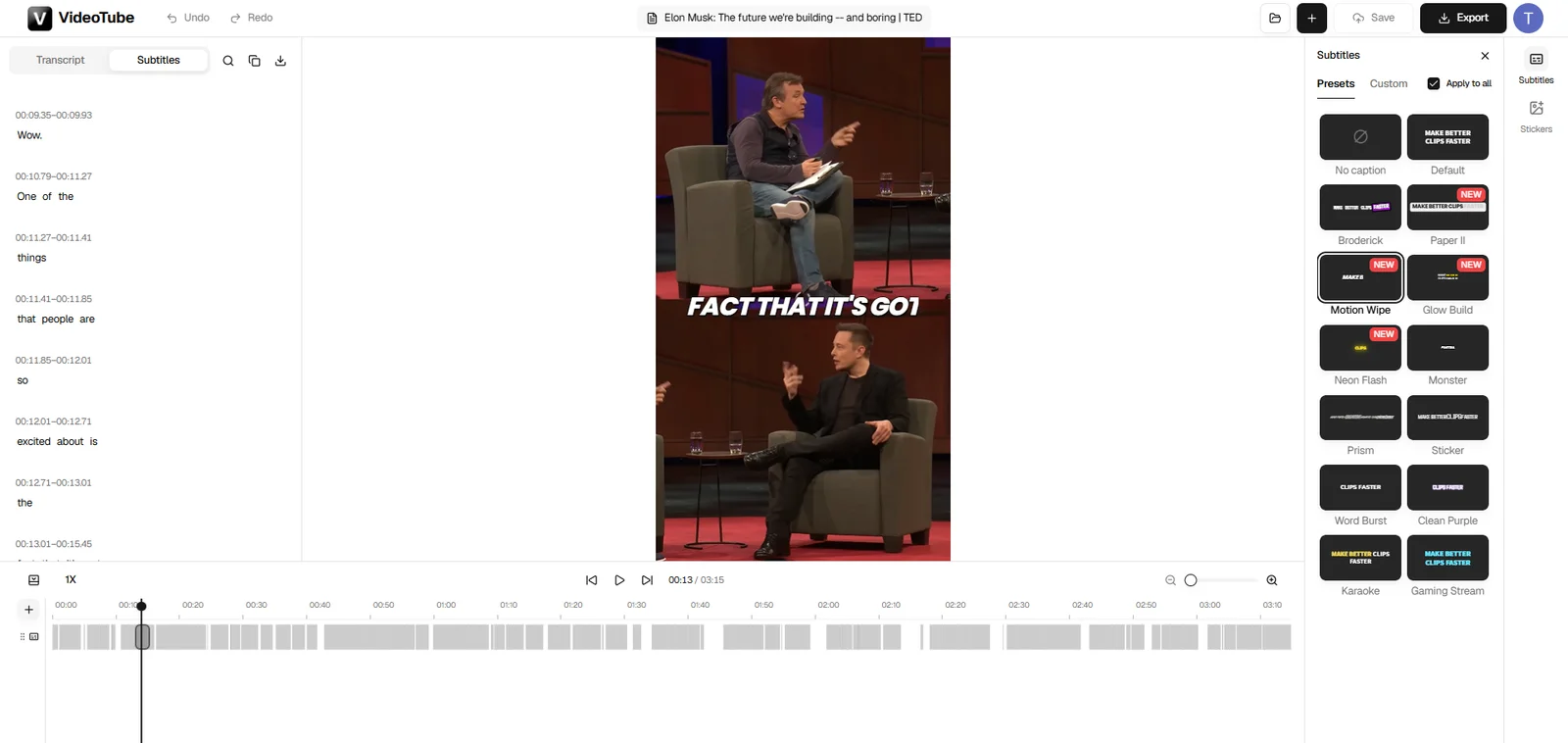
For subtitle adjustments, click the scissors icon to enter the clip editor. The Transcript and Subtitles panels help you follow the spoken content, while the preview shows how the captions appear over the footage.
Check names, specialist terms, and sentence breaks. Choose a readable subtitle preset, and look for text covering a face, a hand movement, or an important part of a demonstration. If the source already has visible captions, check whether adding another layer makes the frame crowded.
Before exporting, watch the complete clip once more. Confirm that the opening makes sense, the subject stays visible, and the ending feels intentional. Then click Export in the editor.
VideoTube keeps highlight discovery and clip refinement together, helping you turn one long recording into selected pieces you can prepare for different channels.
Frequently Asked Questions
Can I Clip a YouTube Video Without Installing Software?
Yes. Both Video Trimmer and AI Clip Maker work in your browser. Video Trimmer starts with an existing video file, while AI Clip Maker also accepts YouTube links.
Can I Export a YouTube Clip for Free Without a Watermark?
Yes. VideoTube offers free clip creation and watermark-free downloads. Video Trimmer exports your selected section without adding VideoTube branding, while AI Clip Maker lets you generate and download clips from supported links or uploaded files.
Does Clipping a YouTube Video Reduce Its Quality?
Clipping does not automatically require a lower resolution, but source quality, processing, and export settings affect the result. Reframing widescreen footage into a vertical clip uses a smaller area of the original image. Start with a clear source, check the framing, and inspect the exported file before publishing.
Why Won’t My YouTube Link Import?
An incorrect URL or restricted access can prevent a link from importing. Check that you copied the video link correctly and that the source is accessible. If you own the recording and have its source file, Upload files gives you another way to continue.
Can I Clip and Repost a YouTube Video I Don’t Own?
You need permission, an applicable license, or another valid basis for using the footage. Giving credit alone does not grant permission, and a short clip does not automatically qualify as fair use. Check the rights covering the video and any music, images, or other material it contains before reposting.
Give your next clip somewhere to go. A clear answer can become a YouTube Short, a product demonstration can work as an Instagram Reel, and a memorable exchange can become a TikTok post. Choose the moment, frame it for the feed, and check that the captions are easy to read.
VideoTube’s Video Trimmer helps you cut the section you already have in mind. For longer recordings, AI Clip Maker finds candidate highlights and helps you prepare them for sharing. Export your selected clips, then upload them to YouTube Shorts, TikTok, Instagram Reels, or the channels your audience uses.