Video Converter – Free Online Batch Conversion to MP4 & More
Batch convert videos to MP4, MOV, MKV or MP3. Set the resolution or quality, then download with no sign-up or watermark.
Choose videos to convert
Add up to 50 videos. They never leave this device.
How to Use VideoTube’s Video Converter
Use VideoTube’s Video Converter to process one video or a batch in three steps, with your choice of output format, resolution, and quality.
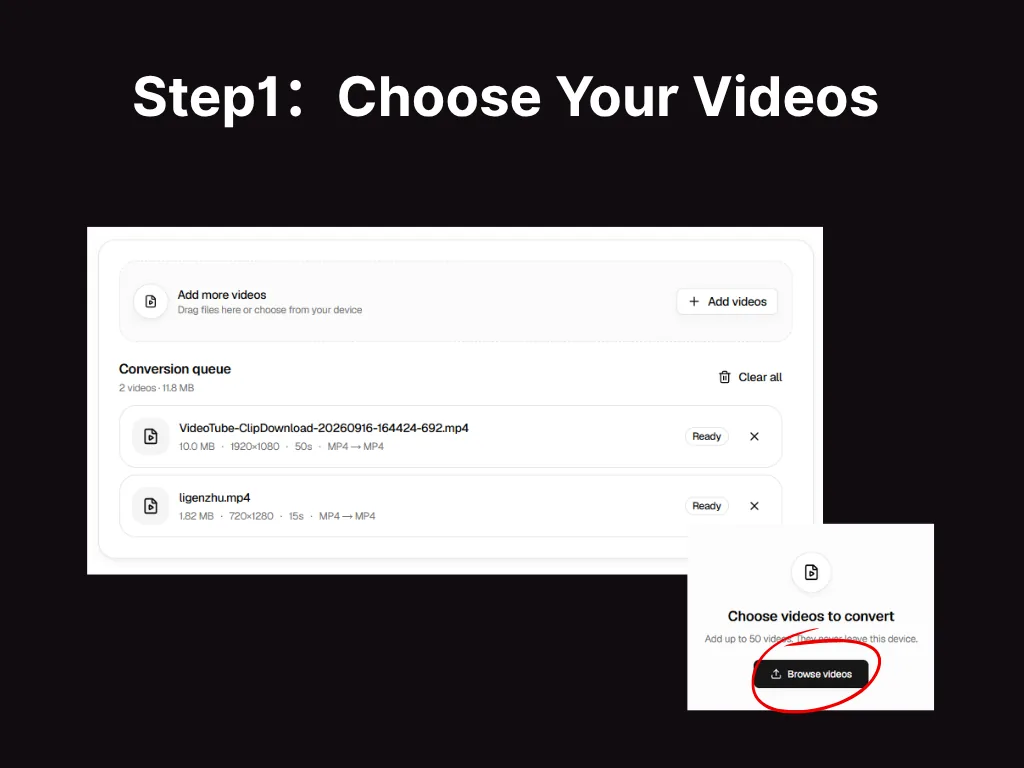
Choose Your Videos
Click Browse videos to add up to 50 files to VideoTube’s Video Converter. Your videos stay on your device throughout the conversion.
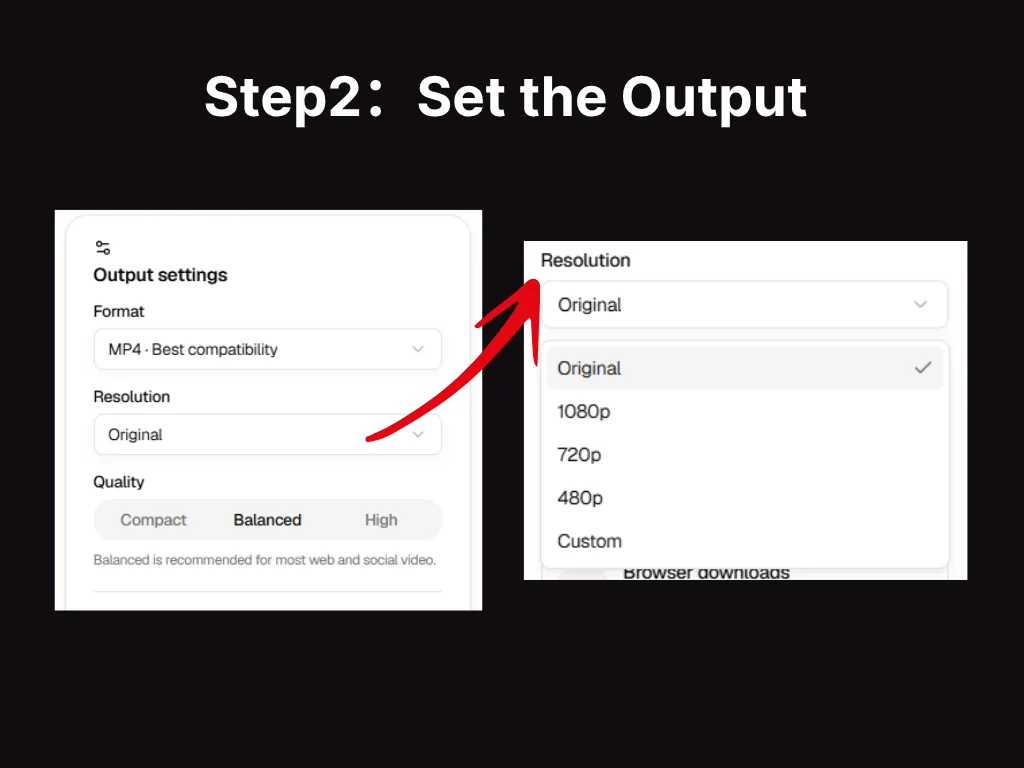
Set Your Output Options
Under Output settings, choose MP4, MOV, or MKV for video, or MP3 to extract audio. For video output, keep the original resolution or select 1080p, 720p, 480p, or Custom, then choose Compact, Balanced, or High quality.
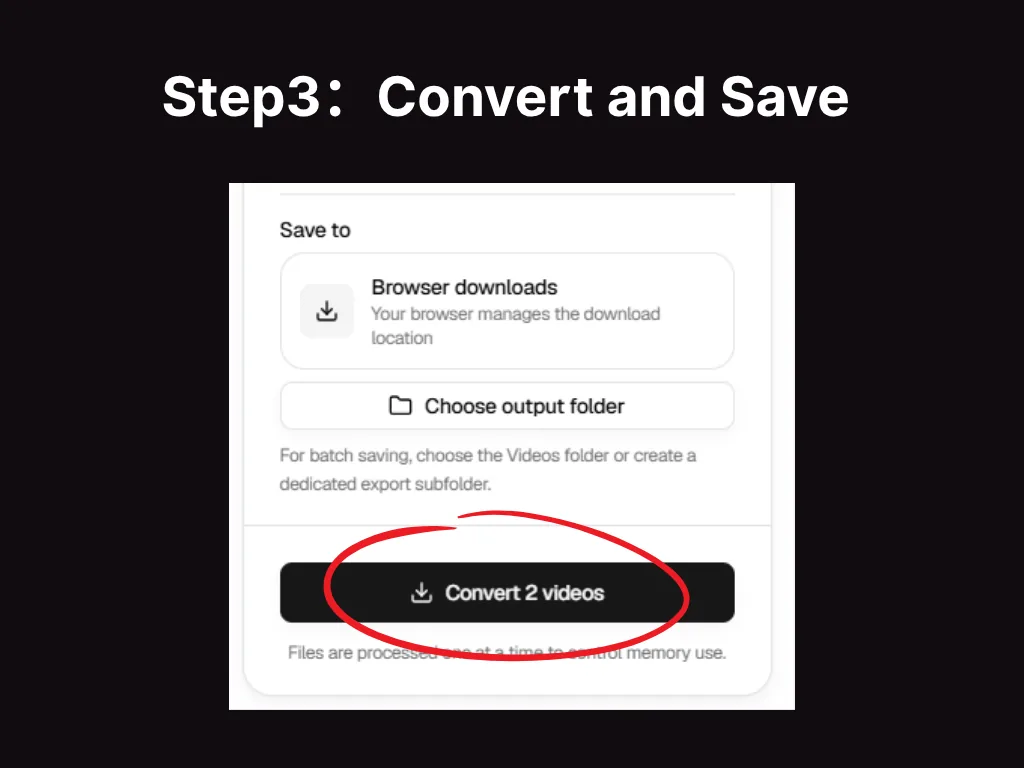
Convert and Save
Use Browser downloads or click Choose output folder to select where to save your files. Then click Convert to start. Videos are processed one at a time until the batch is complete.
Video Converter Features for Everyday Projects
VideoTube's Video Converter brings batch processing, flexible output settings, and direct-to-folder saving into one clear workflow.
Batch Conversion
VideoTube’s Video Converter supports up to 50 videos per batch with shared output settings, reducing repetitive work when preparing files for publishing or delivery.
Video & Audio Output
Video Converter supports MP4, MOV, and MKV output, plus MP3 audio extraction for recordings, interviews, and lessons.
Resolution Options
Keep the original resolution or choose 1080p, 720p, 480p, or a custom size to match your screen, platform, or project.
Quality Controls
Video Converter offers Compact, Balanced, and High quality presets to balance visual detail and file size. These options suit different needs, from review copies to videos prepared for publishing. Final quality and file size depend on the source footage and output settings.
Flexible File Saving
Download completed files through your browser or save the full batch directly to a folder you choose.
Private Processing
VideoTube’s Video Converter processes videos locally in your browser. Your source files stay on your device without being uploaded to a remote server.
What You Can Do with VideoTube’s Video Converter
VideoTube’s Video Converter helps existing recordings fit new uses—from playback and audio listening to client delivery and social sharing.
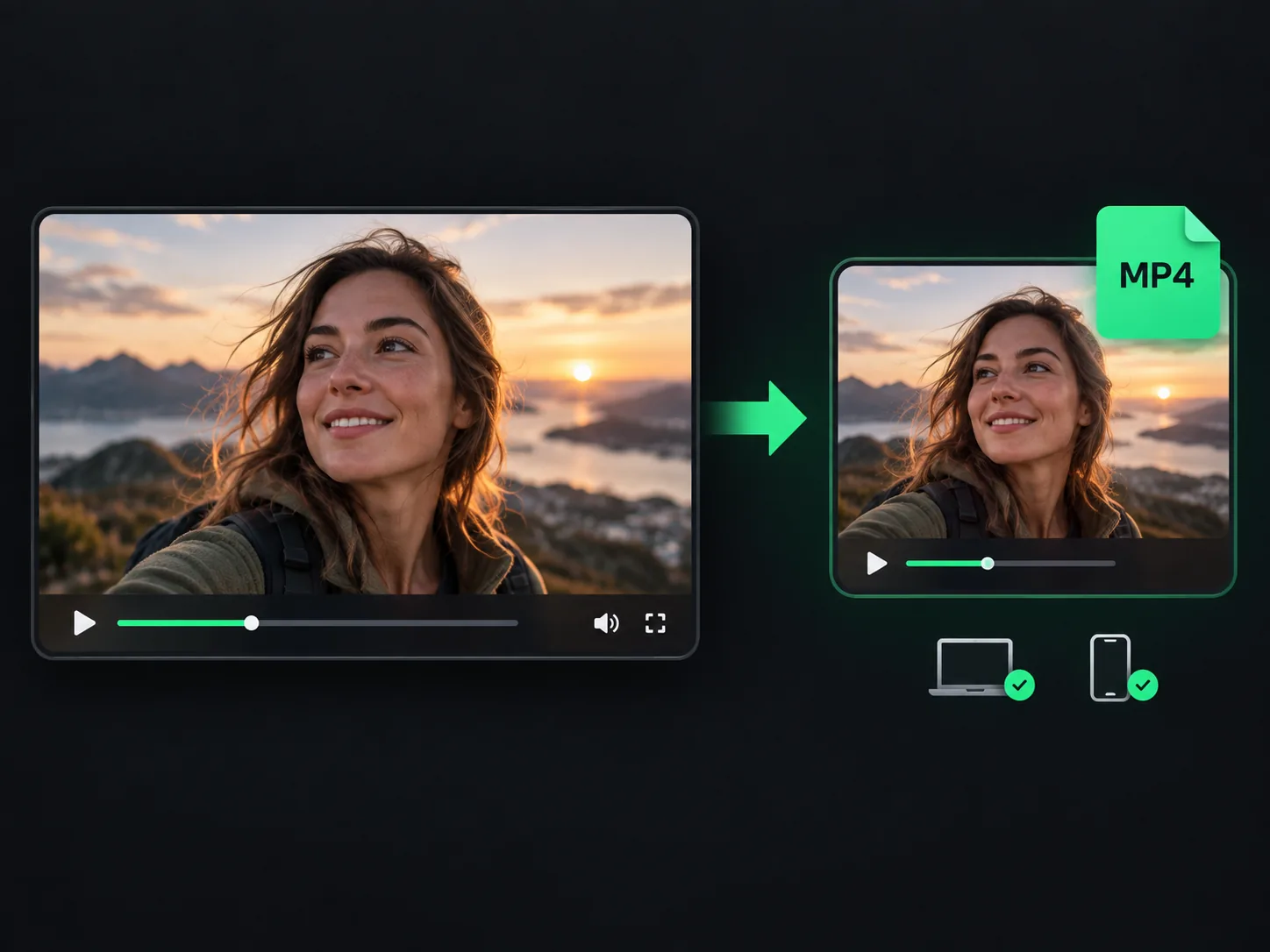
Prepare Videos for Playback and Editing
Video Converter helps you prepare MP4 copies for playback and sharing, MOV files for Apple-based workflows, or MKV files for projects that accept that format. The right output format depends on the device or software you plan to use.
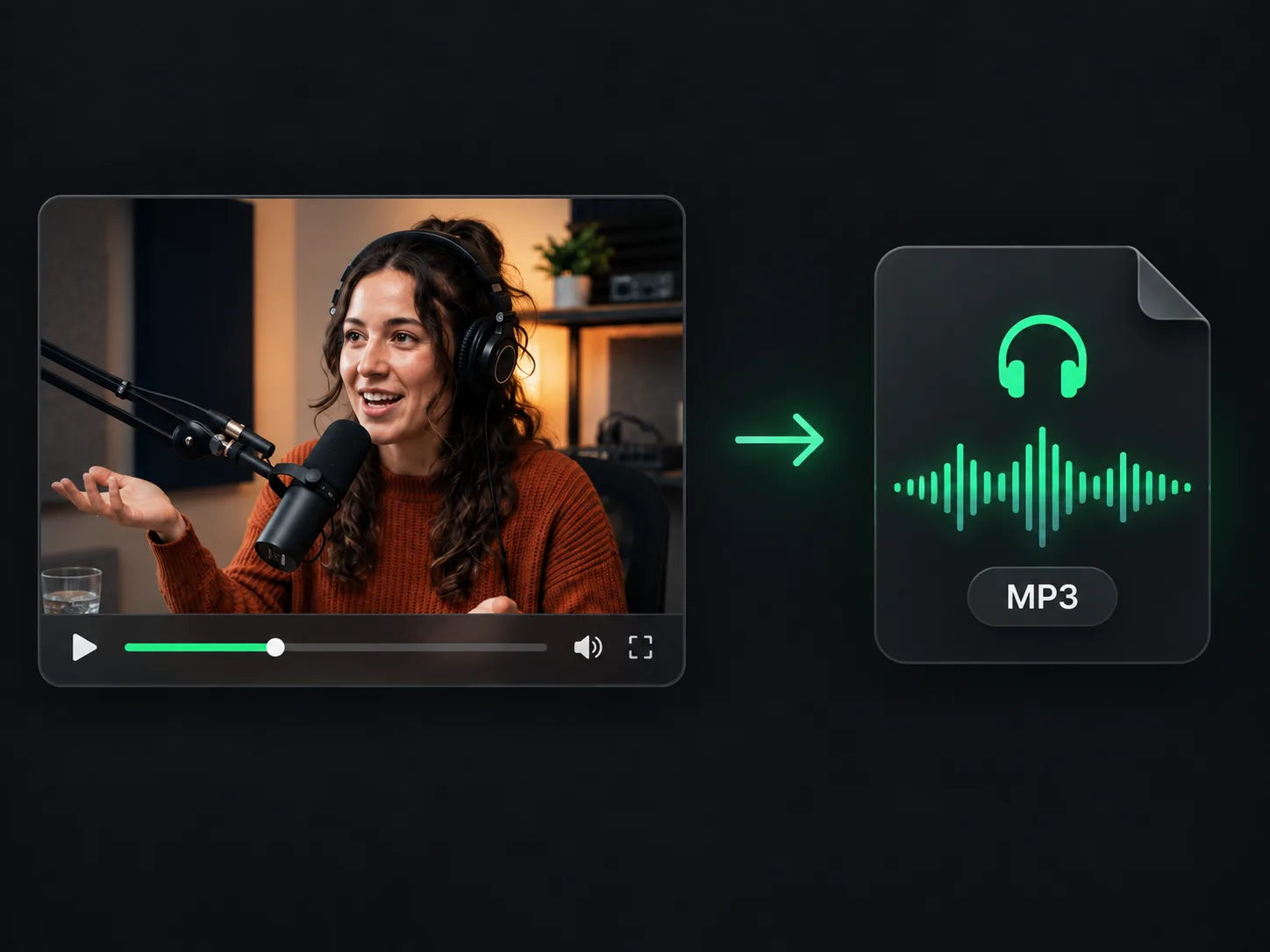
Turn Recordings into Audio You Can Take Anywhere
Talks, interviews, lessons, and presentations can be useful beyond the screen. MP3 extraction creates an audio-only version for listening on the go, reviewing a discussion, or editing in an audio application.
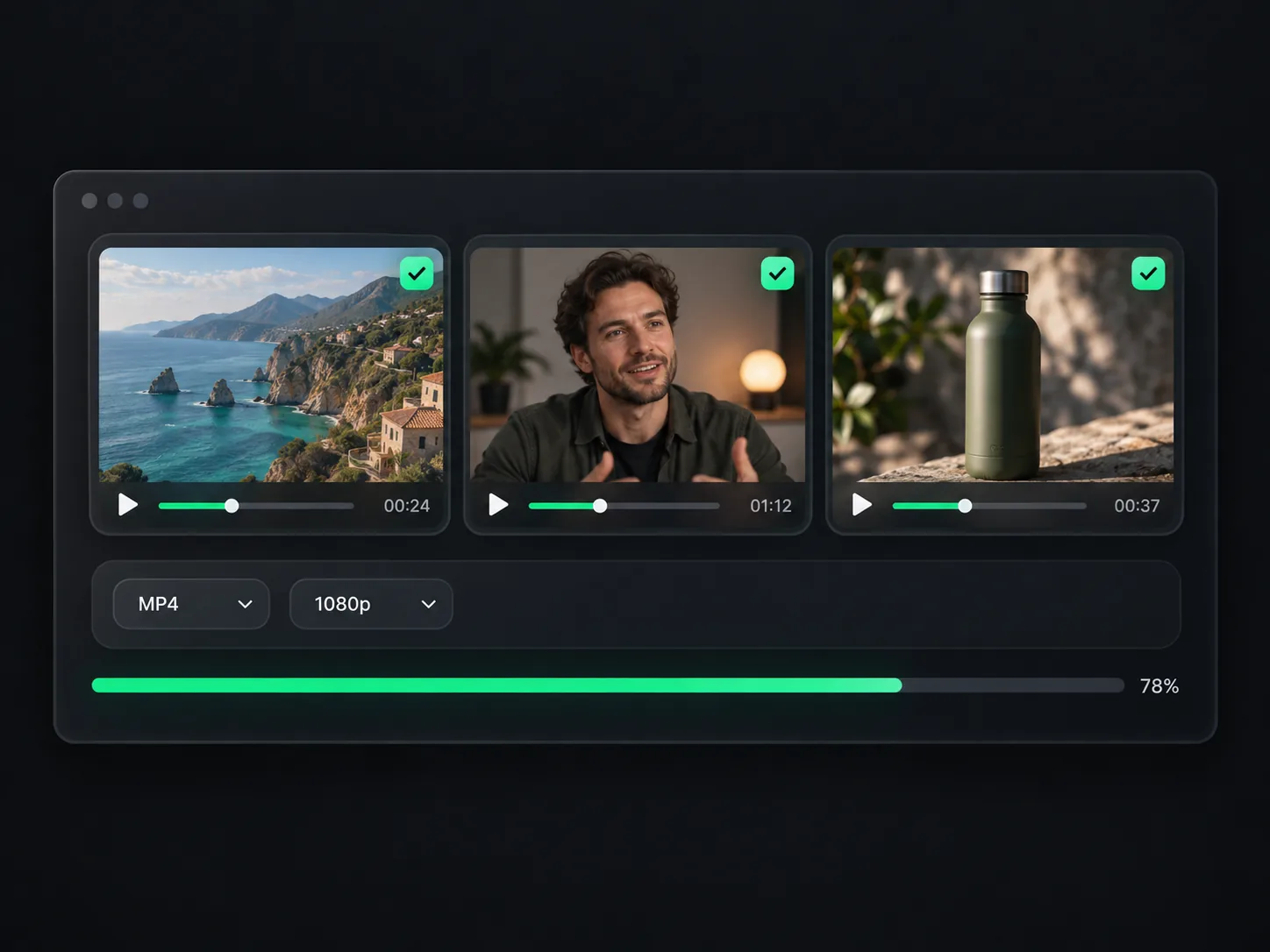
Prepare Consistent Files for Delivery
Video Converter helps you prepare batches with consistent output settings for publishing, client delivery, or archiving. Support for up to 50 files reduces repetitive setup when several recordings need the same format, resolution, and quality.
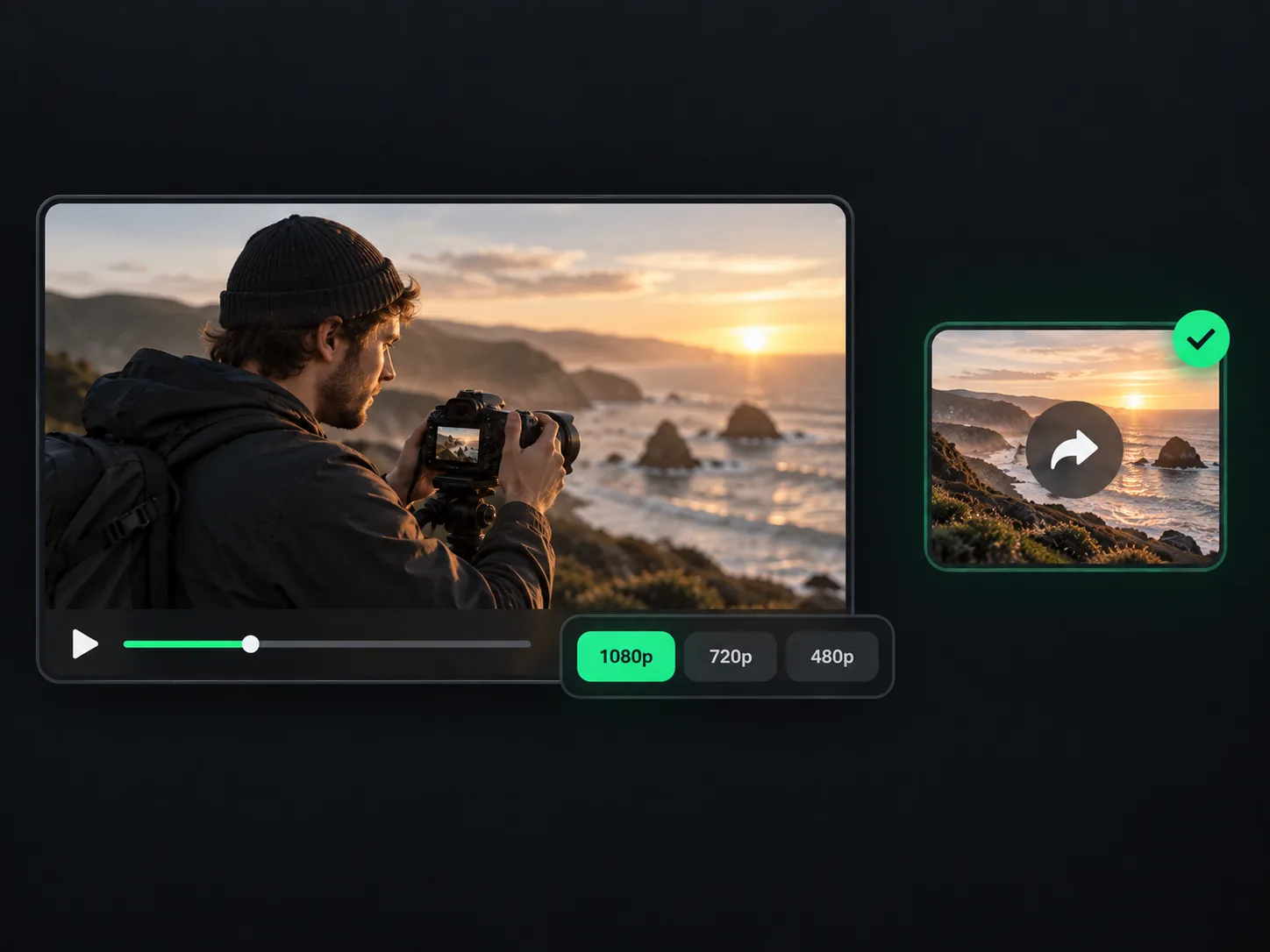
Adapt Videos for Sharing and Social Posts
Video Converter provides resolution and quality options for presentation copies, quick drafts, and social posts. When the frame also needs adjusting, use Video Cropper to remove unwanted edges or change the aspect ratio. For shorter highlights from longer recordings, continue with AI Clip Maker.
What Users Say About VideoTube’s Video Converter
Preparing several clips used to mean repeating the same export setup for each file. VideoTube’s Video Converter lets me apply one set of output settings to a batch, which makes preparing a collection for publishing more straightforward.
Jordan Lee
Content Creator
For client reviews, I usually need a practical viewing copy rather than my original recording. Having format, resolution, and quality options together helps me prepare a version for review while keeping the source file for later work.
Maya Rodriguez
Marketing Coordinator
Some of my lessons work well as audio, especially when students want to listen while travelling. I use VideoTube’s Video Converter to create MP3 versions without having to prepare a separate audio-editing project.
Aisha Khan
Online Educator
Keeping finished files together matters when I’m handling several projects. Saving a converted batch to a dedicated folder makes the results easier to find, check, and hand over without mixing them with unrelated downloads.
Samuel Parker
Freelance Video Editor
I don’t need the same output for a quick draft and a video I’m preparing to publish. The quality presets give me a straightforward starting point, and I can check the result before deciding which version to use.
Chloe Nguyen
Small Business Owner
I prefer to keep internal training recordings on my own device. The local processing in VideoTube’s Video Converter suits that workflow, and I can prepare the files without uploading the source recordings to a conversion server.
Taylor Williams
Training Coordinator
Video Converter FAQs
Ready to Convert Your Videos?
Use VideoTube's Video Converter to process up to 50 files in a batch, choose MP4, MOV, MKV, or MP3 output, and save finished files without signing up. Video exports include no VideoTube watermark.